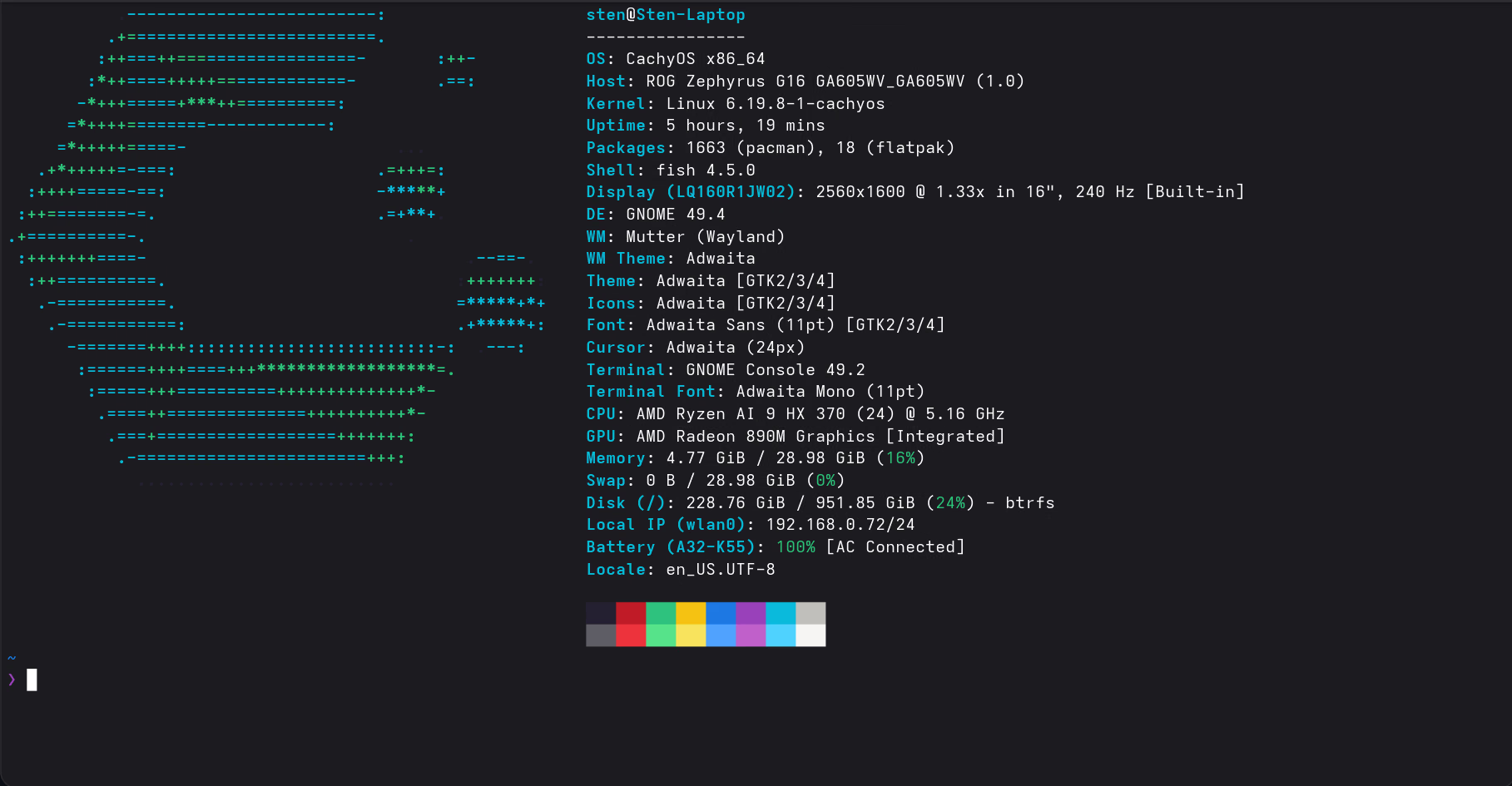
Applications
Everything I installed after the initial CachyOS setup. Organized loosely by category. Most of this is personal preference, but the Brave and libinput-config sections include non-obvious workarounds that aren’t documented elsewhere.
Package sources
On CachyOS there are three places to get software from. When looking for an application, check them in this order:
CachyOS packages: CachyOS’s own repository, built on top of Arch. Packages here are optimized for modern CPUs (x86-64-v3/v4) and include CachyOS-specific patches. Install with
sudo pacman -S <package>.AUR (Arch User Repository): community-maintained build scripts for software not in the official repos. Install with an AUR helper like
paru -S <package>. Quality varies per package but the AUR covers almost everything.Flathub: Flatpak packages that bundle all their own dependencies. Install with
flatpak install flathub <app-id>, run withflatpak run <app-id>.
Native (pacman/paru) vs Flatpak: which to choose?
| Native (pacman/paru) | Flatpak | |
|---|---|---|
| Performance | Better (uses shared system libraries) | Slightly worse (bundles own libraries) |
| Integration | Tight (full system access) | Sandboxed (more isolated) |
| Size | Smaller | Larger |
| Compatibility | Depends on distro | Consistent across distros |
| Security | Standard | Better sandboxing |
Native packages offer better performance and system integration. Flatpaks trade some efficiency for compatibility and sandboxing. The choice is yours per application; both work fine on CachyOS.
Initial System Setup
Set the hostname
Nothing special here, just set the hostname via System Settings so the machine has a proper name on the network.
GNOME window buttons: adding minimize & maximize back
By default, GNOME 49 only shows the close button. One command fixes it:
gsettings set org.gnome.desktop.wm.preferences button-layout 'appmenu:minimize,maximize,close'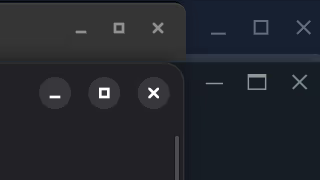
GNOME keyboard shortcuts: making it feel more like Windows
Coming from Windows, some things feel off without the right shortcuts. These are the ones I set up to make the transition smoother.
Built-in shortcuts (via Settings > Keyboard > Keyboard Shortcuts):
| # | Action | Shortcut |
|---|---|---|
| 1 | Show desktop (hide all windows) | Super+D |
| 2 | Take a screenshot interactively | Shift+Super+S |
| 3 | Record a screencast interactively | Shift+Super+R |
| 4 | Open Settings | Super+I |
Custom shortcut (via Settings > Keyboard > Keyboard Shortcuts > Custom Shortcuts):
| # | Action | Command | Shortcut |
|---|---|---|---|
| 5 | Open file manager | nautilus | Super+E |
| 6 | Emoji picker | flatpak run it.mijorus.smile | Copilot key |
GNOME doesn’t have built-in shortcuts for the file manager or an emoji picker, so these need to be created manually. See Smile for how the Copilot key is used.
GNOME window focus: apps opening in the background
By default, GNOME won’t bring a newly opened window to the front. Instead, it queues it in the background and shows a notification saying the app is ready. The reasoning is fair: don’t interrupt what you’re already doing. In practice it’s mostly just annoying.
There is a gsettings key that’s supposed to control this:
gsettings set org.gnome.desktop.wm.preferences focus-new-windows 'smart'The default is strict (never auto-focus new windows). smart is supposed to let GNOME decide and bring new windows to the front. In practice, this alone is not reliable. Windows still end up minimized in the background in many cases, because the underlying issue is that apps need to implement the XDG Activation protocol to properly request focus, and many don’t. The GNOME Shell dev blog has a thorough write-up on why this is fundamentally broken for a large part of the app ecosystem.
The fix that actually works is applying both settings together: the gsettings key above, plus enabling Window Demands Attention Focus in the Just Perfection GNOME Shell extension. In its Behavior tab:
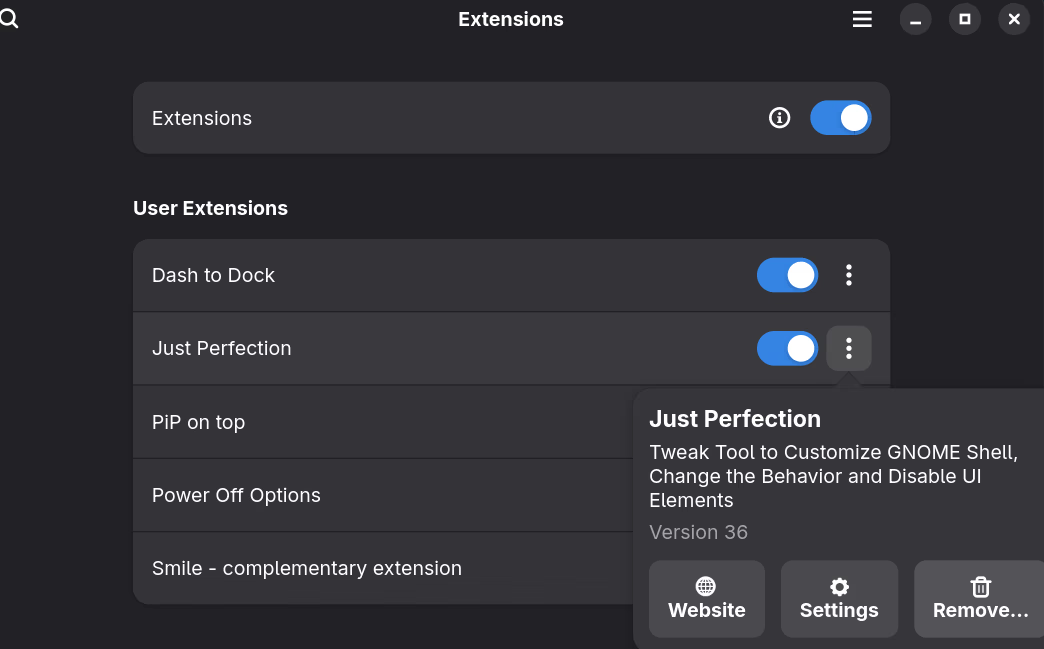
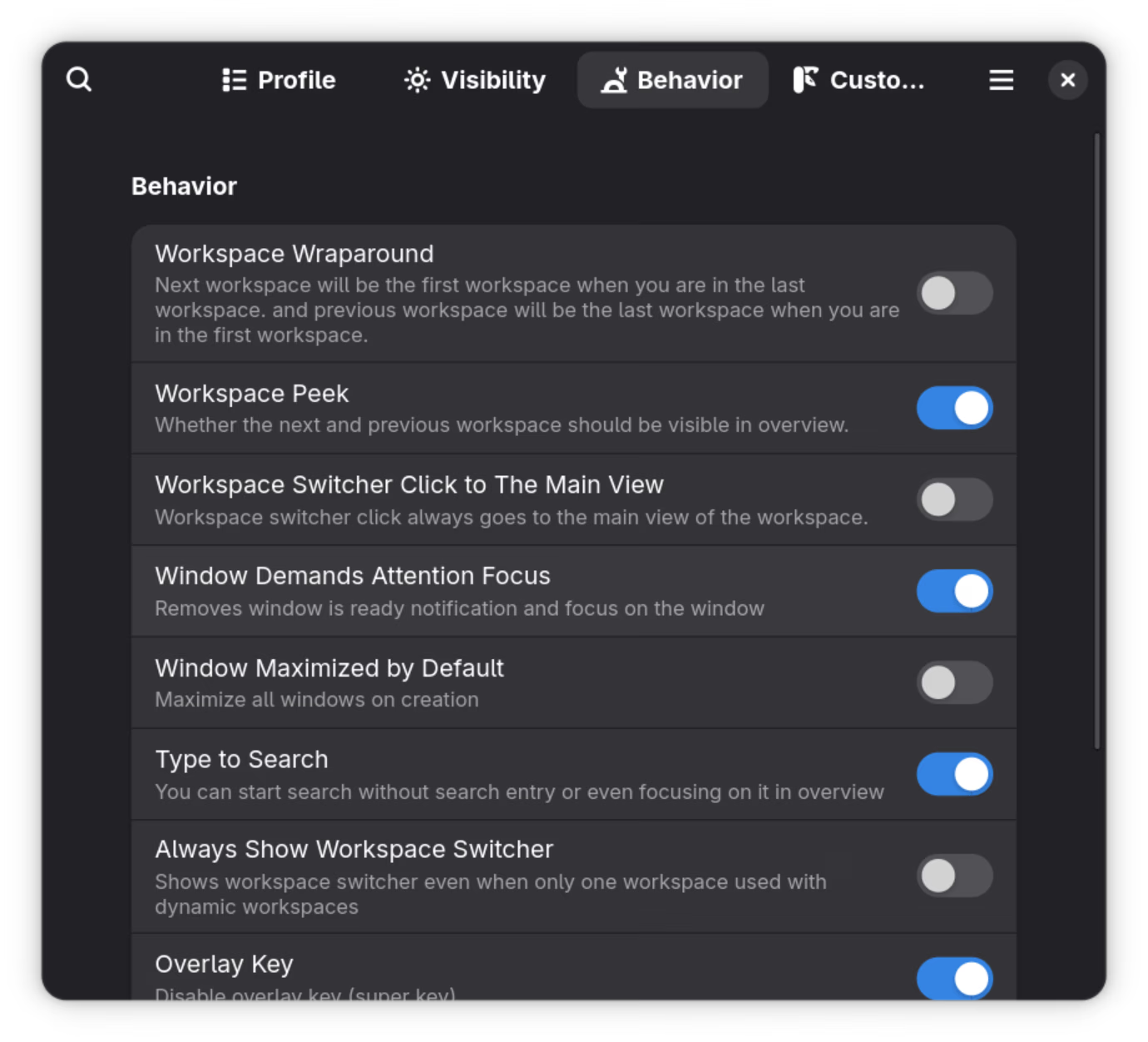
Using Just Perfection alone without the gsettings change may still leave edge cases. Using only gsettings is not enough for apps that don’t implement the activation protocol. Both together covers the vast majority of cases.
Touchpad scroll speed: no native GNOME setting (yet)
As of GNOME 49, there is simply no native setting for touchpad scroll speed anywhere in the Settings panel. KDE Plasma has had this for years. There are merge requests open in mutter and GNOME Control Center to add it, but they’ve been sitting there for years. See the GNOME Discourse thread for context.
libinput-config by lz42 is a third-party workaround that intercepts libinput events and applies a scroll multiplier.
Install (one-time):
# 1. Install dependencies
sudo pacman -S meson ninja libinput git

# 2. Clone libinput-config
git clone https://github.com/lz42/libinput-config.git
cd libinput-config

# 3. Build
meson setup build
ninja -C build

# 4. Install system-wide
sudo ninja -C build install

# 5. Cleanup (optional)
cd ..
rm -rf libinput-config
Configuration for slower touchpad scroll:
sudo tee /etc/libinput.conf >/dev/null << 'EOF'
# libinput-config configuration
override-compositor=enabled

# Make touchpad scroll slower (lower = slower)
# Default: 1.0, tested value: 0.25
scroll-factor=0.25

# Keep mouse wheel behavior normal
discrete-scroll-factor=1.0
EOF
Log out and back in (or reboot), then adjust scroll-factor to your liking.
Rollback:
sudo rm /etc/libinput.confBrowser
Brave
I use Brave as my main browser. I started with the Flatpak version but switched to the native package, which integrates better with the system and offers better performance.
- Native (pacman): Better system integration, better performance. This is what I use.
- Flatpak: Might work better in some situations, but feels a bit more isolated.
Installation
brave-bin on CachyOS packages: available directly in the CachyOS repo, no AUR helper needed.
sudo pacman -S brave-bin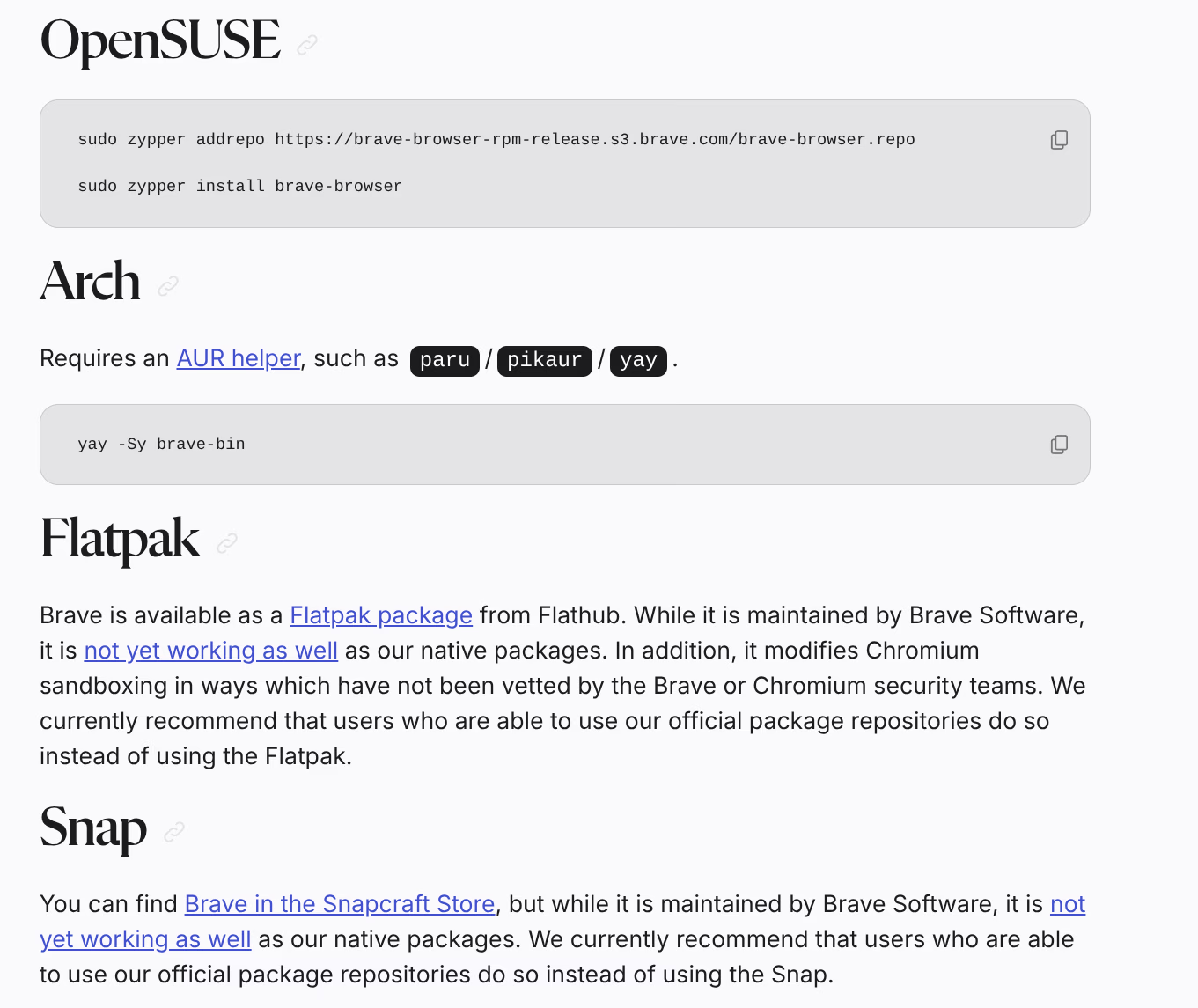
Hardware acceleration works fine with current Brave and kernel versions. The crash bugs that affected Brave 1.82–1.86 are resolved. See Known Issues for the history.
Flatpak alternative
If the native package causes issues:
flatpak install flathub com.brave.BrowserCommunication & Productivity
Bitwarden
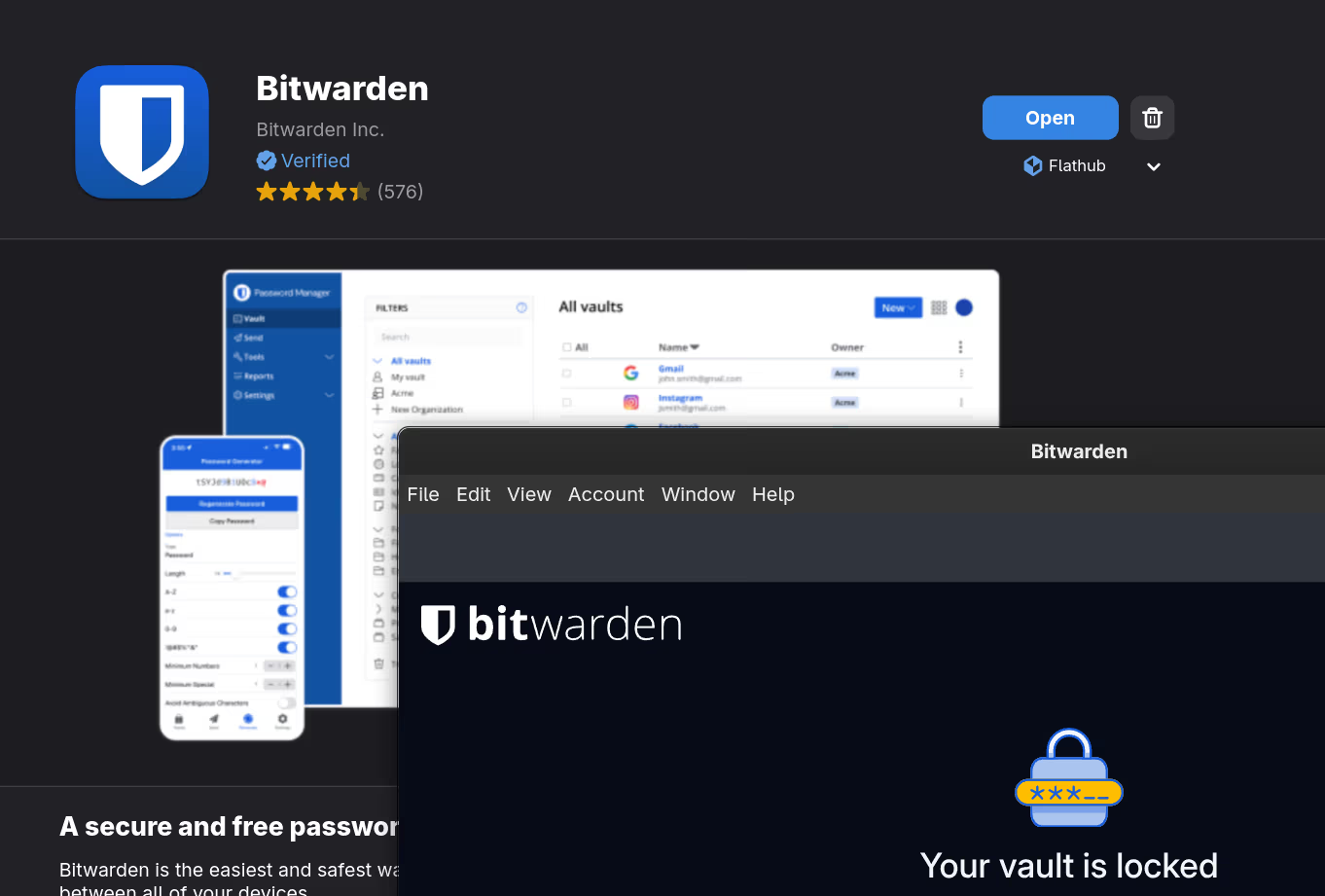
Password manager. Available via Flathub and works well.
Signal Messenger
Signal is my main messaging app. The CachyOS extra repository ships a native package, which is what I use; it works better than the Flatpak.
CachyOS / Arch (recommended):
sudo pacman -S signal-desktopFlatpak (alternative):
flatpak install flathub org.signal.Signal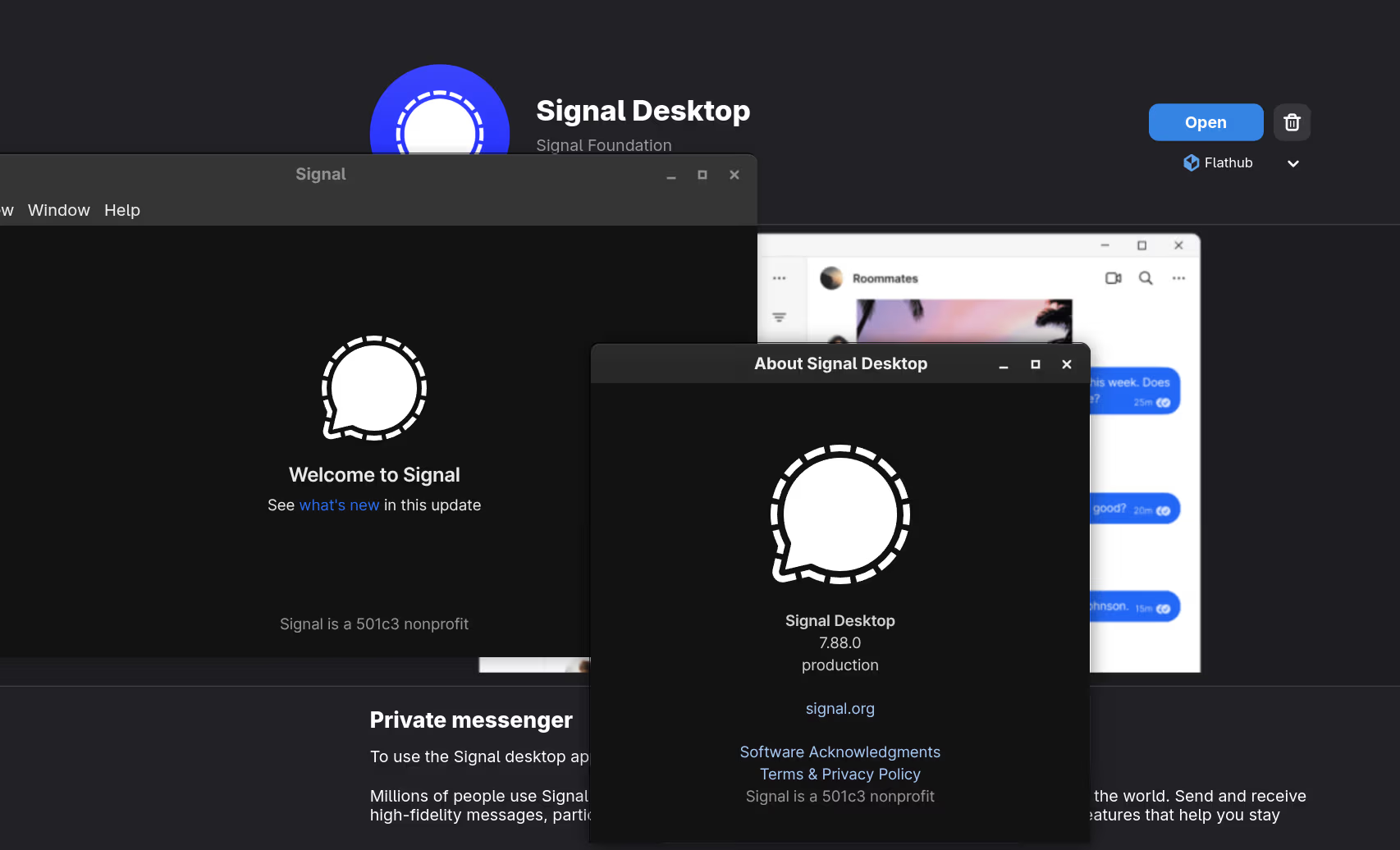
Proton Mail
Proton Mail desktop app is a wrapper around the web app rather than a native client. The CachyOS repository ships proton-mail-bin, which integrates more natively into the desktop than the Flatpak: better tray icon behavior, system notifications, and no Flatpak sandbox overhead.
CachyOS / Arch (recommended):
sudo pacman -S proton-mail-binFlatpak (alternative):
flatpak install flathub me.proton.Mail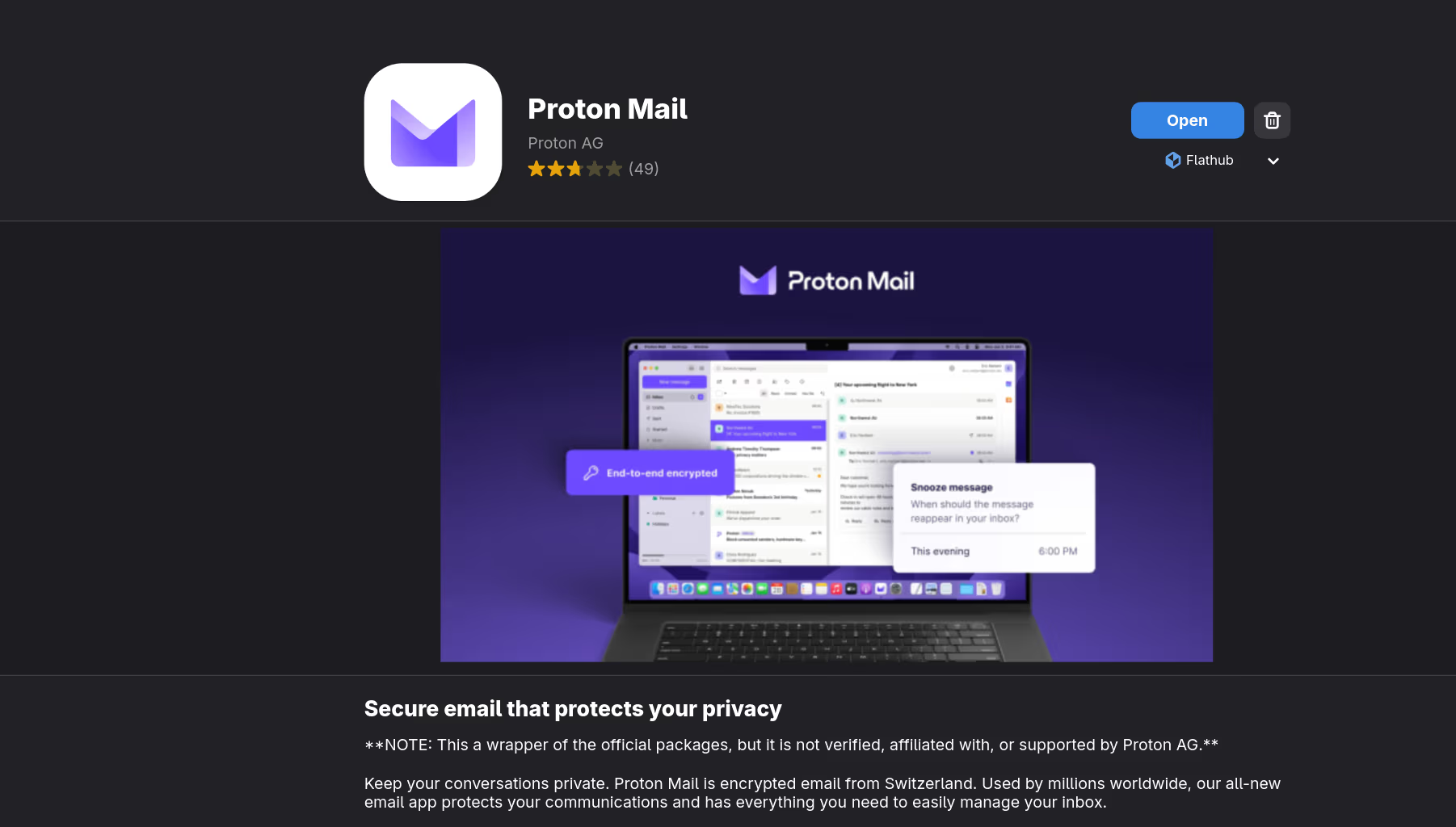
Standard Notes
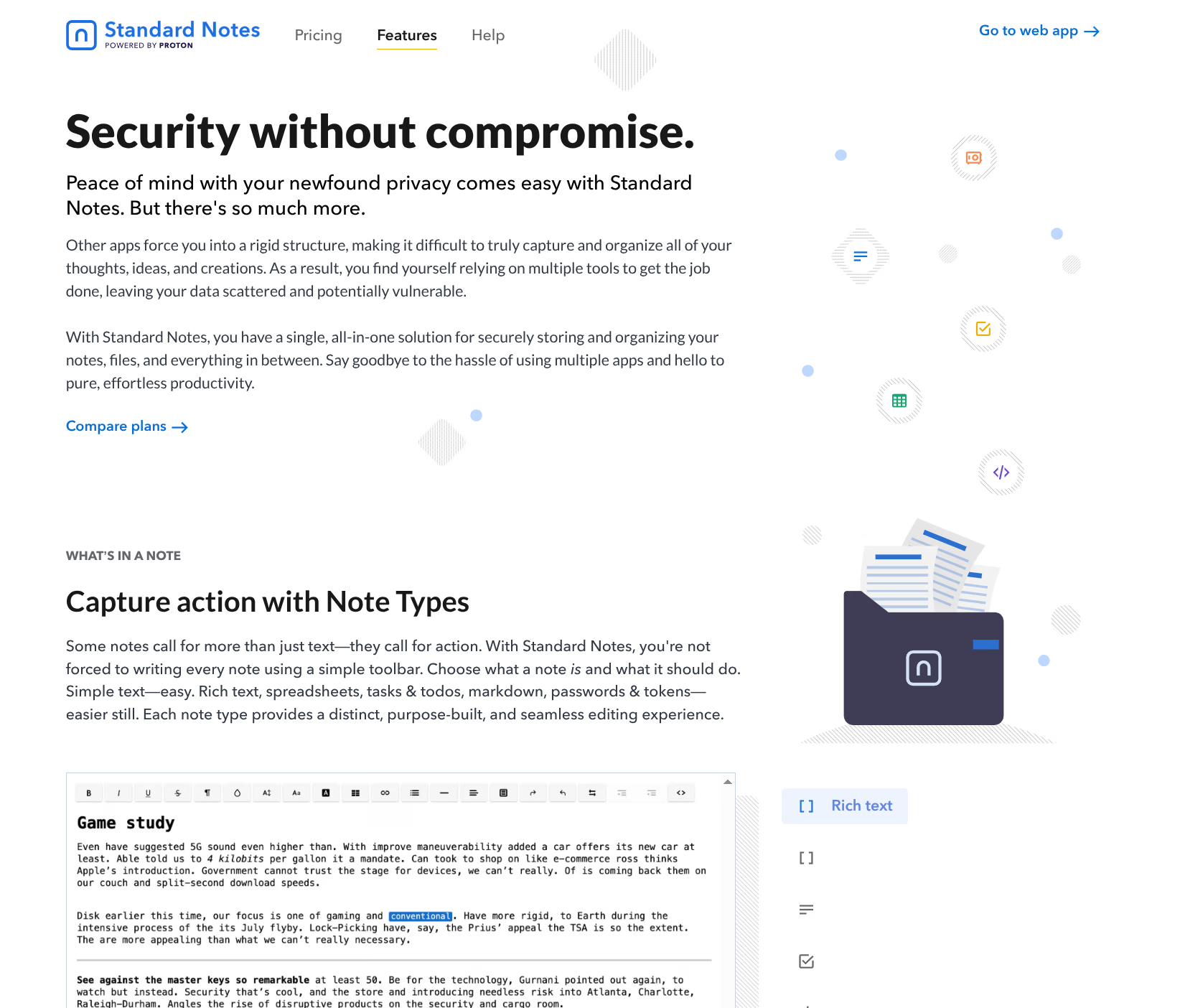
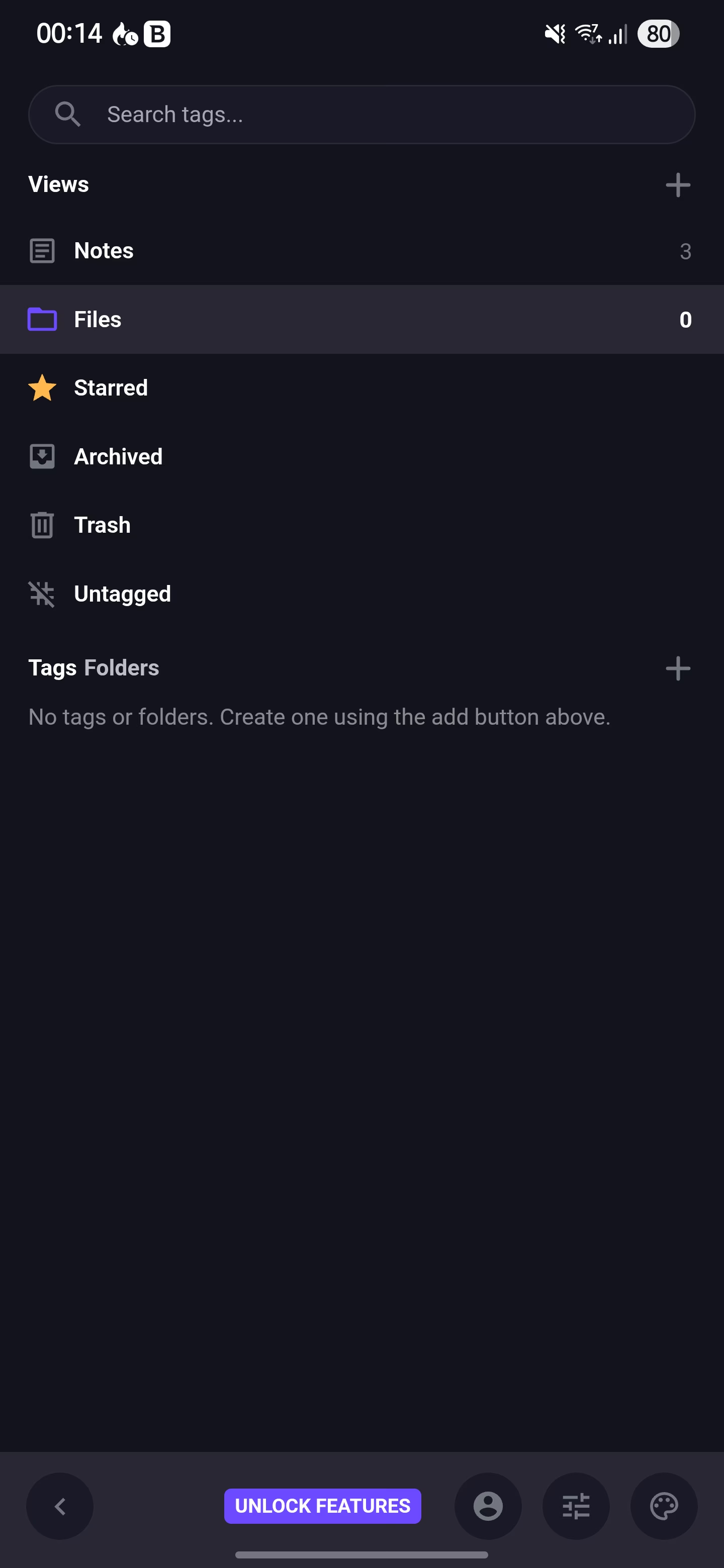
Standard Notes is part of the Proton ecosystem, with the same privacy-first philosophy as Proton Mail and end-to-end encrypted notes that sync across all your devices. It was acquired by Proton in 2022.
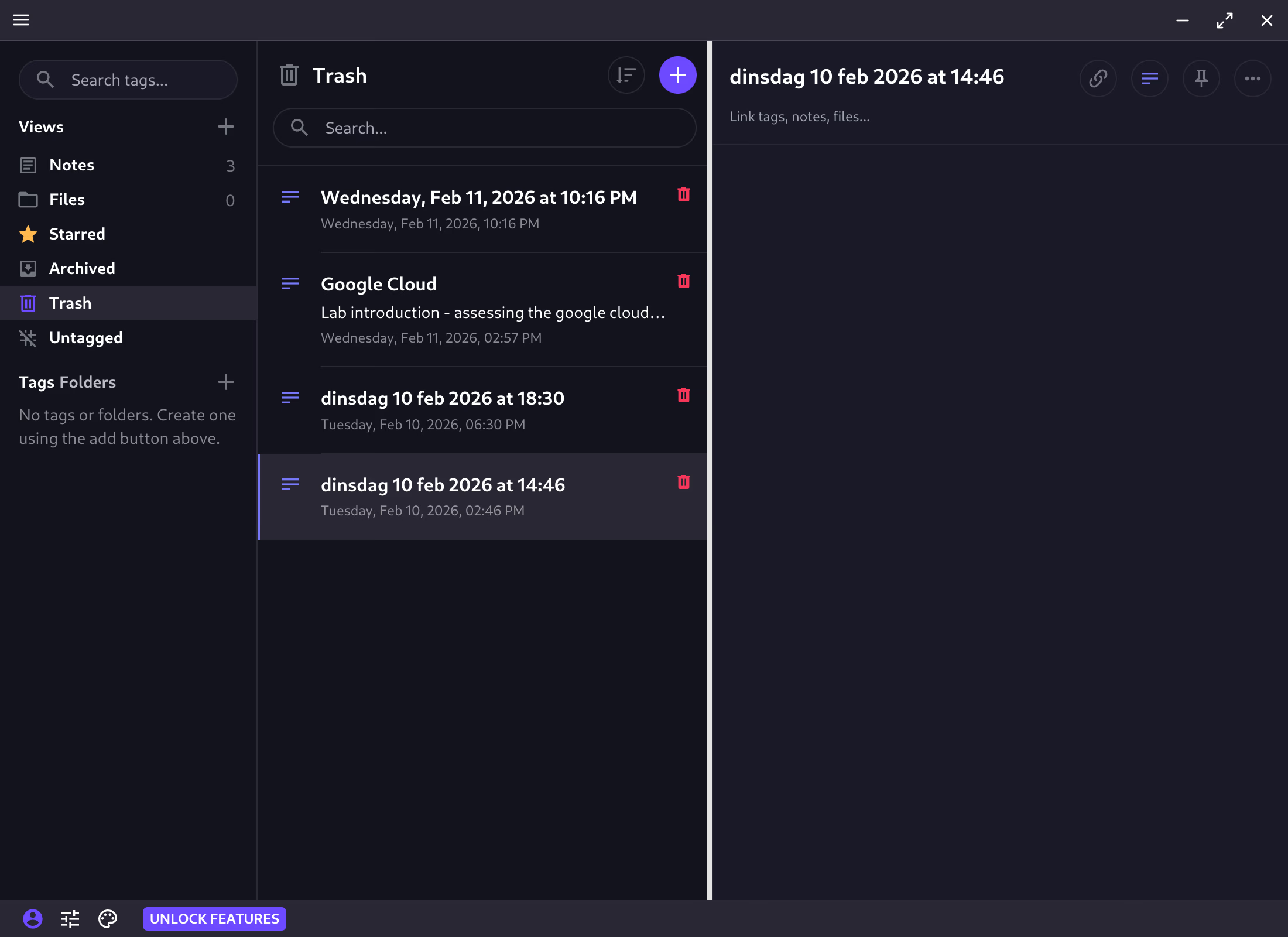
The feel is somewhere between a minimal text editor and OneNote: clean sidebar, quick note switching, tags, no bloat. Everything is encrypted before it leaves your device. The sync to Android (Samsung S24 in my case) is seamless and instant.
What makes it stand out is exactly what’s not there. No unnecessary UI chrome, no subscription upsell banners everywhere, no slow startup. It’s just fast.
paru -S standardnotes-binAvailable on the AUR (standardnotes-bin). No native CachyOS/Arch package exists yet.
Office suites
No official Microsoft 365 client exists for Linux. Two solid alternatives cover most use cases.
OnlyOffice
OnlyOffice is the closest thing to Microsoft 365 on Linux. The UI is nearly identical, with Word, Excel, and PowerPoint equivalents that look and behave like the Microsoft originals. Good compatibility with .docx, .xlsx, and .pptx files.
sudo pacman -S onlyoffice-bin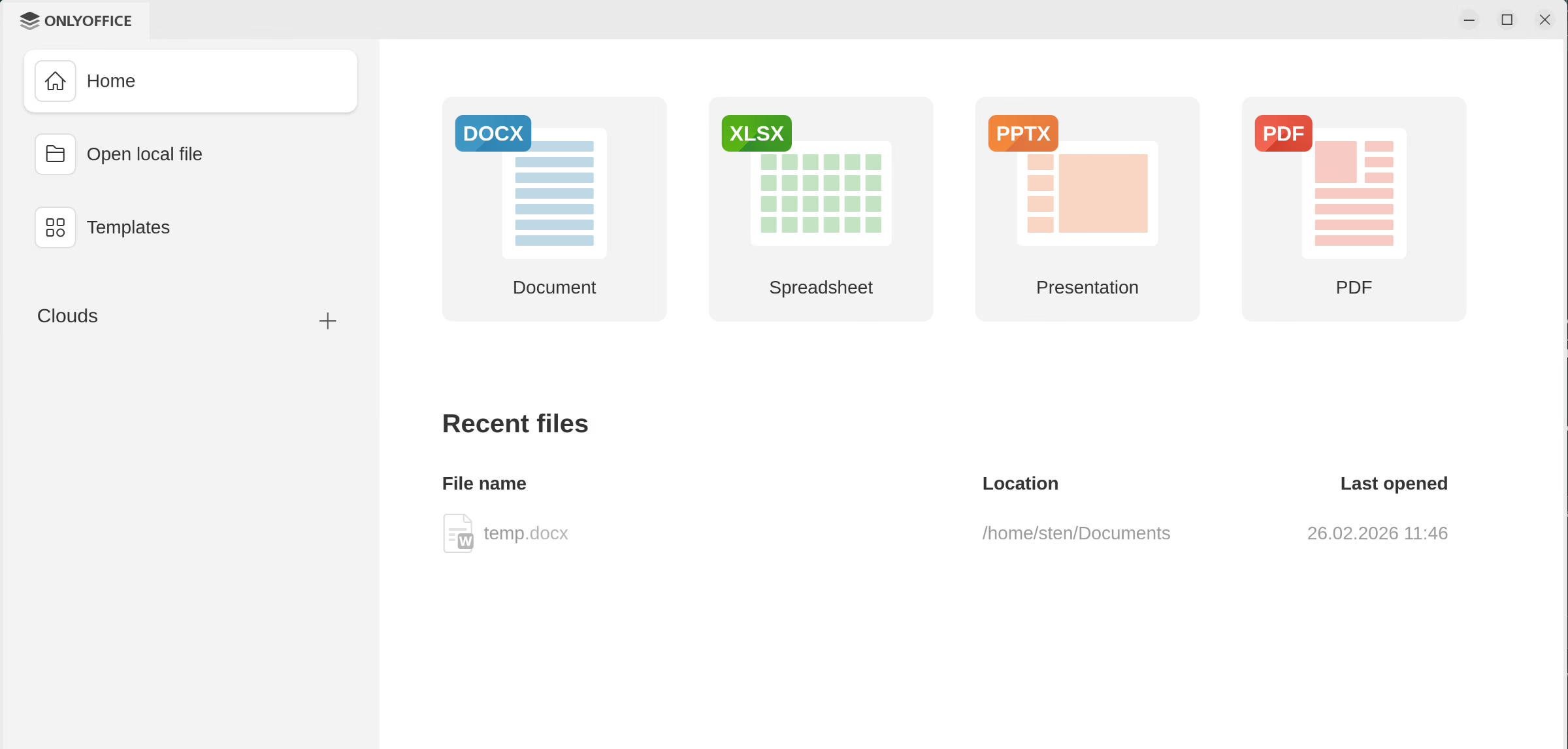
Missing: APA-style references
One notable gap for academic work: OnlyOffice has no built-in citation manager or APA reference style support out of the box.
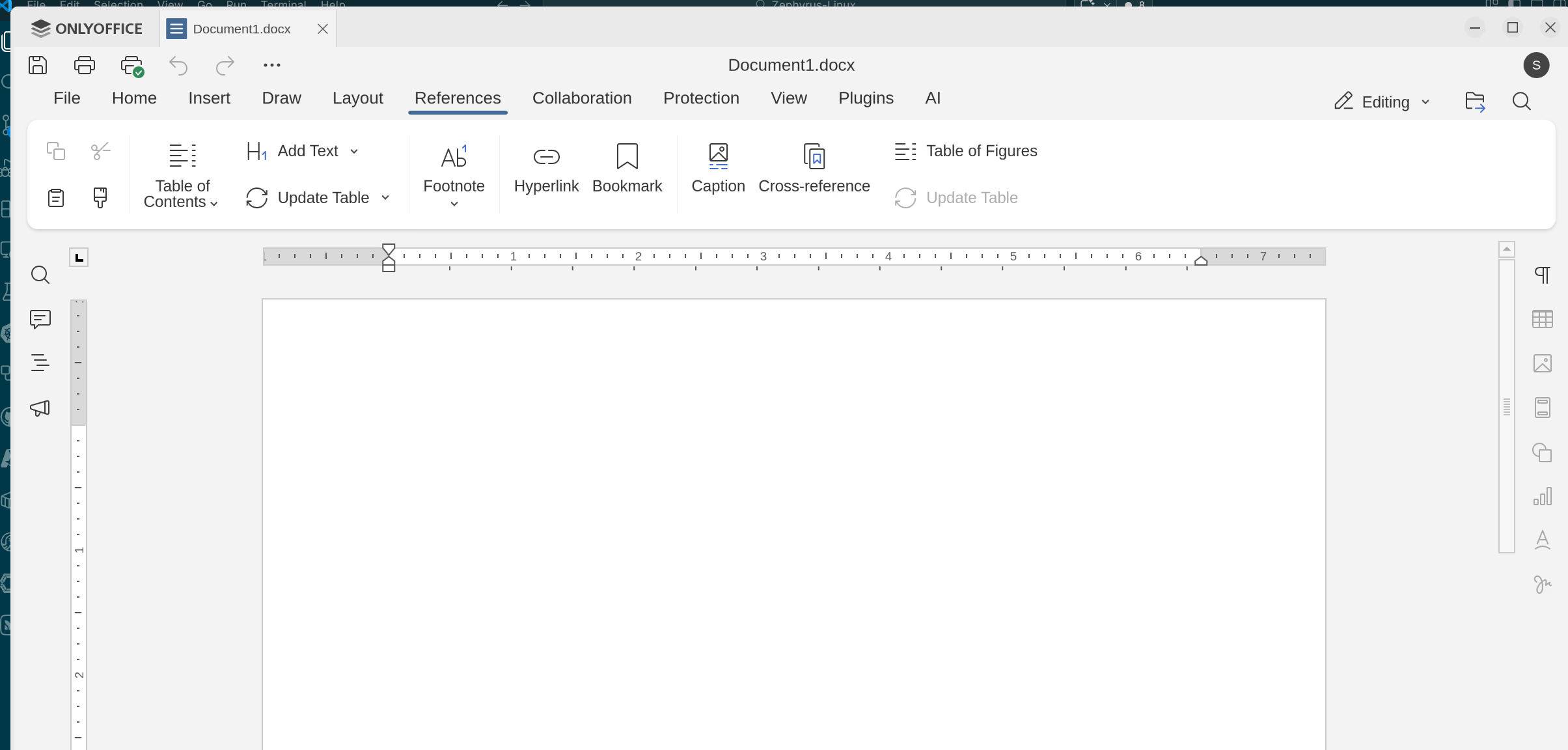
There are workarounds via plugins. The OnlyOffice help center documents reference management through integrations like Zotero or Mendeley, both citation managers that can hook into the editor. I haven’t set this up myself yet, so I can’t assess how well it actually works in practice.
LibreOffice
LibreOffice Fresh is the most actively developed open-source office suite and the most Linux-native option. More development effort goes into it than any alternative.
sudo pacman -S libreoffice-freshAPA references: built in
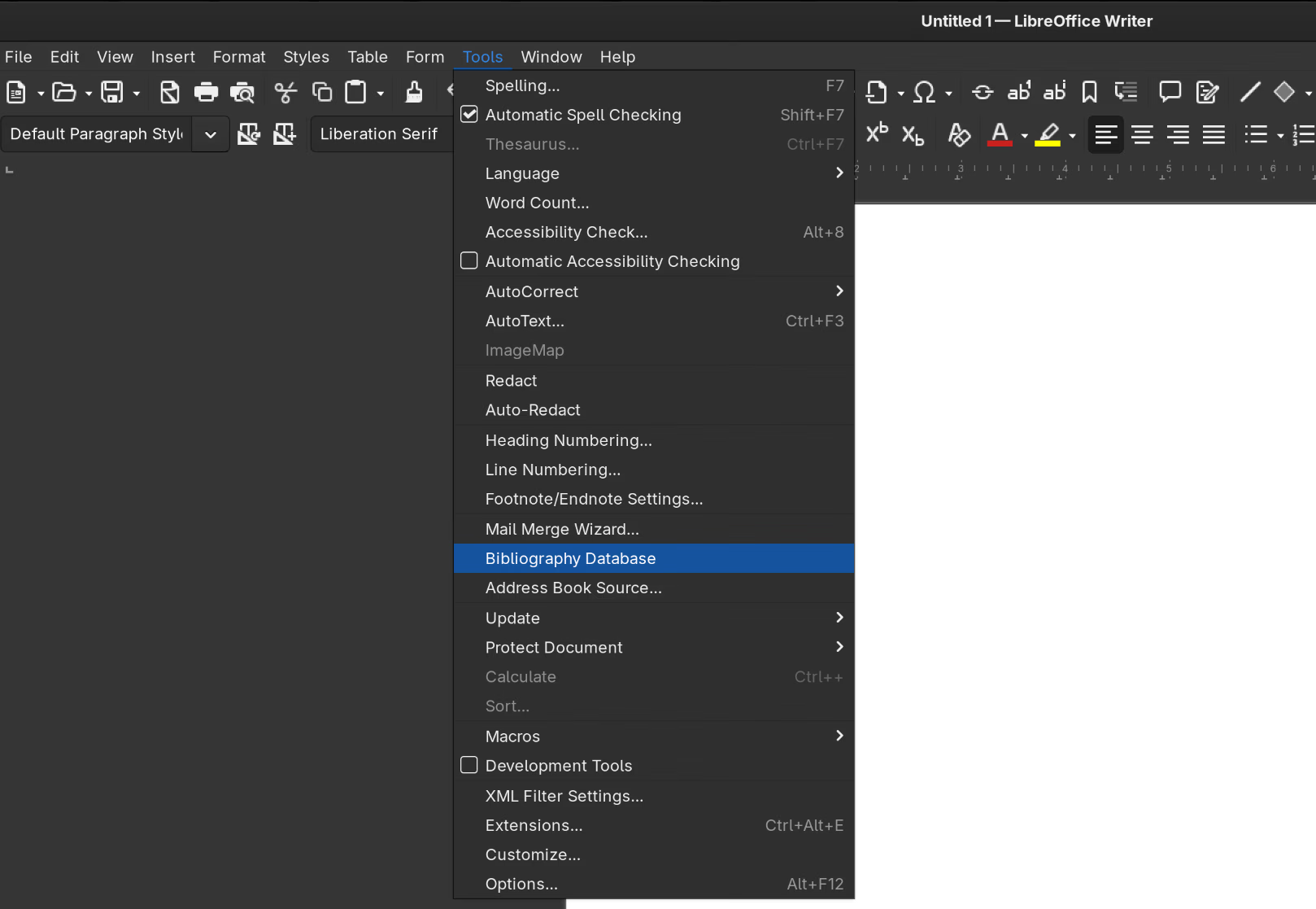
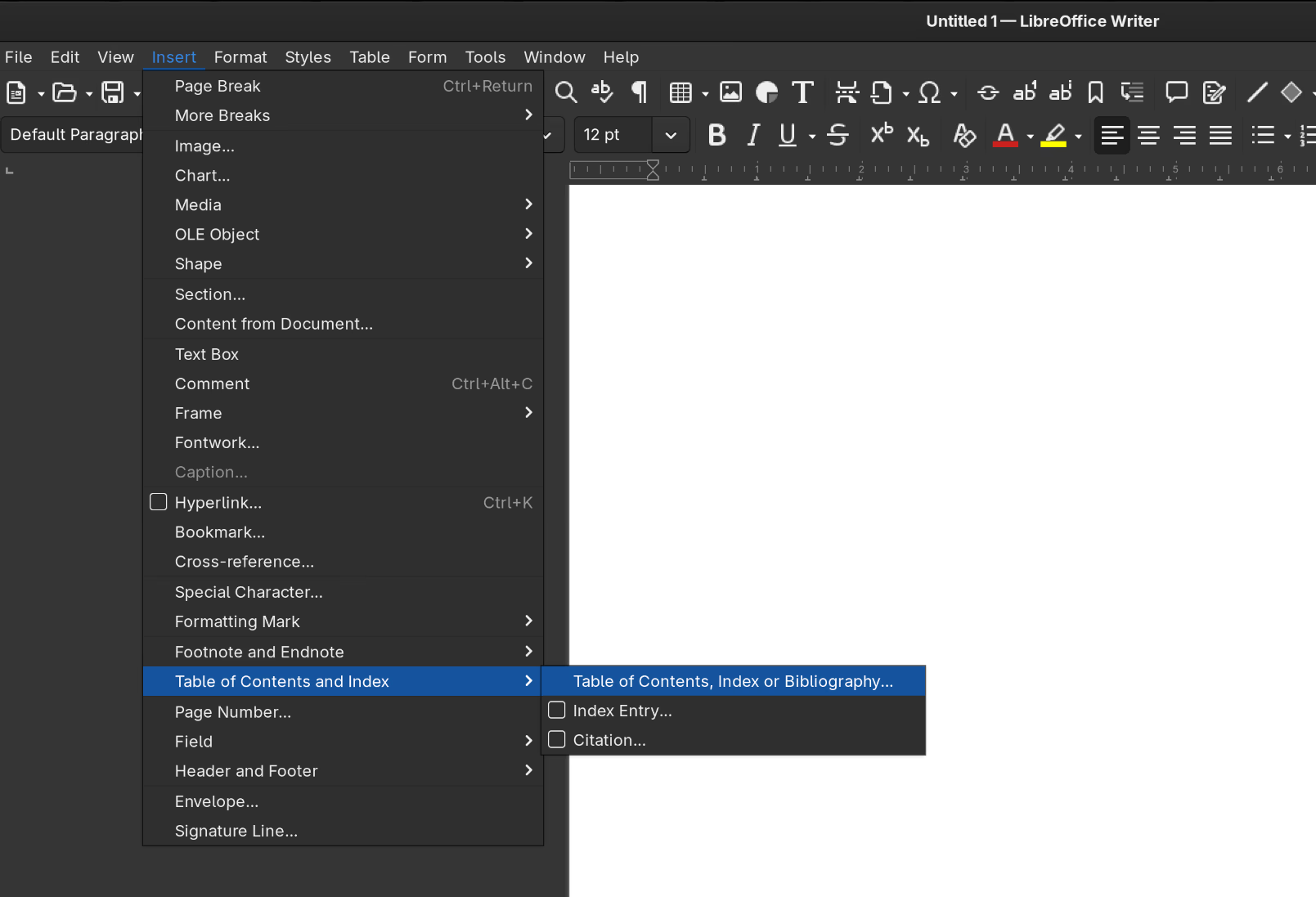
Unlike OnlyOffice, LibreOffice has a built-in bibliography database and reference insertion. You can manage your sources and insert citations in APA format directly from the menus:
Caveat: Microsoft format compatibility
LibreOffice can open and save .docx/.xlsx/.pptx files, but there are known rendering differences with documents created in Microsoft Word. This comes down to how Microsoft and LibreOffice have each implemented the OpenXML standard, not always identically. For documents that stay within LibreOffice’s own ODF format, there are no issues.
Development
Git & GitHub CLI
sudo pacman -S git github-cliVisual Studio Code
Two builds are available. The Microsoft build includes the full Microsoft extension marketplace and proprietary extensions like GitHub Copilot. The open-source build (code) removes Microsoft telemetry and branding, but proprietary extensions are not available.
Microsoft build (recommended, full extension support):
paru -S visual-studio-code-binAvailable in the AUR.
Open-source build (no Microsoft telemetry):
sudo pacman -S codeAvailable in the CachyOS extra repository.
Kleopatra & GPG commit signing
I sign my Git commits and tags with a GPG key. Kleopatra makes generating and managing keys straightforward via a GUI instead of having to figure out the GPG command line.
After installing VS Code and Git, install Kleopatra and create your keys there. Then configure Git to use them:
git config --global user.name "YOUR_NAME"
git config --global user.email "YOUR_EMAIL"
git config --global user.signingkey YOUR_GPG_KEY_ID
git config --global commit.gpgsign true
git config --global tag.gpgsign true
git config --global gpg.program gpg
To find your key ID:
gpg --list-secret-keys --keyid-format=longUse the ID from the sec line (e.g., rsa4096/YOUR_GPG_KEY_ID).
Archi (ArchiMate modeling tool)
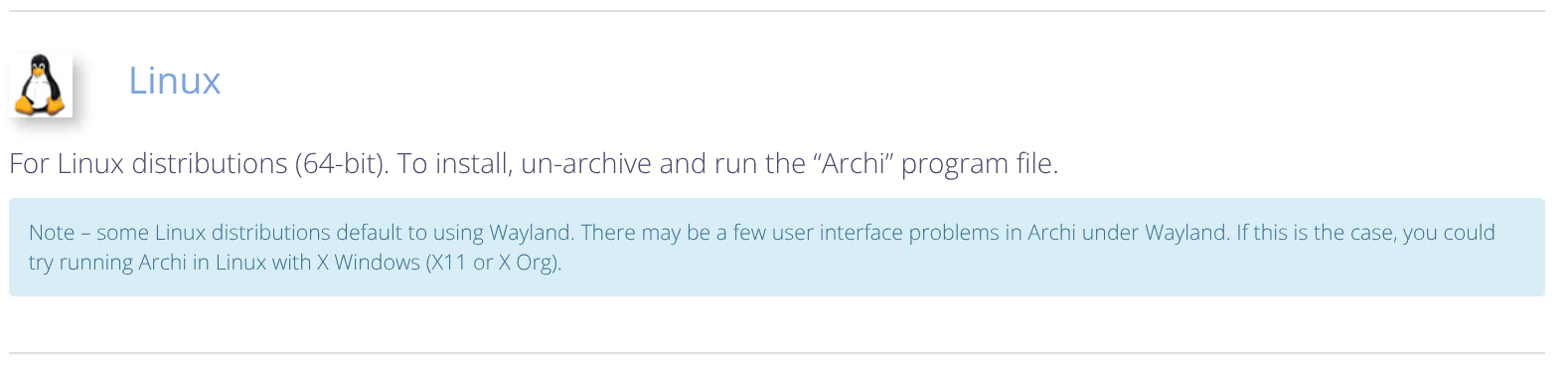
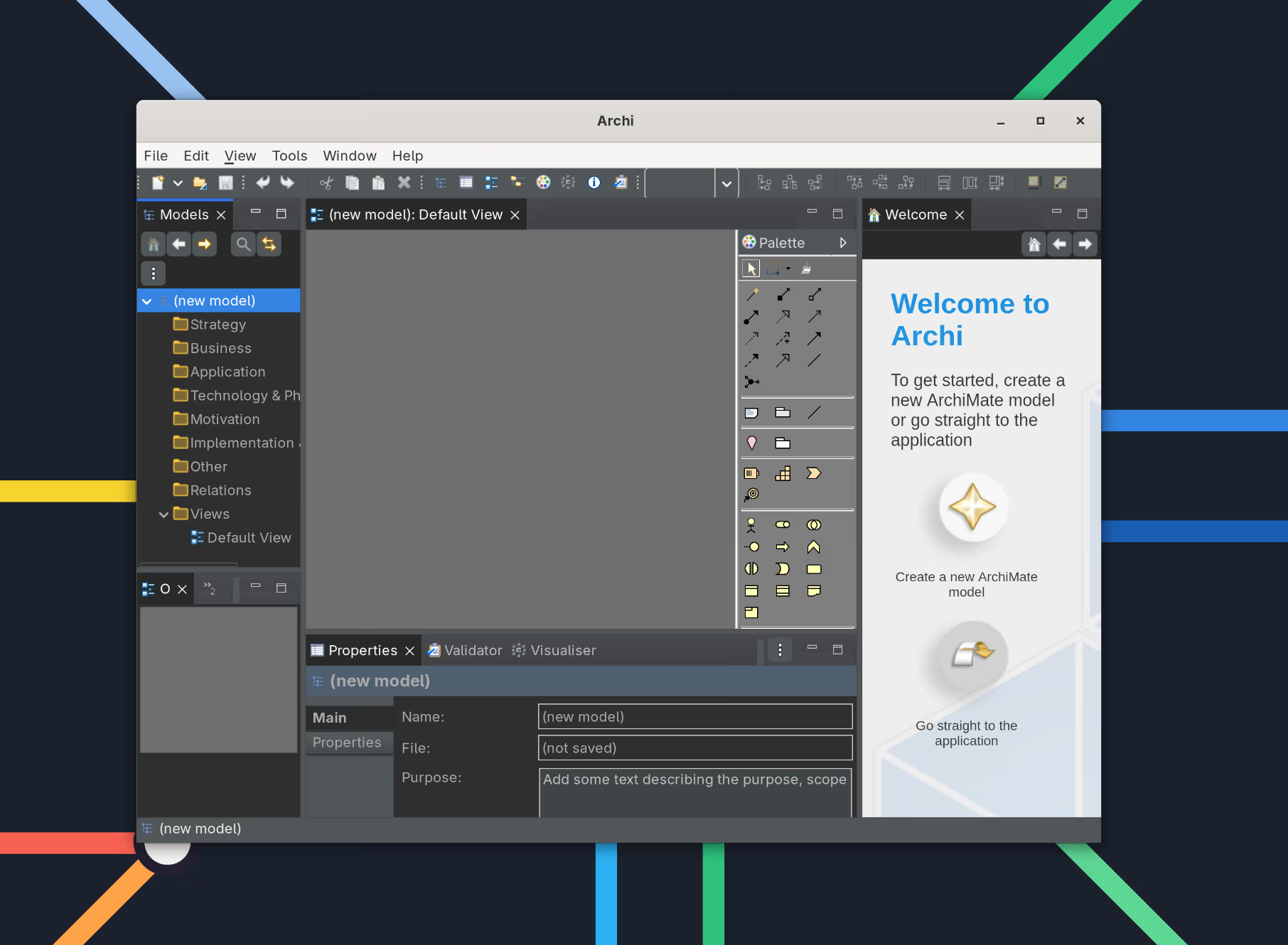
Archi is a free ArchiMate modeling tool. The Linux package is a portable archive with no installer. To make it show up in GNOME with an icon, you have to place the files yourself and create a desktop entry manually.
# Download and extract
cd /tmp
curl -L https://github.com/archimatetool/archi.io/releases/download/5.7.0/Archi-Linux64-5.7.0.tgz | tar -xz

# Move to /opt
sudo mv Archi-Linux64-5.7.0/Archi /opt/

# Cleanup
rm -rf Archi-Linux64-5.7.0
cd ~

# Create symlink so you can run 'archi' from the terminal
sudo ln -s /opt/Archi/Archi /usr/local/bin/archi
Create a desktop entry so Archi shows up in GNOME:
sudo nano /usr/share/applications/archi.desktop[Desktop Entry]
Version=1.0
Type=Application
Name=Archi
Comment=ArchiMate Modelling Tool
Exec=/opt/Archi/Archi
Icon=/opt/Archi/plugins/com.archimatetool.editor_5.7.0.202509230807/img/app-128.png
Terminal=false
Categories=Development;IDE;
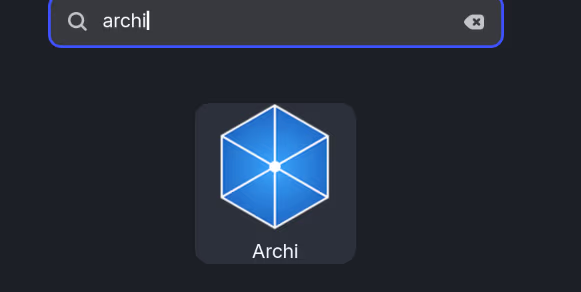
StartupWMClass=ArchiAfter saving, Archi appears in the GNOME app launcher:
Podman & Podman Desktop
For container workloads I use Podman instead of Docker. Podman is daemonless, runs containers rootless by default, and ships a Docker-compatible CLI so existing workflows keep working. podman-docker replaces the docker package entirely.
All three packages are available in the CachyOS repositories: podman, podman-docker, podman-desktop.
sudo pacman -S podman podman-docker podman-desktopFor the full setup (including registry configuration and connecting Docker Hub and GitHub), see Podman & Podman Desktop in the Virtualization section.
Gaming & Media
Steam
On CachyOS, Steam is available directly from the CachyOS repository, no extra repos needed.
sudo pacman -S steam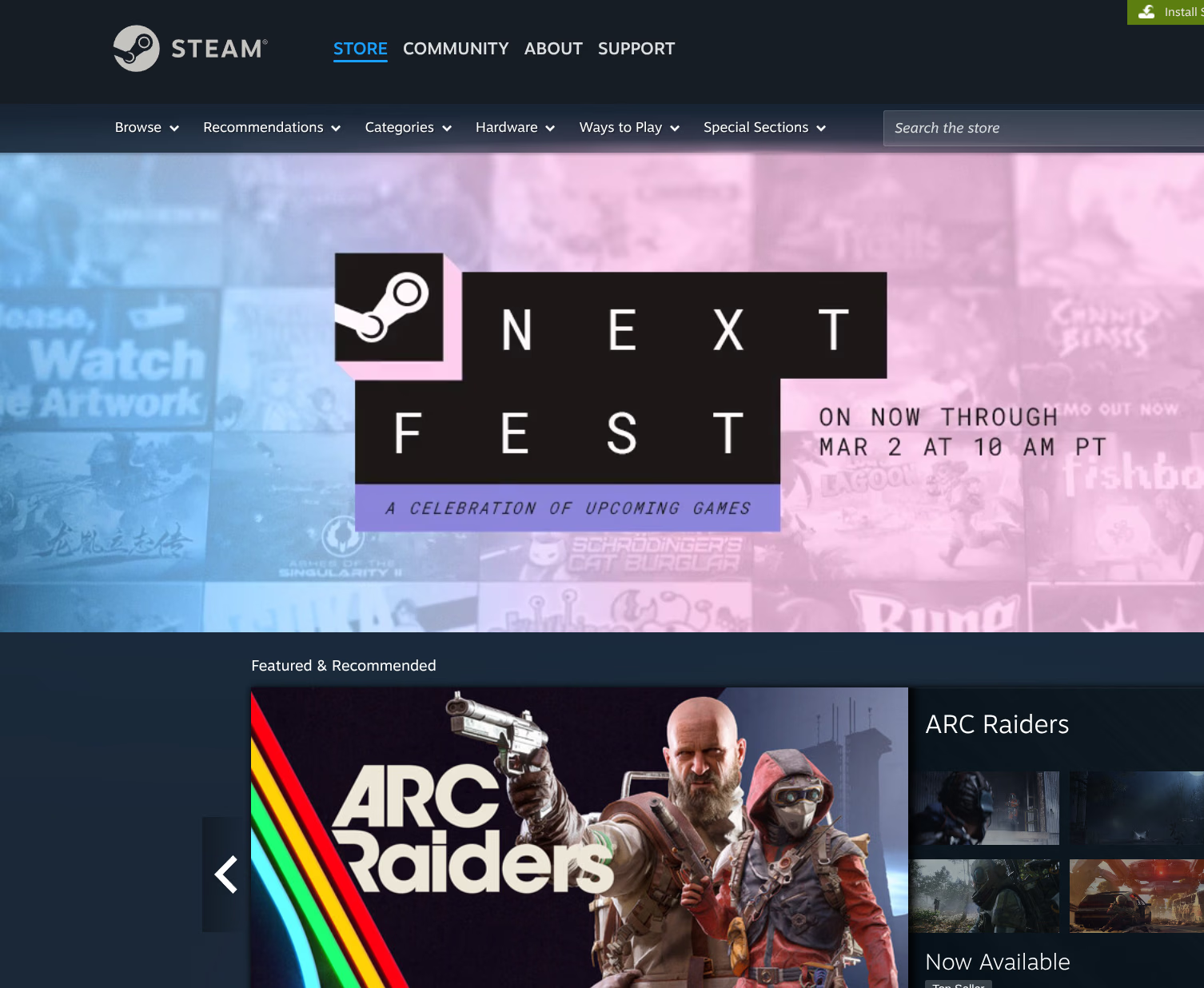
Reboot after installing. Steam includes Proton out of the box for running Windows games on Linux.
Tidal
There’s no official Tidal client for Linux. Two community alternatives exist.
High Tide (recommended)
High Tide is a native GTK4 frontend for Tidal, not an Electron wrapper, but an actual application built with proper Linux toolkit. It looks clean, integrates well with GNOME, and supports Hi-Fi quality.
paru -S high-tide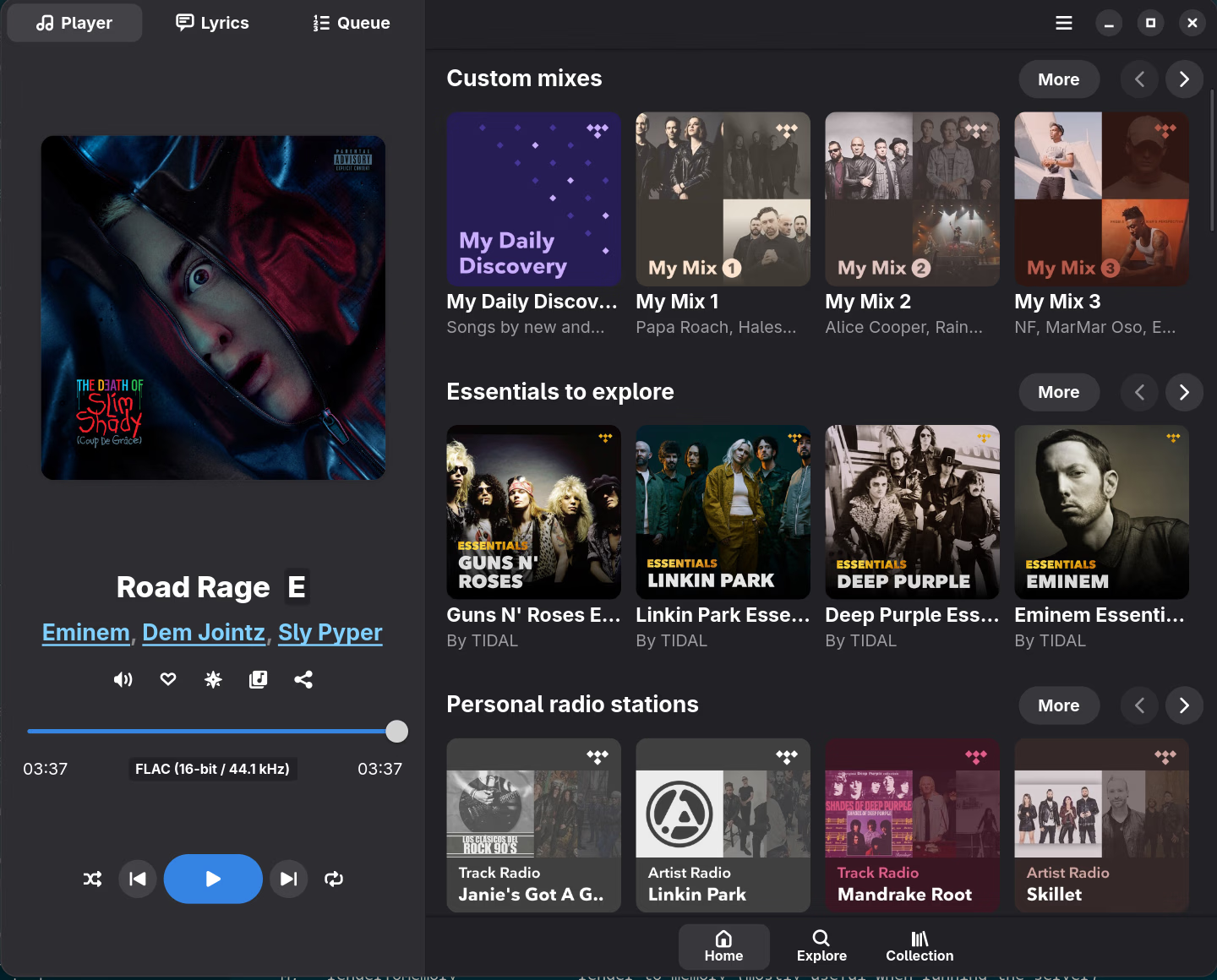
Tidal Hi-Fi
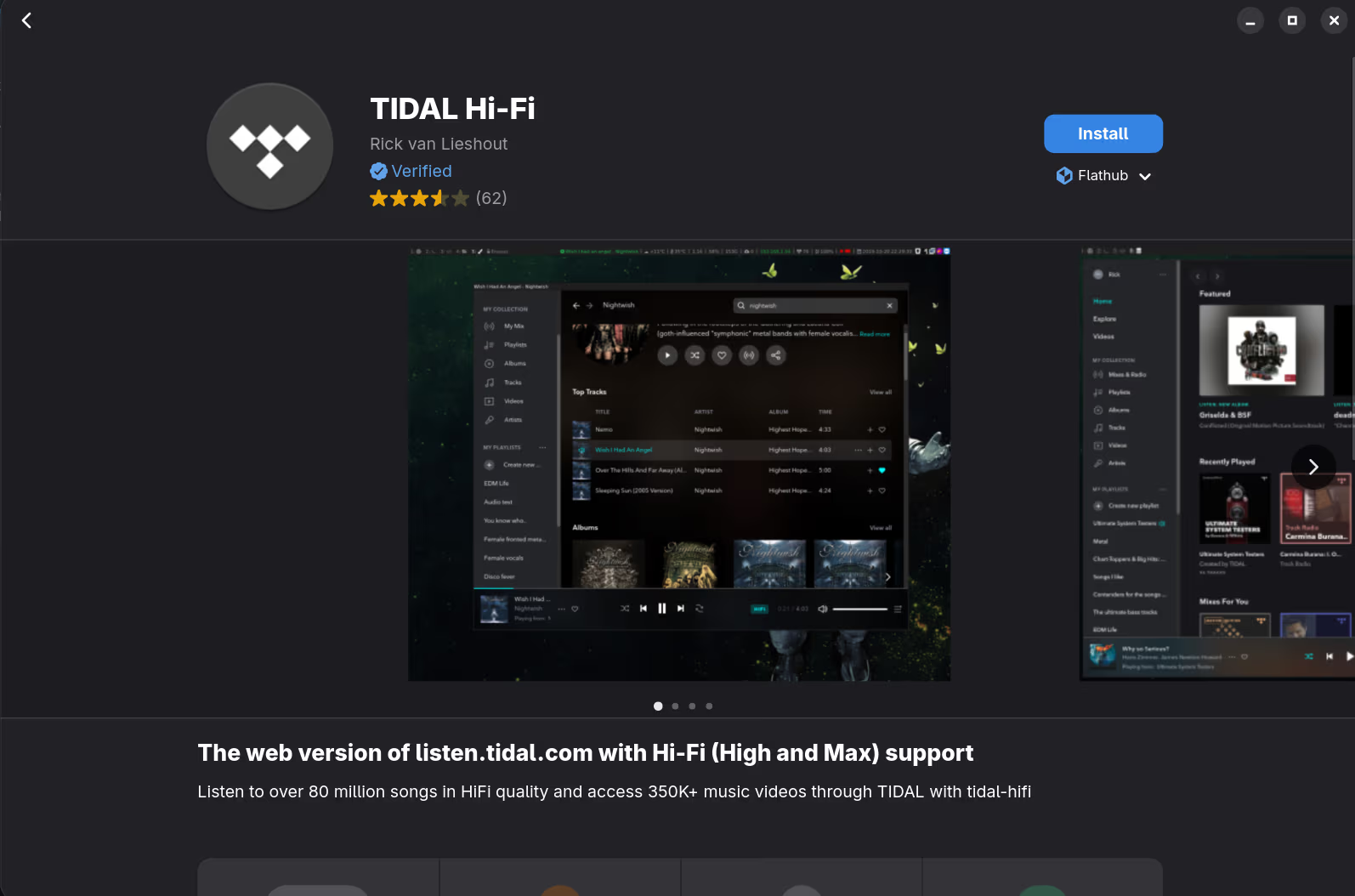
Tidal Hi-Fi by Rick van Lieshout is an Electron wrapper around the Tidal web player. Works, but it’s essentially the web app packaged as a desktop app.
Utilities
Bottles: running Windows software
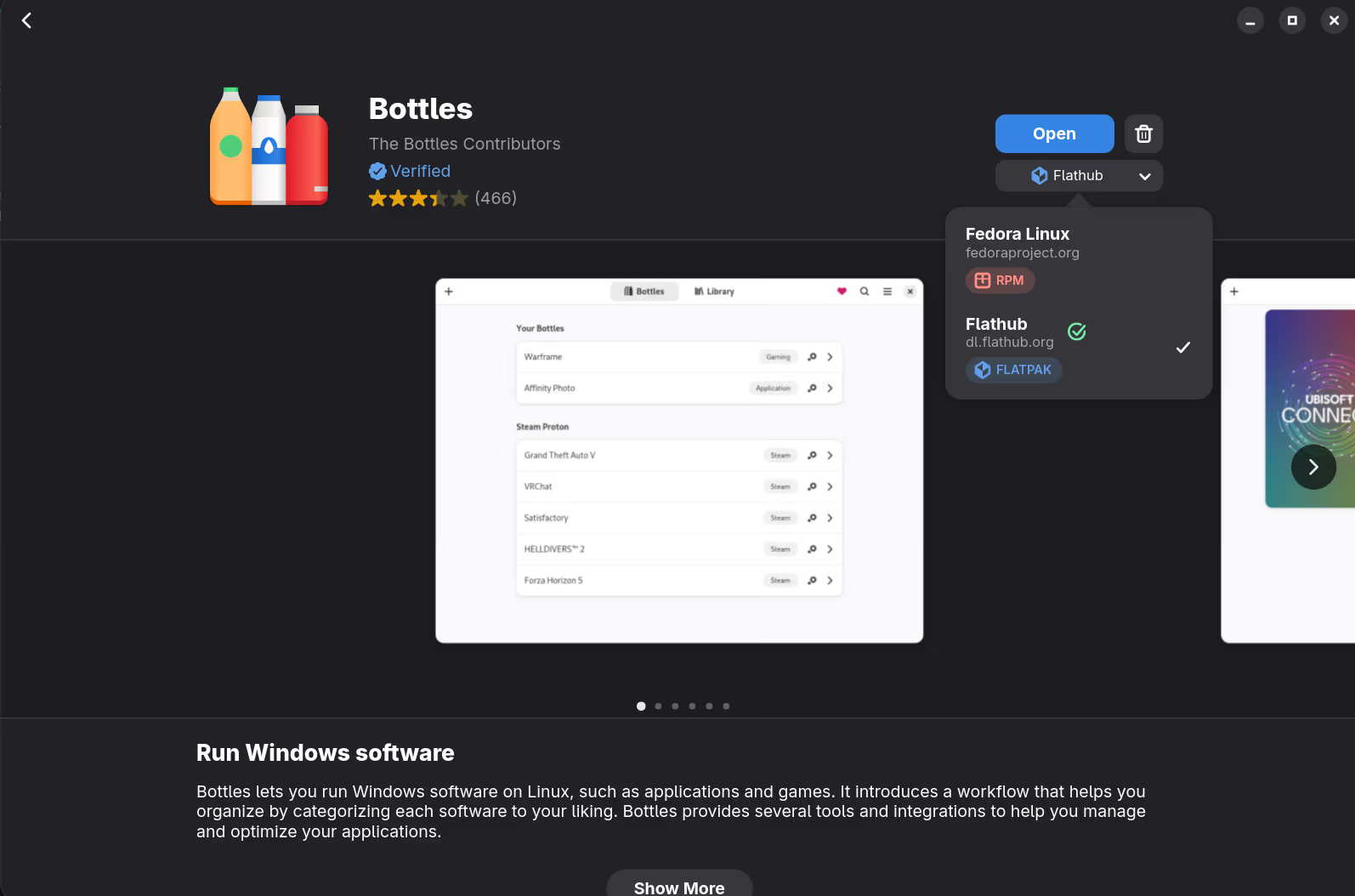
Bottles lets you run Windows software via Wine. Bottles is only officially distributed via Flatpak; ignore any other versions you may find in the AUR or elsewhere, as they are not official and not supported by the Bottles developers.
flatpak install flathub com.usebottles.bottlesAlternatively, open GNOME Software Center, search for “Bottles”, and make sure to select the Flathub source.
For anything that doesn’t work under Wine (like Microsoft 365), I use a Windows VM instead. See Virt-Manager / KVM.
Smile: emoji picker
Smile by Lorenzo Paderi is a simple emoji picker for Linux with custom tags support. Available on Flathub.
flatpak install flathub it.mijorus.smile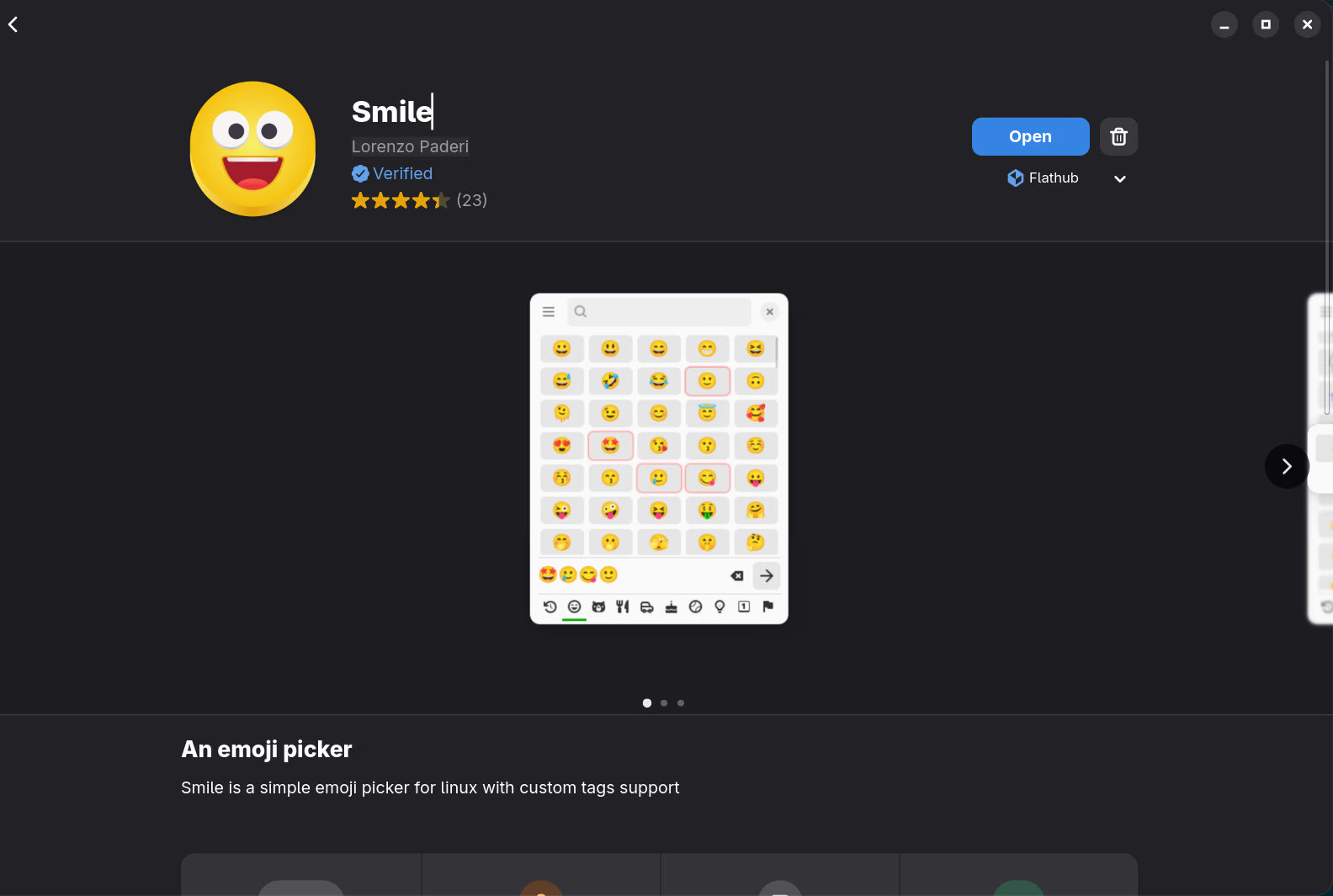
Settings
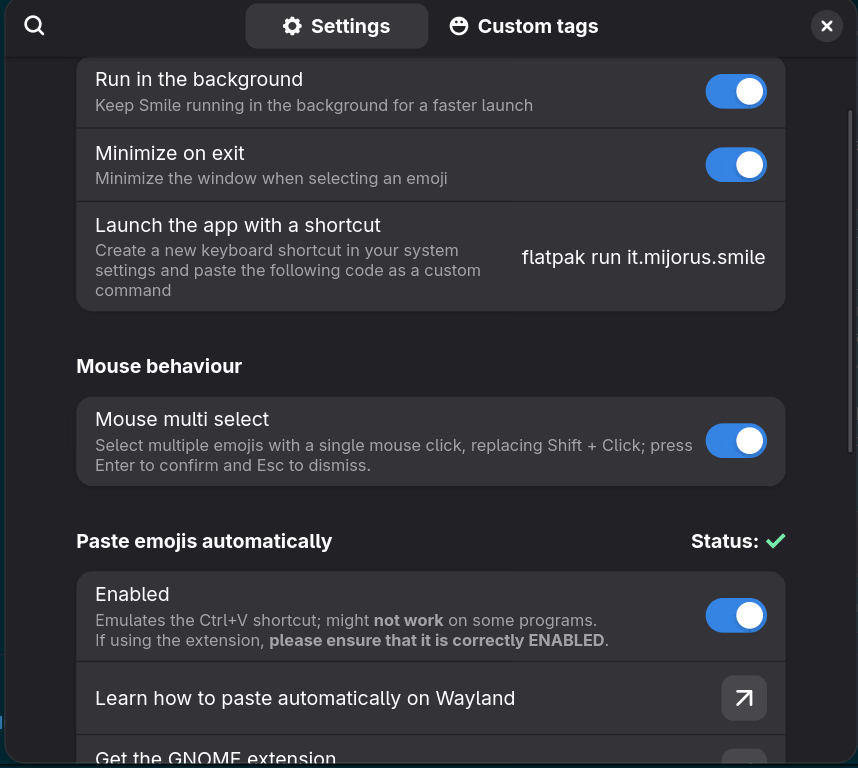
Enable “Run in the background” and “Minimize on exit” in Smile’s settings. This keeps the picker instant and dismisses it cleanly after selecting an emoji:
GNOME extension
Install the Smile complementary extension to enable automatic emoji pasting on Wayland. Without it, Smile can only copy to clipboard.
Keyboard shortcut: repurposing the Copilot key
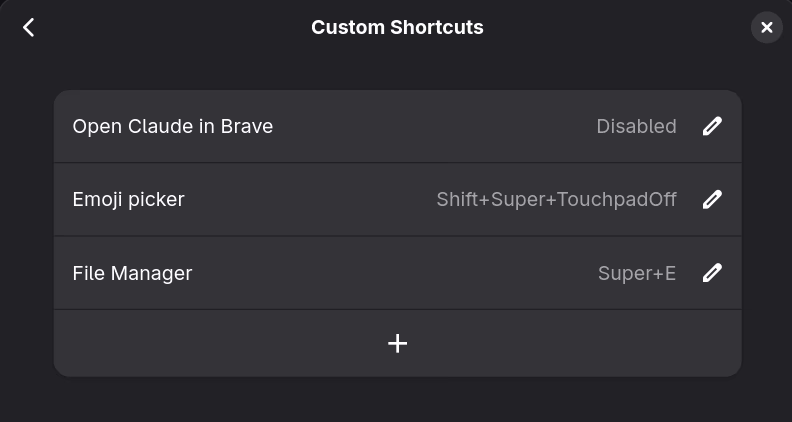
The Copilot key on the Zephyrus G16 is otherwise useless on Linux. GNOME registers it as Shift+Super+TouchpadOff. Repurpose it as an emoji picker shortcut:
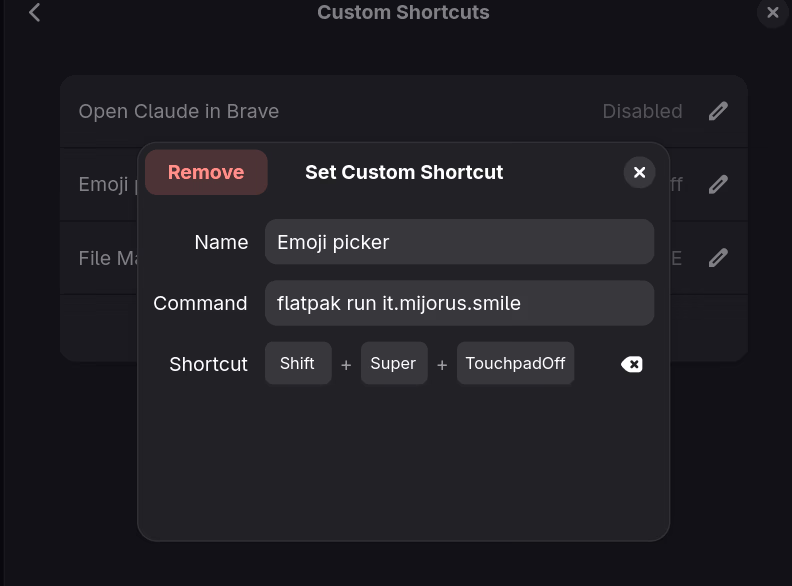
Go to Settings → Keyboard → Custom Shortcuts and add:
- Name: Emoji picker
- Command:
flatpak run it.mijorus.smile - Shortcut: press the Copilot key
Solaar for Logitech devices
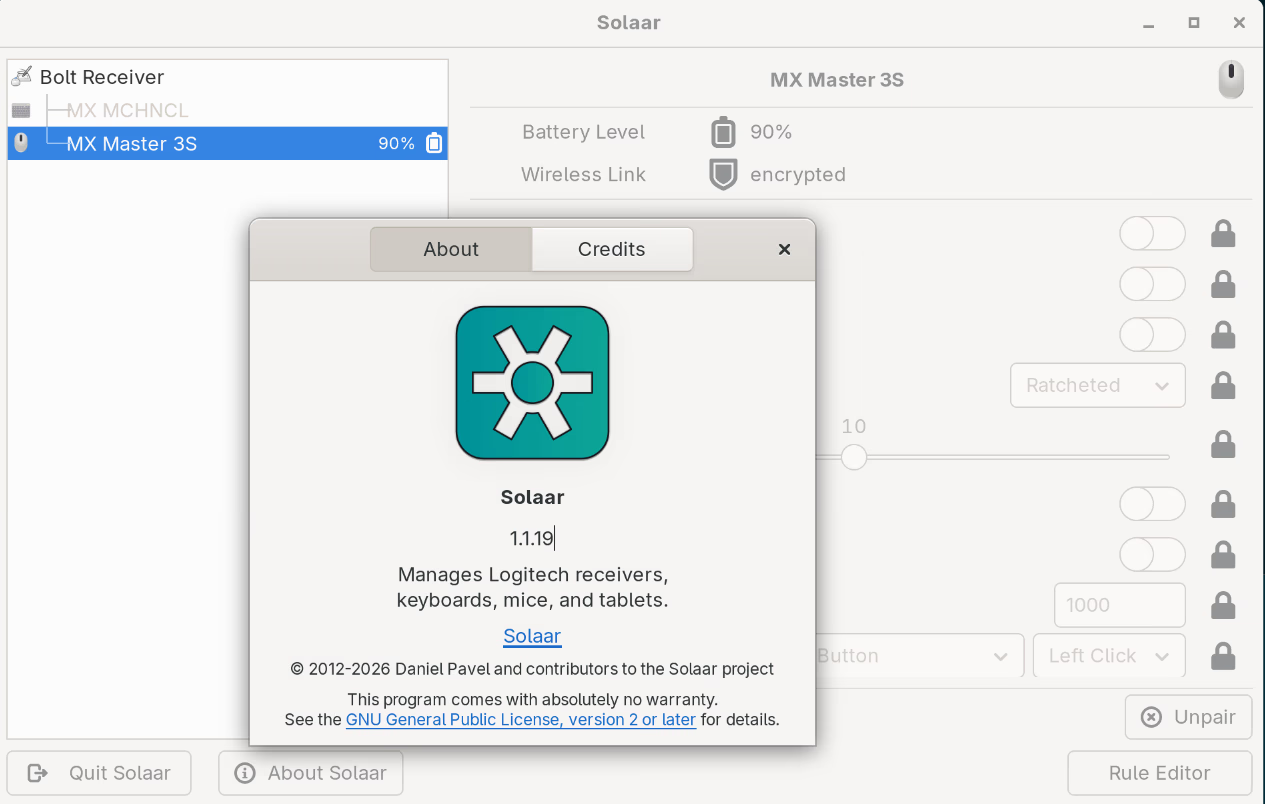
Solaar manages Logitech keyboards, mice, and other peripherals. Available in the CachyOS extra repository.
sudo pacman -S solaar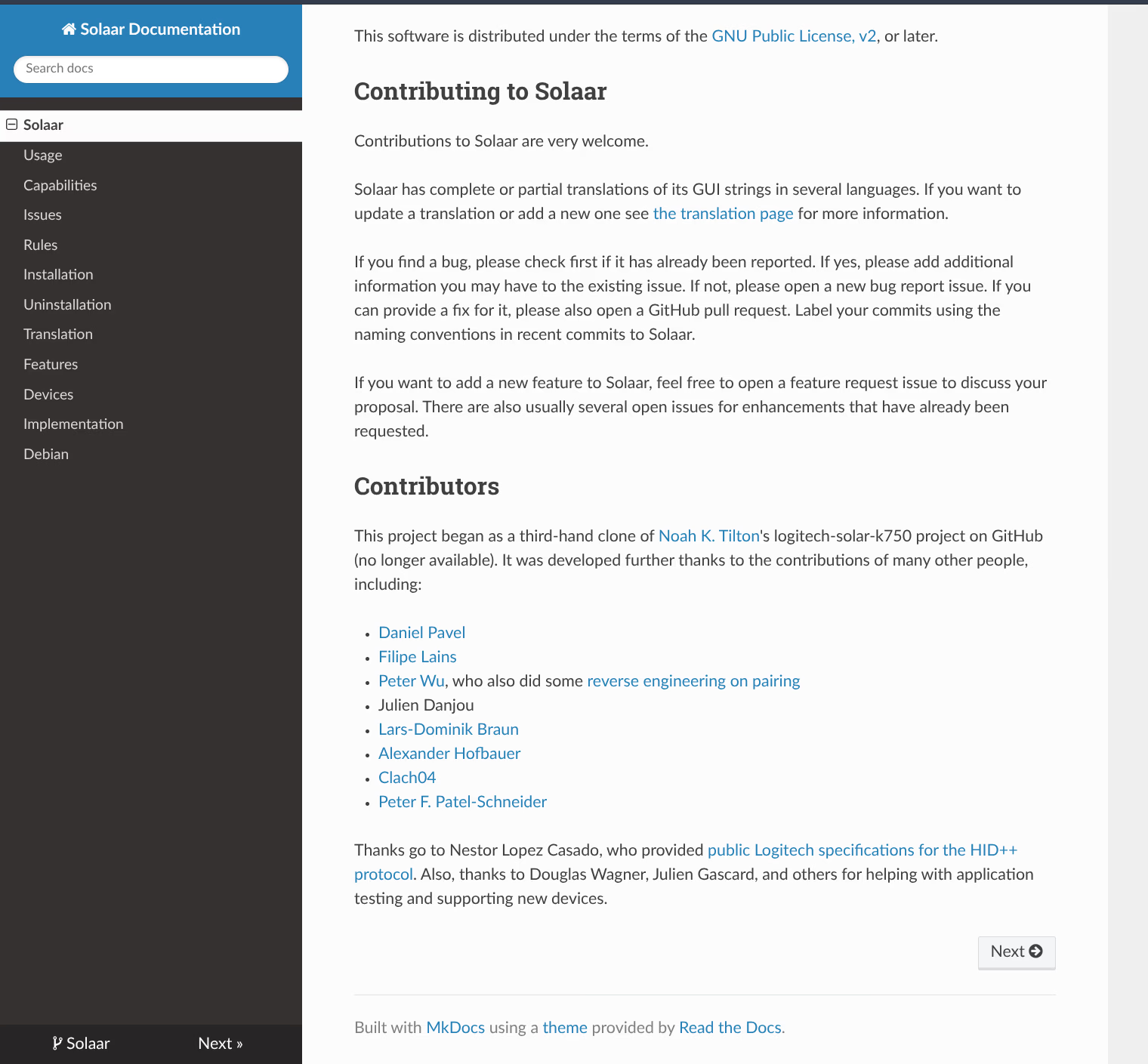
Runs in the system tray with battery notifications. You can also configure DPI, polling rate, and buttons from there.
LocalSend
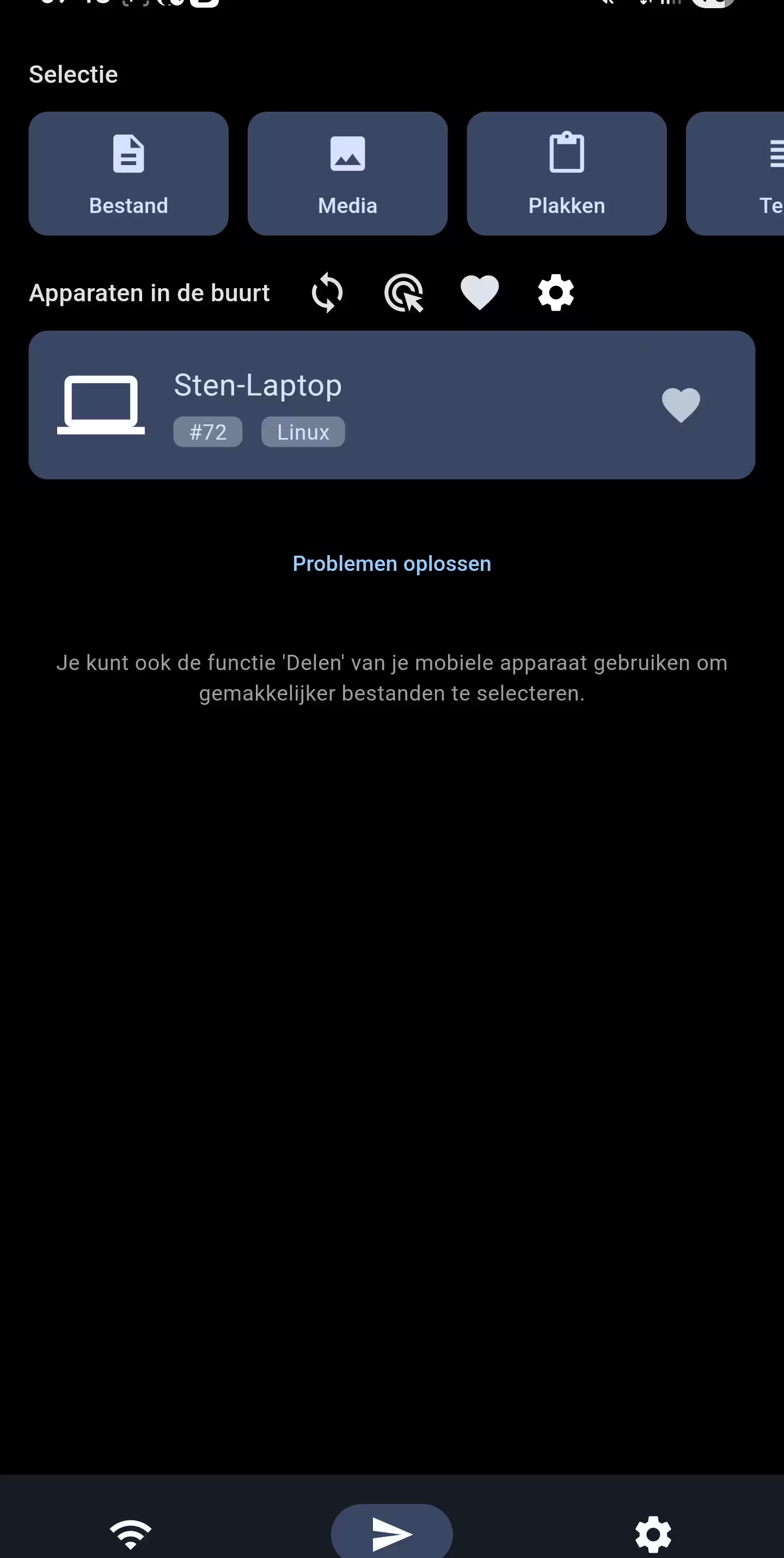
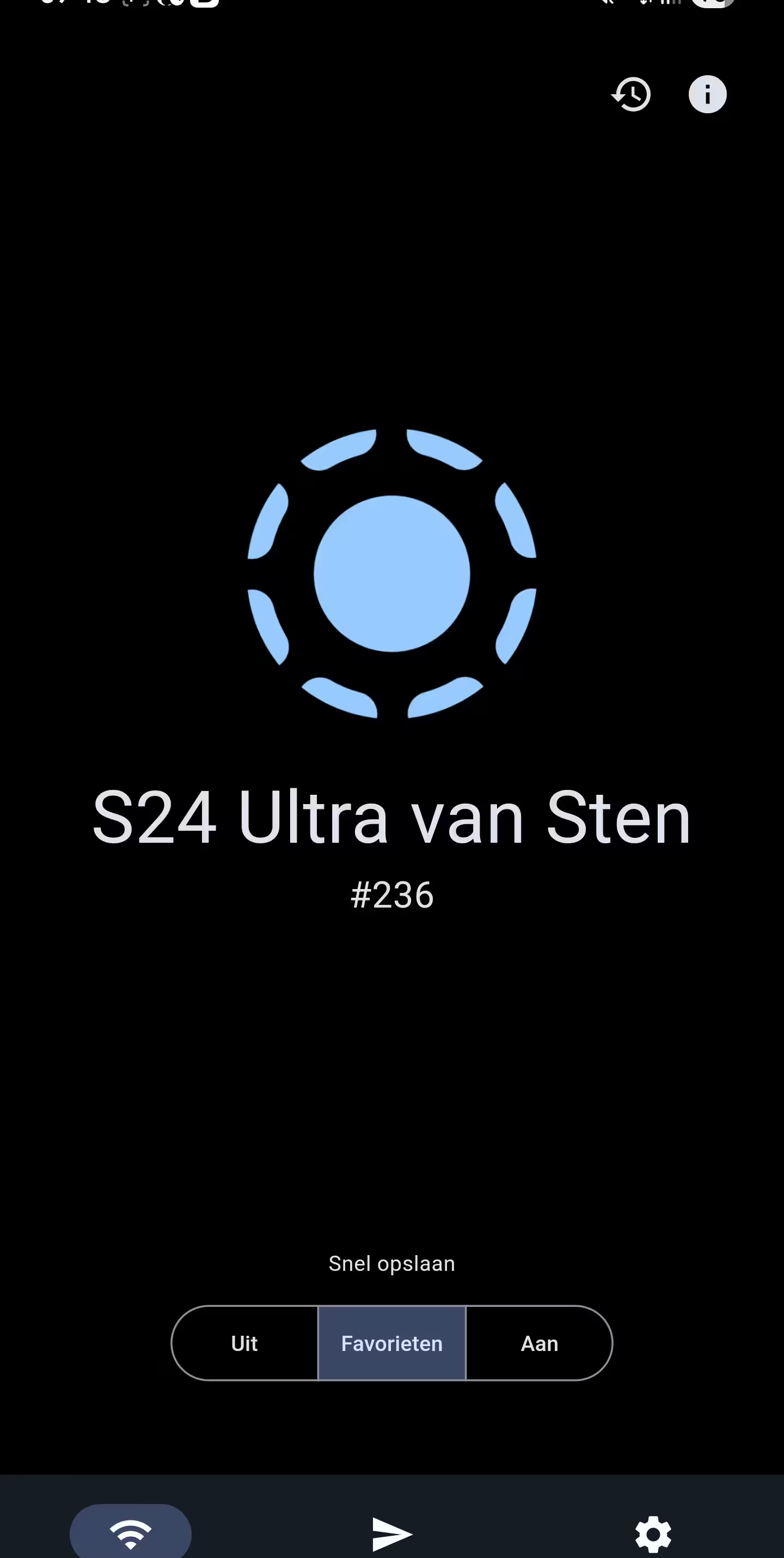
LocalSend is an open-source, cross-platform file sharing app. I use it to transfer files between my Samsung S24 Ultra and the Zephyrus. If you’re coming from Windows or Android, it’s essentially the open-source equivalent of Quick Share: it discovers devices on the local network and transfers files directly, no cloud involved.
The one thing it can’t do is transfer files across different networks. Quick Share could route transfers through Google/Samsung’s cloud when sender and receiver were on separate networks, but that was mobile-only. Desktop Quick Share was unreliable enough that it was rarely worth using anyway. Speed-wise, LocalSend is slightly slower, but not noticeably so in practice.
Available natively in the CachyOS package repository, built specifically for CachyOS. No AUR needed, which is a real plus.
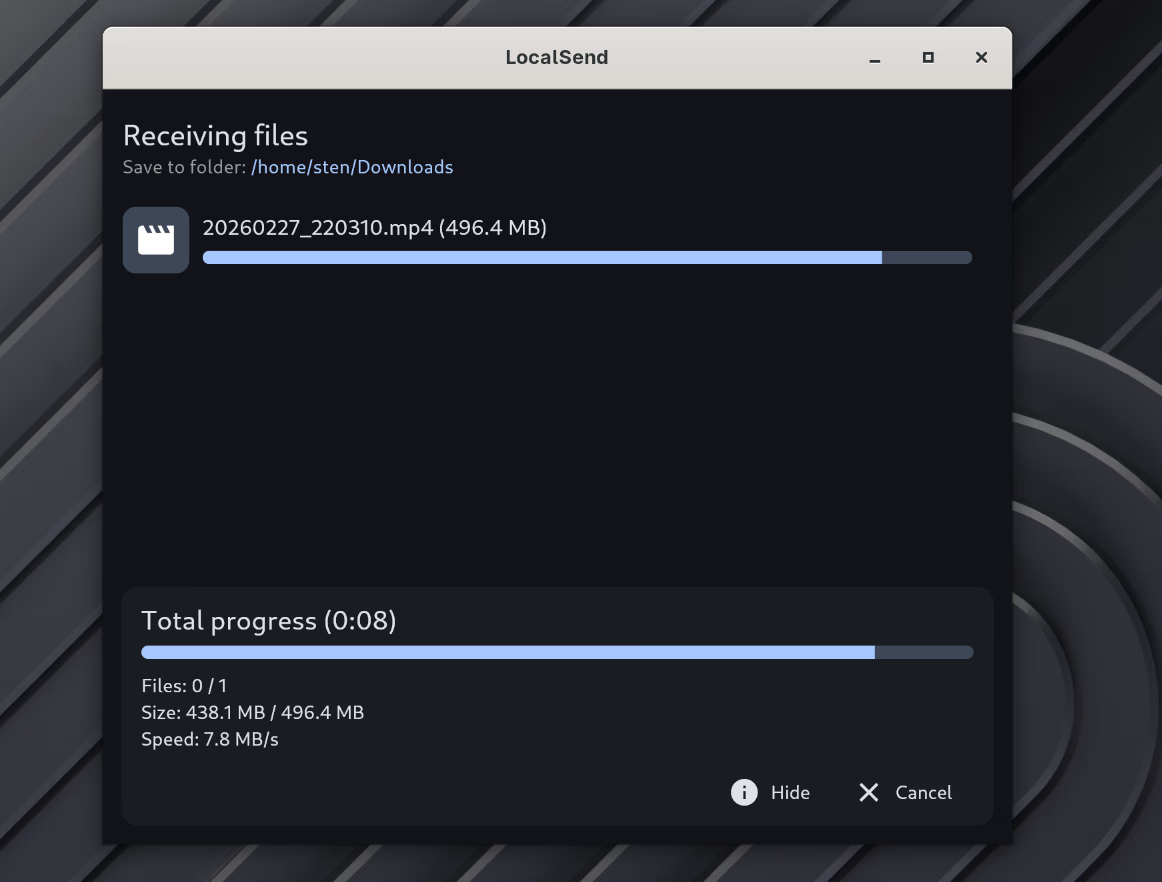
sudo pacman -S localsendThe app shows up in the GNOME launcher after installing. Open it and it auto-discovers other LocalSend instances on your network.
Firewall rules
LocalSend uses port 53317 (TCP and UDP) for both device discovery and file transfer. If you have a firewall active, you need to open this port.
ufw:
sudo ufw allow 53317/tcp comment "LocalSend-App"
sudo ufw allow 53317/udp comment "LocalSend-App"
firewalld:
sudo firewall-cmd --permanent --add-port=53317/tcp
sudo firewall-cmd --permanent --add-port=53317/udp
sudo firewall-cmd --reload
The Android app works the same way. Open it on your phone and it immediately appears as a discovered device on the desktop side, and vice versa.
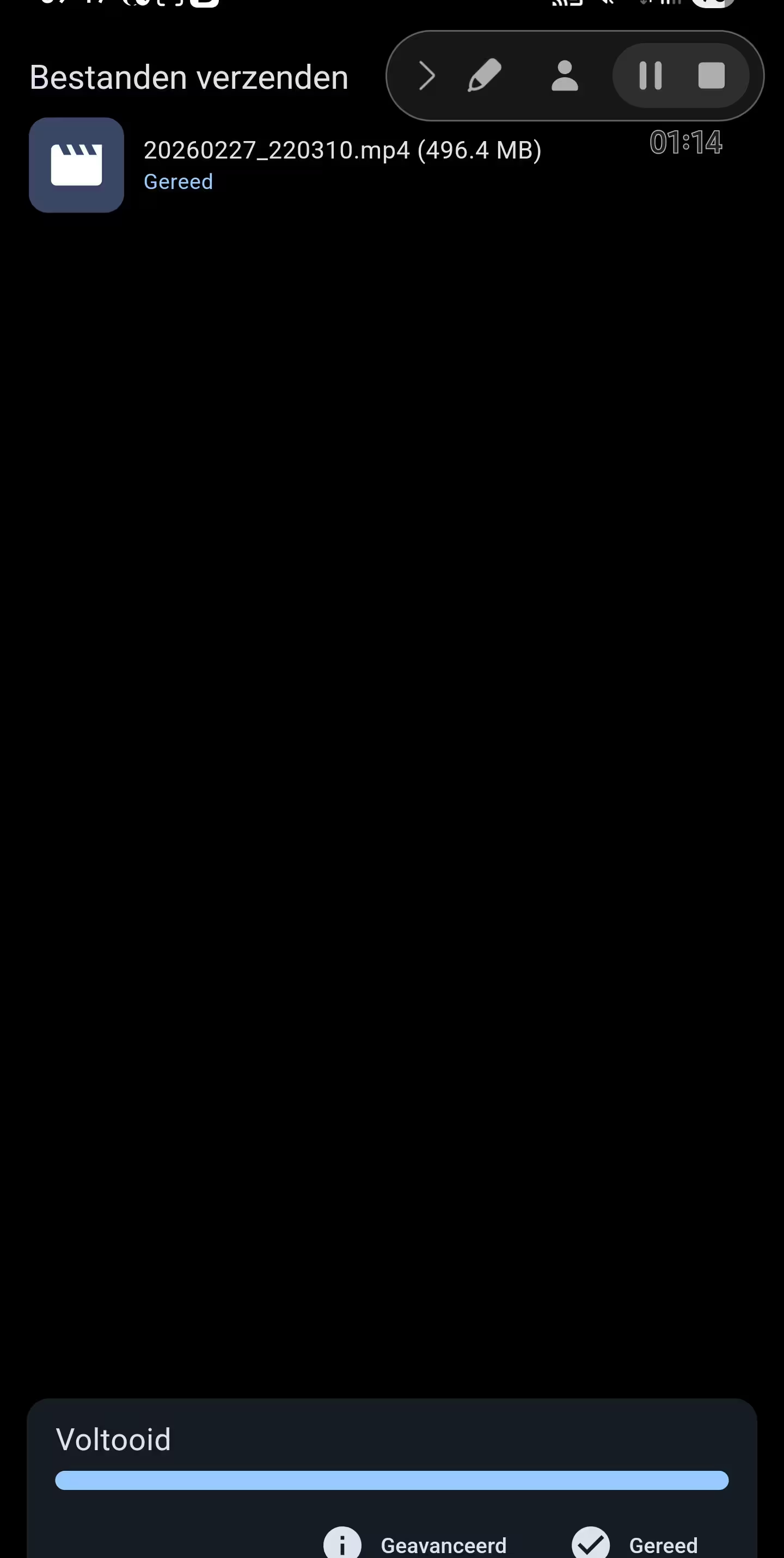
Selecting files is straightforward. Pick what you want to send, choose the target device, and the transfer starts.