asusctl & ROG Control Center
The Zephyrus G16 has a lot of hardware features that don’t work out of the box on Linux: fan curves, performance profiles, the Slash LED on the lid, GPU switching, battery charge limiting. This page documents how I got all of it working using asusctl and the ASUS Linux project tools. On CachyOS, these tools are available directly from the package repos.
Package Information:
asusd6.3.4: background daemon (backend) that manages all hardware featuresasusctl6.3.4: CLI frontend for fan curves, profiles, battery limit, RGB, Slash LED, GPU switchingrog-control-center6.3.4: graphical frontend, part of the asusctl/asusd suite- Source: asus-linux releases · available in CachyOS/Arch repos
Installation
Install asusctl and ROG Control Center
sudo pacman -S asusctl rog-control-centerThis installs:
asusd: the backend daemon that manages all ASUS hardware featuresasusctl: CLI frontend that communicates with asusdrog-control-center: graphical frontend that communicates with asusd
On CachyOS, this is all you need; both packages are available directly from the repos and everything works out of the box. No kernel patching or deep system configuration required.
Enable services
sudo systemctl enable --now asusd.serviceReboot to ensure all services start correctly:
sudo rebootVerify hardware detection
After reboot, verify asusctl detected your hardware correctly:
asusctl infoExpected output should include:
Product family: ROG Zephyrus G16
Board name: GA605WV
Install monitoring tools (optional)
Useful utilities for monitoring hardware alongside asusctl:
sudo pacman -S nvtop powertop s-tui lm_sensors i2c-tools| Package | Description |
|---|---|
nvtop | GPU process monitor (AMD + NVIDIA simultaneously) |
powertop | Power consumption analysis per process/device |
s-tui | TUI dashboard: CPU frequency, temperature, load, stress test |
lm_sensors | Hardware temperature sensor readout |
i2c-tools | Low-level hardware bus diagnostics |
Configuration
Set battery charge limit (recommended: 80%)
Limiting the charge to 80% significantly extends battery lifespan. The laptop runs normally on AC power regardless of this setting.
Set via CLI:
asusctl battery --charge-limit 80Set via GUI:
Open ROG Control Center (rog-control-center) → System Control → Battery Charge Limit.
Verify:
asusctl batteryThis setting persists across reboots and is managed by asusd.
Configure Slash LED (the light bar on the lid)
The Slash LED is the diagonal light bar on the lid of the G16. It supports multiple animations and can be configured to turn off on battery.
Show available animations:
asusctl slash --listAvailable animations: Static, Bounce, Slash, Loading, BitStream, Transmission, Flow, Flux, Phantom, Spectrum, Hazard, Interfacing, Ramp, GameOver, Start, Buzzer
Recommended setup (AC only, off on battery and during sleep):
asusctl slash --enable -b false -s falseWhat these flags do:
--enable: turn on the Slash LED-b false: disable on battery power-s false: disable during sleep
Set animation:
asusctl slash --mode SpectrumSet brightness (0–255):
asusctl slash -l 128Performance profiles
asusctl provides three performance profiles that control CPU/GPU power limits and fan behavior:
| Profile | Description |
|---|---|
Silent | Low power, quiet fans, throttled performance |
Balanced | Default. Moderate power and noise |
Performance | Maximum CPU/GPU power, aggressive fans |
Set a profile:
asusctl profile -P Balanced
asusctl profile -P Silent
asusctl profile -P Performance
Cycle through profiles:
asusctl profile --nextCheck current profile:
asusctl profileNote: Profile switching requires
power-profiles-daemonto be running. See the installation steps above.
GPU mode switching (ROG Control Center / asusctl armoury)
The GA605WV has a hybrid GPU setup: the AMD Radeon 890M (iGPU) drives the internal display, and the NVIDIA RTX 4060 (dGPU) handles GPU workloads.
GPU switching is managed via ROG Control Center (GUI) or asusctl armoury (CLI), both of which interface directly with the asus-armoury kernel driver (available since kernel 6.19).
| Mode | Description |
|---|---|
Hybrid (dgpu_disable 0) | Both GPUs active. NVIDIA handles GPU workloads, AMD drives the display. Best for gaming. |
Integrated (dgpu_disable 1) | Only AMD iGPU. Lower power consumption, no NVIDIA. Good for battery. |
Switch via GUI (ROG Control Center):
Open ROG Control Center (rog-control-center) and navigate to the GPU switching section to toggle between Hybrid and Integrated mode.
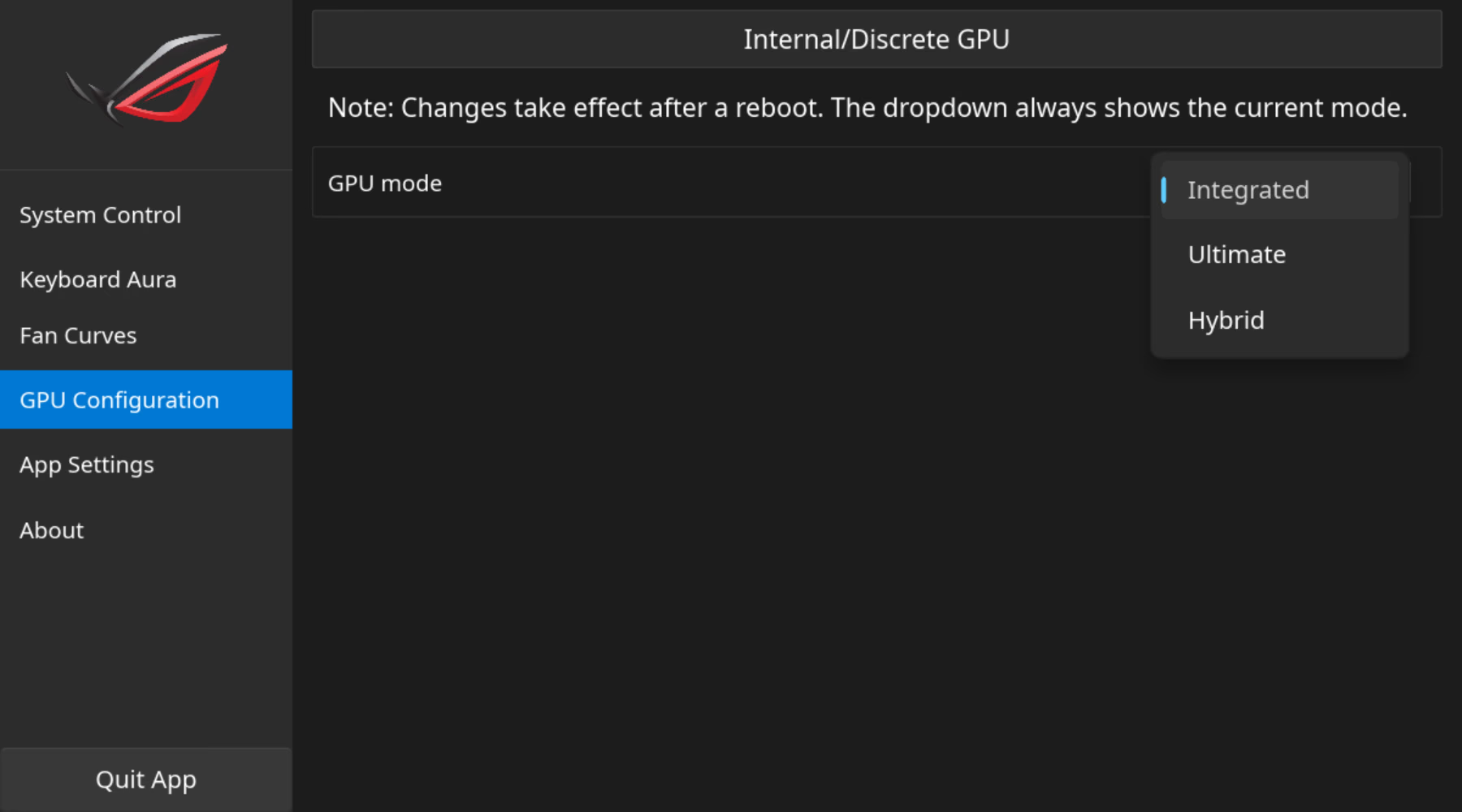
Switch via CLI (asusctl armoury):
Check current dGPU state:
asusctl armoury get dgpu_disableSwitch to iGPU-only (disable dGPU):
asusctl armoury set dgpu_disable 1Switch to Hybrid (enable dGPU):
asusctl armoury set dgpu_disable 0Note: A reboot or logout/login may be required after switching modes.
Important:
nvidia-powerd.servicemust remain disabled and masked on this laptop. It conflicts with AMD ATPX power management and causes soft lockups and reboot hangs (black screen, backlights stay on). GPU power is managed via ATPX (via ACPI). See NVIDIA Driver Installation Guide for diagnosis details and commands.
Keyboard RGB (Aura)
Set keyboard backlight brightness (0–100):
asusctl led-brighter
asusctl led-dimmer
Open Aura configuration in ROG Control Center:
rog-control-centerNavigate to the “Keyboard Aura” section for animation, color, and per-key configuration.
Custom fan curves
Fan curves can be configured per performance profile in ROG Control Center or via CLI.
Open ROG Control Center:
rog-control-centerNavigate to “Fan Curves” to set temperature/speed curves per profile (Silent, Balanced, Performance).
CLI fan curve format:
# Show current fan curve data for a profile
asusctl fan-curve -m Balanced

# Set a custom curve (8 temperature/speed pairs: temp:speed,temp:speed,...)
asusctl fan-curve -m Balanced -D 30:0,40:10,50:30,60:50,70:70,80:85,90:100,100:100
Note: Fan curve customization requires the
asus-armourykernel driver. On kernel < 6.19, the driver is not available and curves set in the GUI may not persist as expected. See the Known Issues page for details.
Monitoring
Hardware monitoring commands
GPU monitor (AMD + NVIDIA):
nvtopCPU frequency, temperature, load dashboard:
s-tuiPower consumption per process/device:
sudo powertopHardware temperatures:
sensorsCheck asusd service logs:
sudo journalctl -b -u asusdCLI Quick Reference
| Command | Description |
|---|---|
asusctl info | Show detected hardware |
asusctl battery --charge-limit 80 | Set battery charge limit to 80% |
asusctl battery | Show current charge limit |
asusctl profile | Show current performance profile |
asusctl profile -P Balanced | Set performance profile |
asusctl profile --next | Cycle to next profile |
asusctl slash --list | List available Slash LED animations |
asusctl slash --enable -b false -s false | Enable Slash LED, off on battery and sleep |
asusctl slash --mode Spectrum | Set Slash LED animation |
asusctl slash -l 128 | Set Slash LED brightness (0–255) |
asusctl armoury get dgpu_disable | Show current dGPU state (0=enabled, 1=disabled) |
asusctl armoury set dgpu_disable 1 | Switch to iGPU-only (disable dGPU) |
asusctl armoury set dgpu_disable 0 | Switch to Hybrid mode (enable dGPU) |
rog-control-center | Open ROG Control Center GUI |
Kernel Updates
Kernel 6.19: asus-armoury driver lands in mainline
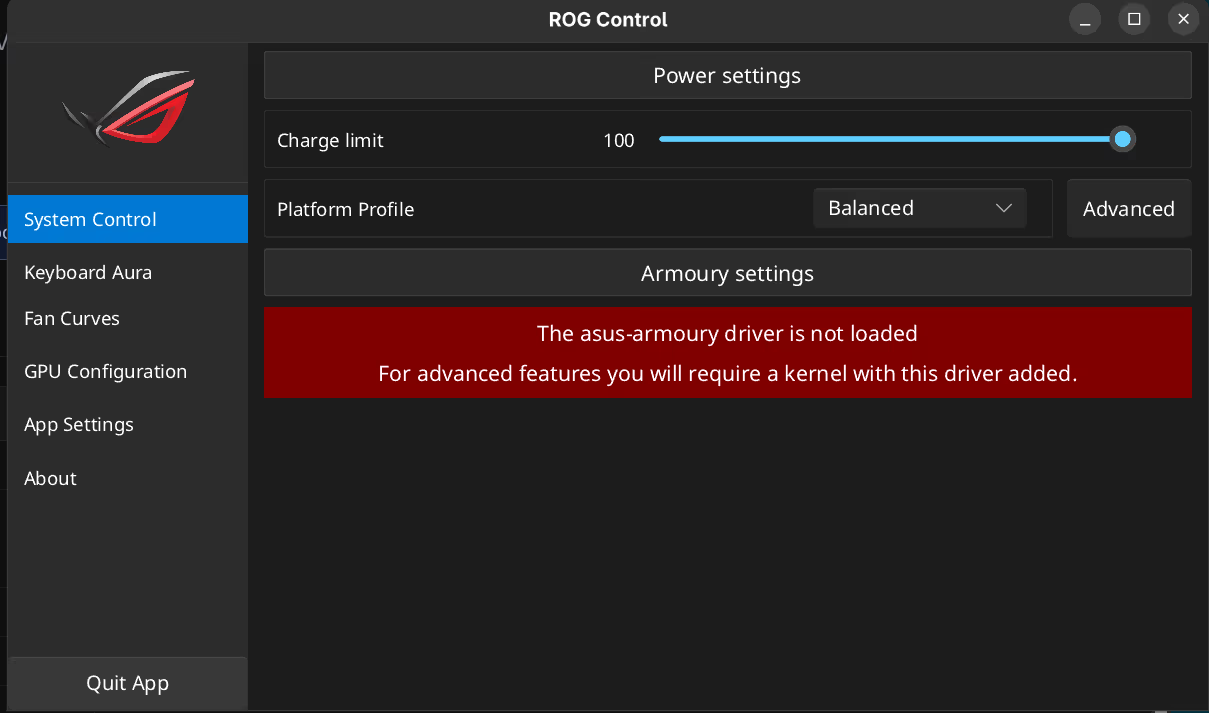
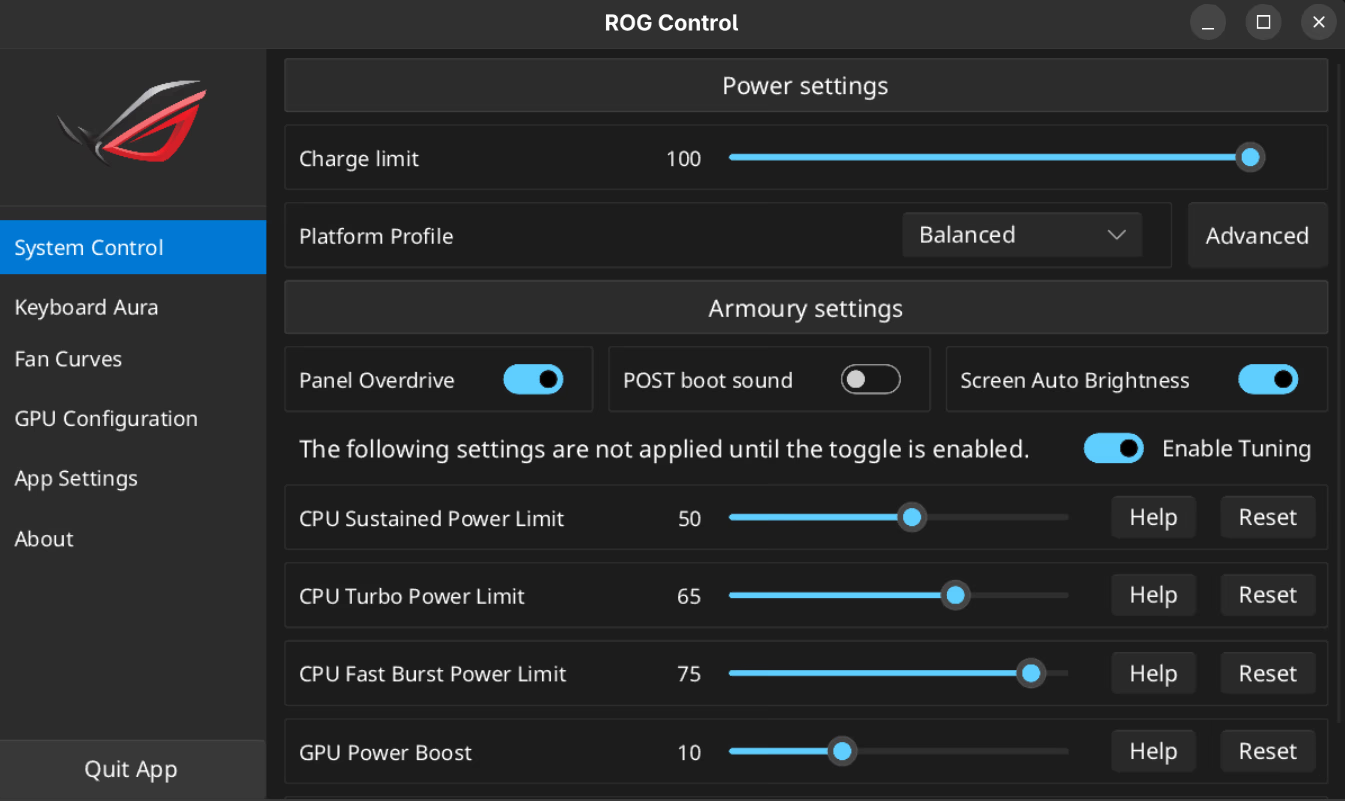
The asus-armoury driver has been merged into Linux 6.19. This new platform/x86 driver replaces parts of the older asus-wmi with a cleaner sysfs-based API, enabling panel mode switching, APU memory allocation, PPT tuning, and more directly from the kernel. The driver is entirely community-developed by the asus-linux team, with no involvement from ASUS themselves. CachyOS ships kernel 6.19.8-1-cachyos which includes this driver and additional ASUS-specific patches.
Before: basic asusctl controls without Armoury settings:
After: full Armoury settings exposed, including PPT/power limit tuning:
Sources: Phoronix article · Community discussion · Patch series (lore.kernel.org)
Kernel 7.0: ASUS laptop quirks + newer AMDGPU enablement
Linus confirmed the next kernel will be 7.0, with the merge window now open and a stable release expected mid-April 2026. For this ASUS ROG G16, the headline is better graphics driver coverage: the DRM updates bring AMDGPU enablement for newer RDNA 3.5-class IP blocks (GFX11.5.4) plus ongoing NVIDIA Nova/Nouveau work, which should translate into better handling of both the iGPU and dGPU. Early expectations are that the Radeon 890M could see around a 20% uplift. CachyOS will pick this up as it ships.
Sources: Linus confirms Linux 7.0 · HID laptop quirks for ASUS ROG models · Linux 7.0 DRM/AMDGPU updates
Additional Resources
- asus-linux.org: official project site
- asusctl GitLab: source code and issue tracker
- CachyOS Wiki: ASUS: CachyOS-specific documentation
- NVIDIA Driver Installation Guide: NVIDIA driver setup and known issues