Known Issues
Central reference for hardware and software issues on the ASUS ROG Zephyrus G16 GA605WV. Active issues are listed first. Resolved issues are kept as reference at the bottom.
Active Issues
These are issues I’m personally still running into. In some cases it might be a real bug; in others it might just be something I’m missing or doing wrong. I’m sharing what I observed, not what I’ve definitively diagnosed.
WinBoat: container fails to start
What’s happening: WinBoat regularly gets stuck in an endless startup loop. The Podman container keeps trying to start but never succeeds, even after waiting indefinitely. The UI shows “WinBoat Guest API - Offline” and “Container - Exited”. This is not limited to the first install; it happens on subsequent starts as well.
Workaround: Resetting WinBoat and going through the initial configuration again gets it running again. This is not a sustainable fix.
Status: Open. WinBoat is in beta and the project acknowledges instability. See the WinBoat page for more context.
WinBoat: application windows drift and shrink randomly
What’s happening: When WinBoat does start successfully and a Windows application (such as Microsoft Word) is opened, the window behaves erratically: it drifts to the right across the screen, scales down randomly, and keeps getting smaller until it is barely visible. This makes WinBoat effectively unusable for productivity applications.
Workaround: None found. Restarting the application or WinBoat does not reliably fix it.
Status: Open. Beta limitation.
Brave Browser: touchpad scrolling too fast on Wayland
What’s happening: Touchpad scrolling in Brave feels significantly faster than in Firefox or native GTK apps. A short swipe sends the page flying. This affects all Chromium-based browsers on Wayland.
Cause: Upstream Chromium issue. Chromium receives high-precision scroll events from libinput on Wayland but doesn’t normalize them the way GTK does. Firefox uses GTK’s input stack, which handles this correctly. Chromium does not.
Status: Open. No fix in Brave as of early 2026. The issue has been reported since at least 2022.
Attempted workaround (abandoned):
Lowering the global scroll-factor in libinput-config does reduce scrolling speed in Brave, but it’s a system-wide change that affects every application, including ones where scrolling was already fine. After running with this for about a week, I removed it. The Brave-specific problem doesn’t justify slowing down everything else.
Sources:
YubiKey FIDO2 LUKS unlock: USB timing race
What’s happening:
Enrolling the YubiKey as a FIDO2 LUKS unlock key succeeds, but at boot systemd-cryptsetup fails with FIDO_ERR_RX. The key is physically present but seemingly not yet initialized by the USB HID stack when the query comes in. This seems to hit especially on warm reboots.
Tried with token-timeout=30 in crypttab and rd.udev.settle-timeout=10 as a kernel parameter, both on systemd 259. Neither helped.
Status:
Still unresolved. Not sure if this is a real hardware/firmware timing issue, something specific to this machine, or a misconfiguration on my end. Possibly revisiting later. For now, the YubiKey is used for sudo and the GNOME lock screen instead.
See the Things I Wished Had Worked section at the bottom of this page for the full context.
Resolved Issues
The following issues are resolved. Each entry is either fixed by the Linux kernel developers (notably the AMD GPU page fault bugs in 6.18 and the asus-armoury driver merged in 6.19), or resolved through a configuration workaround I applied myself. Kept here as a reference.
GPU & Display
System freezes with external monitors (AMD GPU PSR bug)
Problem: System freezes or crashes when using external monitors via Thunderbolt/USB-C, especially when connecting/disconnecting displays. Logs show AMD GPU errors:
amdgpu 0000:66:00.0: amdgpu: MES failed to respond to msg=RESET
amdgpu 0000:66:00.0: amdgpu: Ring gfx_0.0.0 reset failed
amdgpu 0000:66:00.0: amdgpu: GPU reset begin!
Cause: This laptop has dual GPUs (AMD Radeon 890M integrated + NVIDIA RTX 4060 discrete). The AMD GPU’s PSR (Panel Self Refresh) feature has a bug causing crashes with external Thunderbolt monitors.
Fix:
Disable AMD PSR by adding a kernel parameter. Edit /etc/default/grub and add amdgpu.dcdebugmask=0x600 to GRUB_CMDLINE_LINUX_DEFAULT, then regenerate:
sudo nano /etc/default/grub
sudo grub2-mkconfig -o /boot/efi/EFI/fedora/grub.cfg
Reboot:
sudo rebootWhat this does:
amdgpu.dcdebugmask=0x600disables PSR (Panel Self Refresh) on the AMD GPU- PSR is a power-saving feature where the display refreshes itself without GPU involvement
- The PSR implementation has bugs with Thunderbolt/USB-C external monitors
Trade-offs:
- Pro: Stable system with external monitors
- Con: Slightly higher power consumption (PSR disabled)
Verification:
sudo journalctl -f -k | grep -i amdgpuIf no amdgpu: [drm] *ERROR* messages appear, the fix is working.
Reference:
System freezes during VS Code use (AMD GPU page fault, Kernel 6.18.x)
What’s happening: System freezes completely during VS Code use. Kernel 6.18.x/6.19.x have critical amdgpu driver bugs. VS Code hardware acceleration triggers AMD Radeon 890M page fault → complete freeze.
Fix:
Add to ~/.config/Code/User/settings.json:
{
    "disable-hardware-acceleration": true
}
Restart VS Code. System stays stable, VS Code slightly slower but perfectly usable.
Sources:
System freezes during Brave Browser use (AMD GPU page fault, Kernel 6.18.x)
What’s happening: System freezes or crashes during Brave Browser use, even with minimal workload (a few tabs). Chromium-based applications with hardware acceleration trigger AMD Radeon 890M page faults on kernel 6.18.x/6.19.x.
Typical crash sequence in logs:
amdgpu: [gfxhub] page fault (src_id:0 ring:24 vmid:2)
amdgpu: Faulty UTCL2 client ID: SQC (data)
amdgpu: ring gfx_0.0.0 timeout, signaled seq=302899, emitted seq=302901
amdgpu: GPU reset begin!
After GPU reset, gnome-shell crashes (Signal 6 ABRT) because it detects a context reset.
Fix:
Open Brave Browser and go to brave://settings/system. Turn off “Use hardware acceleration when available”.
Alternatively via terminal:
sed -i 's/"hardware_acceleration_mode_previous":true/"hardware_acceleration_mode_previous":false/' ~/.config/BraveSoftware/Brave-Browser/Local\ StateOr start Brave with the --disable-gpu flag:
brave-browser-stable --disable-gpuRestart Brave. Verify via brave://gpu that GPU acceleration is disabled.
Background: Brave, VS Code, and other Chromium-based applications (Chrome, Edge, Electron apps) use GPU shader compilation via Mesa. On kernel 6.18.x, the amdgpu driver has a bug in the Shader Queue Controller (SQC) memory access, causing page faults that trigger a full GPU reset. The fix is to disable hardware acceleration per application until a kernel/Mesa update resolves the issue.
Sources:
NVIDIA soft lockup / ‘GPU has fallen off the bus’
What’s happening: System freezes with an NVIDIA soft lockup, even without active GPU use. Kernel logs show:
watchdog: BUG: soft lockup - CPU#23 stuck for 62s!
NVRM: Xid (PCI:0000:65:00): 79, pid=<...>, GPU has fallen off the bus
This can occur due to a combination of factors on hybrid GPU laptops:
nvidia-powerdconflicts with AMD ATPX power management- NVIDIA dGPU power state transitions fail
- Corrupted VRAM after suspend/resume cycles
Additional symptom: Reboot hang (black screen, backlights stay on)
The system appears to shut down but never completes the hardware reset; the screen goes black but keyboard and screen backlights remain on. This occurs when nvidia-powerd interferes with ACPI power state transitions during shutdown/reboot.
Root cause: supergfxd starts nvidia-powerd behind your back
Even when nvidia-powerd is disabled via systemctl disable, supergfxd (the GPU switching daemon from asusctl) directly calls systemctl start nvidia-powerd.service during GPU mode switches. This bypasses the disabled state and re-activates the conflict with ATPX.
How this was diagnosed:
journalctl -b -1 --no-pager | grep -iE "nvidia.*powerd|supergfxd"Key evidence:
supergfxd: [DEBUG supergfxctl] Did CommandArgs { inner: ["start", "nvidia-powerd.service"] }
nvidia-powerd: ERROR! Client (presumably SBIOS) has requested to disable Dynamic Boost DC controller
Checking the shutdown sequence:
journalctl -b -1 --reverse | head -20Shows the hardware watchdog failed to stop, confirming the ACPI reboot never completed:
watchdog: watchdog0: watchdog did not stop!Fix:
- Disable and mask
nvidia-powerd(masking is essential,disablealone is not enough becausesupergfxdbypasses it):
sudo systemctl disable nvidia-powerd.service
sudo systemctl stop nvidia-powerd.service
sudo systemctl mask nvidia-powerd.service- Add kernel parameters for more stable NVIDIA power management (edit
/etc/default/gruband add toGRUB_CMDLINE_LINUX_DEFAULT, thensudo grub-mkconfig -o /boot/grub/grub.cfg):
nvidia-drm.fbdev=1 nvidia.NVreg_PreserveVideoMemoryAllocations=1- Reboot:
sudo rebootBackground:
On laptops with AMD iGPU + NVIDIA dGPU, the ATPX framework (via ACPI) controls which GPU is active. nvidia-powerd tries to make power decisions independently, which conflicts with ATPX. The NVreg_PreserveVideoMemoryAllocations=1 parameter prevents VRAM from being lost during power transitions, and nvidia-drm.fbdev=1 provides cleaner framebuffer handoff.
NVIDIA Driver
These entries apply primarily to the Fedora installation path. CachyOS users are not affected; the driver is pre-configured during installation.
nvidia-smi: command not found or fails
Check if NVIDIA modules are loaded:
lsmod | grep nvidiaCheck system logs for errors:
sudo journalctl -b | grep nvidiaRebuild kernel modules:
sudo akmods --force
sudo dracut --force
sudo reboot
MOK enrollment: ‘Key was rejected by service’
If you receive the error modprobe: ERROR: could not insert 'nvidia': Key was rejected by service, the kernel modules were built before MOK enrollment completed.
Solution:
# Rebuild modules after MOK enrollment
sudo akmods --force
sudo dracut --force

# Reboot
sudo reboot
To reset MOK if needed:
sudo mokutil --resetReboot and attempt enrollment again.
Kernel module build failures
Ensure kernel headers match running kernel:
sudo dnf install kernel-develForce rebuild:
sudo akmods --force
sudo dracut --force
Applications
Brave Browser crashes on GNOME Wayland (WaylandWpColorManagerV1)
What’s happening:
Brave 1.82–1.86 crashed or caused GNOME Shell to crash on Wayland. The crash is triggered by a Wayland color management extension (WaylandWpColorManagerV1) that conflicts with the AMD amdgpu driver, causing GPU ring timeouts that take down the entire desktop session.
Fix: Copy the system desktop entry to your user directory so it doesn’t get overwritten by updates:
sudo cp /usr/share/applications/brave-browser.desktop ~/.local/share/applications/Patch all three Exec= lines with the flag:
sed -i \
  's|Exec=/usr/bin/brave-browser-stable %U|Exec=/usr/bin/brave-browser-stable --disable-features=WaylandWpColorManagerV1 %U|' \
  ~/.local/share/applications/brave-browser.desktop

sed -i \
  's|Exec=/usr/bin/brave-browser-stable$|Exec=/usr/bin/brave-browser-stable --disable-features=WaylandWpColorManagerV1|' \
  ~/.local/share/applications/brave-browser.desktop

sed -i \
  's|Exec=/usr/bin/brave-browser-stable --incognito$|Exec=/usr/bin/brave-browser-stable --incognito --disable-features=WaylandWpColorManagerV1|' \
  ~/.local/share/applications/brave-browser.desktop
Verify: you should see exactly three Exec= lines with the flag appended:
grep "^Exec" ~/.local/share/applications/brave-browser.desktopGNOME Shell crashes during video playback in Brave (AMD VCN hardware decode)
What’s happening: GNOME Shell crashes with SIGABRT during Picture-in-Picture video in Brave. The AMD VCN hardware decoder triggers a context reset that crashes gnome-shell. This is documented in gnome-mutter issue #4625.
Note: This crash occurs even with the --disable-features=WaylandWpColorManagerV1 flag applied. Both workarounds are required.
Fix:
Go to brave://flags and disable:
- Hardware-accelerated video decode →
Disabled
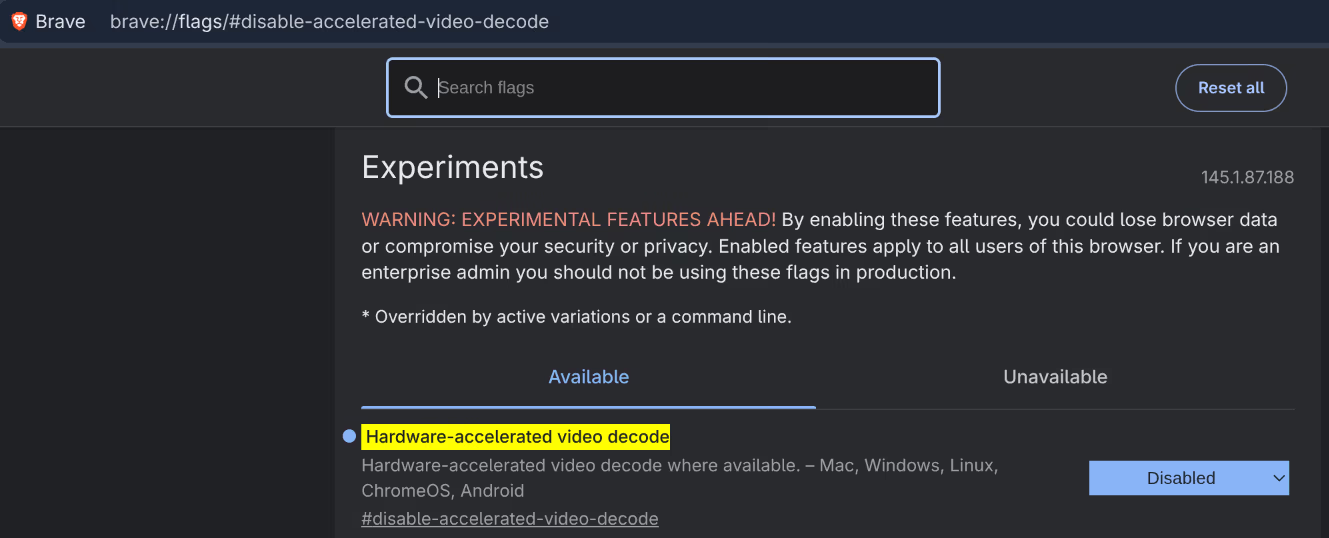
After this, brave://gpu will show:
Video Decode: Software only. Hardware acceleration disabled
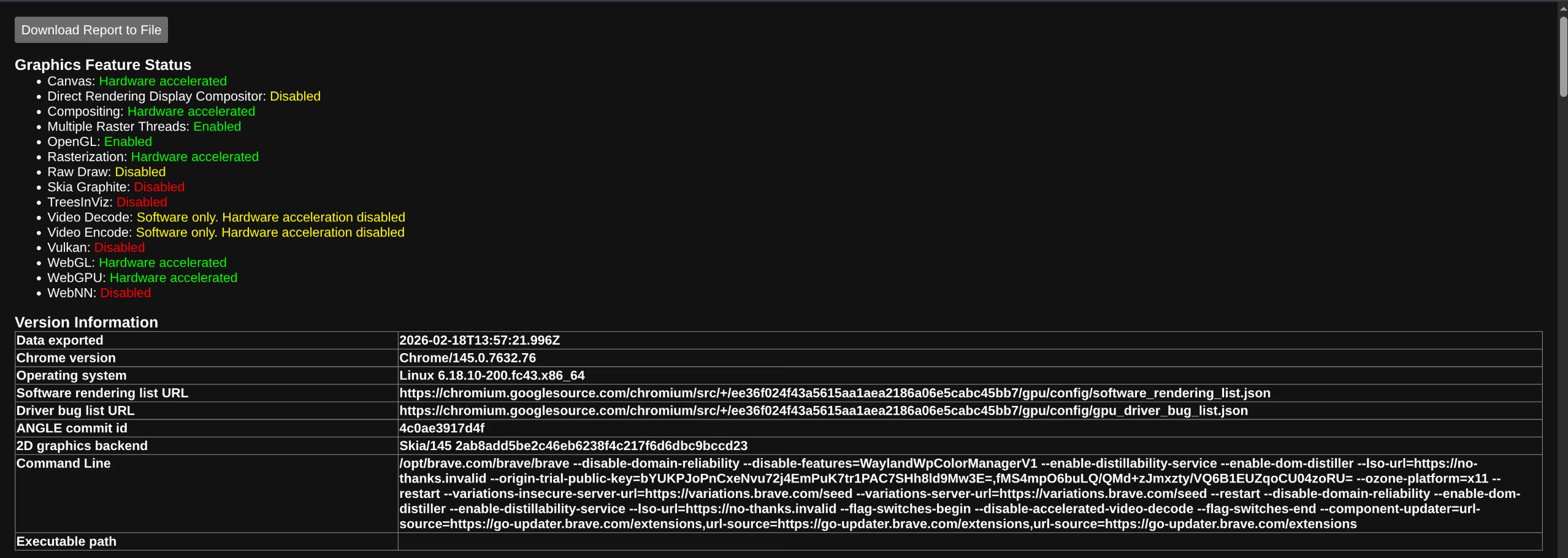
Brave is slightly slower on video-heavy pages but stable. Hardware video decode is not yet stable on the AMD Radeon 890M with GNOME Wayland.
Steam won’t launch
What was happening: Steam failed to launch on some setups, with no visible error output.
Workaround (no longer needed):
__GL_CONSTANT_FRAME_RATE_HINT=3 steamResolution:
This issue has since resolved itself. Steam now launches normally; the __GL_CONSTANT_FRAME_RATE_HINT workaround is no longer required. Install Steam from the CachyOS repository via sudo pacman -S steam.
asusctl & ROG Control Center
ROG Control Center: ‘The asus-armoury driver is not loaded’
Problem:
ROG Control Center shows a warning that the asus-armoury kernel driver is not loaded. Some advanced features (PPT power limits, APU memory allocation, MUX switch control) are unavailable.
Cause:
The asus-armoury driver was merged into the Linux mainline kernel in version 6.19. CachyOS ships kernel 6.19.8-1-cachyos which includes this driver, so it should be available.
Fix: Verify the driver is loaded:
lsmod | grep asus_armouryIf it loads, reopen ROG Control Center; the warning should be gone and advanced features will be available.
Secure Boot
sbctl status still shows ‘Setup Mode: Disabled’ after clearing keys
Some ASUS UEFI versions require the platform key (PK) to be explicitly deleted before Setup Mode activates.
In the ASUS UEFI:
- Go to Security → Secure Boot → Key Management
- Select Platform Key (PK) → Delete
- Save & Exit and reboot
After rebooting, sudo sbctl status should show Setup Mode: Enabled.
System does not boot after enabling Secure Boot
If the system doesn’t boot after enabling Secure Boot, one or more EFI files weren’t signed.
- Reboot into the ASUS UEFI and temporarily disable Secure Boot
- Boot into CachyOS
- Check which files are unsigned:
sudo sbctl verify- Sign any missing files:
sudo sbctl sign -s /path/to/file.efi- Or re-run the batch sign:
sudo sbctl-batch-sign- Reboot and re-enable Secure Boot
YubiKey & LUKS
System stuck in boot loop after FIDO2 enrollment
If you enrolled FIDO2 and cannot boot, spam-tap the YubiKey immediately after the BIOS screen. The touch window is very short.
Once in the system, revert immediately:
sudo systemd-cryptenroll --wipe-slot=fido2 /dev/nvme1n1p3
sudo nano /etc/crypttab  # remove fido2-device=auto
sudo rm /etc/dracut.conf.d/fido2.conf
sudo dracut --force --regenerate-all
Verify LUKS keyslots
sudo cryptsetup luksDump /dev/nvme1n1p3 | grep -E "^\s+[0-9]+:"Should show only 0: luks2 after reverting. If slot 1 is still present, FIDO2 is still enrolled.
GDM Autologin
Autologin not working after config change
Verify the config file is correct:
sudo cat /etc/gdm/custom.confEnsure AutomaticLoginEnable=True is under [daemon] and the username matches exactly:
whoamiAlso check that GDM is the active display manager:
systemctl status gdmVirtual Machines
‘Could not detect a default hypervisor’ error in virt-manager
# 1. Start libvirtd
sudo systemctl start libvirtd

# 2. Check group membership
groups  # Must contain "libvirt"

# If "libvirt" is missing:
sudo usermod --append --groups libvirt $(whoami)
# Then log out and log back in
If you still see the error after logging back in, add the connection manually:
- Open virt-manager
- File → Add Connection
- Hypervisor: QEMU/KVM
- Connect to local hypervisor
- Leave all other fields empty
- Click Connect
VirtIO ISO download is incomplete
The ISO must be exactly ~753 MB. If smaller:
# Remove incomplete download
sudo rm /var/lib/libvirt/images/virtio-win.iso

# Download again (don't cancel with Ctrl+C!)
sudo curl -L -o /var/lib/libvirt/images/virtio-win.iso \
  https://fedorapeople.org/groups/virt/virtio-win/direct-downloads/stable-virtio/virtio-win.iso

# Verify size
ls -lh /var/lib/libvirt/images/virtio-win.iso
Permission denied when starting VM
sudo restorecon -Rv /var/lib/libvirt/images/
sudo restorecon -Rv /mnt/vmstore/
Black screen in VM
- Check that Video model is set to Virtio (not QXL) in virt-manager hardware settings
- Install VirtIO guest tools from the VirtIO ISO (inside Windows)
- Install SPICE Guest Tools (inside Windows)
Clipboard doesn’t work between host and guest
Things I Wished Had Worked
These are things I genuinely wanted to get working but couldn’t, due to hardware limitations, persistent bugs, or the project not being mature enough yet.
Looking Glass B7: GPU passthrough on the Zephyrus G16
I wanted to try GPU passthrough with Looking Glass: running Windows in a VM but with the real NVIDIA GPU assigned to it, getting near-native performance. Spent a good few hours on it. It doesn’t work on this laptop, and the reason is a hardware limitation that Looking Glass can’t work around. Documented the full attempt here so others can save themselves the time.
TL;DR: Looking Glass does not work on the ASUS ROG Zephyrus G16 GA605WV. The RTX 4060 has no physical display outputs; all ports (HDMI, USB-C) are routed through the AMD iGPU. Windows can’t find a “valid output device” for frame capture, so the host application fails immediately.
What is Looking Glass?
Looking Glass is an open-source project that allows you to use a GPU-passthrough Windows VM without a physical monitor attached to the dGPU. The Windows VM gets the real GPU assigned and the rendered image is streamed to the Linux host via shared memory (IVSHMEM). The result is near-native GPU performance in a VM, visible in a window on your Linux desktop.
Requirements for operation:
- dGPU with direct display output (DisplayPort, HDMI), or a virtual display dongle
- IOMMU isolation of the dGPU from the rest of the system
- KVMFR kernel module on the host
- Looking Glass host application in the Windows VM
Phase 1: Setting up IOMMU and VFIO
Checking IOMMU groups
for d in /sys/kernel/iommu_groups/*/devices/*; do
    n=${d#*/iommu_groups/*}; n=${n%%/*}
    printf 'IOMMU Group %s ' "$n"
    lspci -nns "${d##*/}"
done | grep -E "NVIDIA|AMD|10de|1002" | head -20
The RTX 4060 was in a clean separate group:
IOMMU Group 20: 65:00.0 VGA [10de:28e0] NVIDIA GeForce RTX 4060 Max-Q
IOMMU Group 20: 65:00.1 Audio [10de:22be] NVIDIA HD Audio
IOMMU Group 21: 66:00.0 Display [1002:150e] AMD Radeon 890M
Setting VFIO kernel parameters
sudo grubby --update-kernel=ALL \
  --args="vfio-pci.ids=10de:28e0,10de:22be \
          rd.driver.pre=vfio-pci \
          iommu=1 \
          rd.driver.blacklist=nouveau,nova_core \
          modprobe.blacklist=nouveau,nova_core \
          amdgpu.dcdebugmask=0x600"
Creating VFIO configuration files
/etc/modprobe.d/vfio.conf:
options vfio-pci ids=10de:28e0,10de:22be
softdep nvidia pre: vfio-pci
softdep nvidia_drm pre: vfio-pci
softdep nvidia_modeset pre: vfio-pci
softdep nouveau pre: vfio-pci/etc/dracut.conf.d/vfio.conf:
add_drivers+=" vfio vfio_iommu_type1 vfio_pci "Disabling nvidia-fallback.service
With VFIO, vfio-pci claims the GPU before the NVIDIA driver, causing nvidia-fallback.service to produce errors:
sudo systemctl disable nvidia-fallback.service
sudo systemctl mask nvidia-fallback.service
Rebuilding initramfs and rebooting
sudo dracut --force
sudo reboot
Verification after reboot
lspci -nnk -d 10de:28e0
# Expected: Kernel driver in use: vfio-pci

lspci -nnk -d 1002:150e
# Expected: Kernel driver in use: amdgpu

nvidia-smi
# Expected: NVIDIA-SMI has failed because... (normal with VFIO)
Phase 2: Installing KVMFR kernel module
The KVMFR module provides the /dev/kvmfr0 interface for the IVSHMEM shared memory buffer.
Building and installing the module via DKMS
cd ~/source/looking-glass-B7/module
sudo dkms install .
MOK enrollment for Secure Boot
sudo mokutil --import /var/lib/dkms/mok.pub
# Set a temporary password
sudo reboot
# At reboot: Enroll MOK → Continue → Yes → password → reboot
Automatically loading and configuring the module
echo "kvmfr" | sudo tee /etc/modules-load.d/kvmfr.conf
echo "options kvmfr static_size_mb=128" | sudo tee /etc/modprobe.d/kvmfr.conf
Setting udev permissions
echo 'SUBSYSTEM=="kvmfr", OWNER="sten", GROUP="kvm", MODE="0660"' | \
  sudo tee /etc/udev/rules.d/99-kvmfr.rules

sudo udevadm control --reload-rules
sudo udevadm trigger
Manually loading and testing the module
sudo modprobe -r kvmfr
sudo modprobe kvmfr

ls -la /dev/kvmfr0
# Expected: crw-rw---- 1 sten kvm 508, 0 ...

# If permissions are still incorrect after udev:
sudo chown sten:kvm /dev/kvmfr0
sudo chmod 660 /dev/kvmfr0
Phase 3: Building the Looking Glass client
Downloading the source
mkdir -p ~/source
cd ~/source
git clone https://github.com/gnif/LookingGlass.git looking-glass-B7
cd looking-glass-B7
git submodule update --init --recursive
Installing dependencies
The dependencies had to be discovered one by one. The complete list on CachyOS:
sudo pacman -S cmake gcc libglvnd fontconfig \
  spice-protocol wayland wayland-protocols pipewire \
  libxkbcommon libsamplerate systemd nettle \
  desktop-file-utils libxi libxfixes libxss \
  libxinerama libxcursor libxpresent libxrandr \
  libdecor libpulse binutils
Missing packages per build error:
| Error | Missing package |
|---|---|
wayland-client.h: No such file | wayland-devel |
xkbcommon.h: No such file | libxkbcommon-devel |
samplerate.h: No such file | libsamplerate-devel |
Xi.h: No such file | libXi-devel |
Xfixes.h: No such file | libXfixes-devel |
bfd.h: No such file | binutils-devel |
Xrandr.h: No such file | libXrandr-devel |
Building and installing
cd ~/source/looking-glass-B7/client
mkdir build && cd build
cmake ../
make -j$(nproc)
sudo make install
# Installs to /usr/local/bin/looking-glass-client
Verification
which looking-glass-client
looking-glass-client --version
# Output: Looking Glass (B7), CPU: AMD Ryzen AI 9 HX 370 w/ Radeon 890M
Phase 4: Modifying the VM XML
Changes via sudo virsh edit win11:
SPICE: Disable GL (input/clipboard only):
<graphics type="spice">
  <listen type="none"/>
  <image compression="off"/>
  <streaming mode="filter"/>
  <gl enable="no"/>
</graphics>
Video: Looking Glass replaces the display:
<video>
  <model type="none"/>
</video>
Note: With
type="none", virt-manager shows a blank screen. This is expected. Temporarily switch back totype="vga"if you need Windows access during setup.
RTX 4060 PCI passthrough:
<hostdev mode="subsystem" type="pci" managed="yes">
  <source>
    <address domain="0x0000" bus="0x65" slot="0x00" function="0x0"/>
  </source>
</hostdev>
<hostdev mode="subsystem" type="pci" managed="yes">
  <source>
    <address domain="0x0000" bus="0x65" slot="0x00" function="0x1"/>
  </source>
</hostdev>
IVSHMEM buffer:
<shmem name="looking-glass">
  <model type="ivshmem-plain"/>
  <size unit="M">128</size>
</shmem>
Phase 5: Installing the Looking Glass host in Windows
Temporarily restoring VGA access
sudo virsh edit win11
# Change: <model type="none"/> to <model type="vga"/>
sudo virsh destroy win11
sudo virsh start win11
Host installer in Windows
- Download
looking-glass-host-setup.exefrom https://looking-glass.io/downloads (B7) - Right-click → Run as administrator
- Next → Agree → Next → Install → Close
This automatically installs the IVSHMEM driver and the Looking Glass Host service.
Installing the NVIDIA driver in Windows
The RTX 4060 showed up as “Microsoft Basic Display Adapter”. Download the driver from https://www.nvidia.com/drivers and install it.
Setting video back to none
sudo virsh edit win11
# Change: <model type="vga"/> back to <model type="none"/>
sudo virsh destroy win11
sudo virsh start win11
Phase 6: Connecting the client
Checking shared memory permissions
ls -la /dev/kvmfr0

# QEMU fallback:
ls -la /dev/shm/looking-glass
sudo chown sten:kvm /dev/shm/looking-glass  # if permissions are incorrect
Starting the client
looking-glass-client -sResult: “Host Application Not Running”; shared memory works, but the host is not sending frames.
Why it failed
Host application log (C:\ProgramData\Looking Glass (host)\looking-glass-host.txt):
[I] d12.c | Not using unsupported adapter: Microsoft Basic Render Driver
[E] d12.c | Failed to locate a valid output device
[I] dxgi.c | Not using unsupported adapter: Microsoft Basic Render Driver
[E] dxgi.c | Failed to locate a valid output device
[E] app.c | Failed to find a supported capture interface
Diagnosis via PowerShell in Windows:
Get-PnpDevice | Where-Object {
    $_.FriendlyName -like "*NVIDIA*" -or $_.FriendlyName -like "*display*"
} | Format-Table FriendlyName, Status, Class

# Result:
# NVIDIA GeForce RTX 4060 Laptop GPU  OK  Display
# Microsoft Basic Display Adapter     OK  Display
The RTX 4060 was recognized and the driver was installed, but the host could not use it because there is no display output.
The fundamental hardware limitation, confirmed via ls /sys/class/drm/:
card0-HDMI-A-1      ← HDMI is on AMD iGPU (card0)
card0-eDP-2         ← internal display via AMD (Dynamic MUX mode)
card1-DP-1 to DP-8  ← NVIDIA virtual outputs (no physical connectors)
card1-eDP-1         ← internal display via NVIDIA (dGPU MUX mode)
All physical ports on this laptop are on the AMD iGPU. The RTX 4060 has no physical display connectors whatsoever. DirectX 12 and DXGI require an active display output for frame capture, which is physically impossible on this laptop.
Additional findings
nvidia-fallback.service produces errors when VFIO is active. Solution: mask it (see Phase 1). When reverting, restore it:
sudo systemctl unmask nvidia-fallback.service
sudo systemctl enable nvidia-fallback.service
QEMU shared memory fallback: If /dev/kvmfr0 is not available, QEMU uses /dev/shm/looking-glass (128MB, owned by qemu:qemu). The client falls back to this automatically.
Reverting everything
# Restore kernel parameters
sudo grubby --update-kernel=ALL \
  --remove-args="vfio-pci.ids=10de:28e0,10de:22be rd.driver.pre=vfio-pci \
                 rd.driver.blacklist=nouveau,nova_core modprobe.blacklist=nouveau,nova_core" \
  --args="nvidia-drm.modeset=1 nvidia-drm.fbdev=1 \
          nvidia.NVreg_PreserveVideoMemoryAllocations=1 iommu=pt"

# Remove VFIO config
sudo rm /etc/modprobe.d/vfio.conf
sudo rm /etc/dracut.conf.d/vfio.conf
sudo rm /etc/modules-load.d/kvmfr.conf
sudo rm /etc/udev/rules.d/99-kvmfr.rules
sudo rm /etc/modprobe.d/kvmfr.conf

# Restore nvidia-fallback
sudo systemctl unmask nvidia-fallback.service
sudo systemctl enable nvidia-fallback.service

# Remove KVMFR DKMS module
sudo dkms remove kvmfr/0.0.12 --all

# Remove DKMS MOK key (optional)
sudo mokutil --delete /var/lib/dkms/mok.pub
# Set password for the MOK prompt at reboot

# Rebuild initramfs
sudo akmods --force
sudo dracut --force

sudo reboot
# At reboot: blue MOK screen → Delete MOK → password → reboot
Restore VM XML via sudo virsh edit win11: remove the two <hostdev> blocks and the <shmem> block, set video back to type="virtio" with accel3d="yes", and set SPICE back to gl enable="yes" rendernode="/dev/dri/by-path/pci-0000:66:00.0-render".
References
YubiKey 5C NFC: FIDO2 LUKS unlock
I wanted to unlock the LUKS-encrypted drive at boot by plugging in the YubiKey and touching it. This documents the attempt and why it didn’t work. The YubiKey works fine for everything outside of early boot; see the YubiKey page for the pam-u2f setup.
What Was Attempted: FIDO2 LUKS Unlock
Packages installed:
sudo pacman -S libfido2FIDO2 enrollment:
sudo systemd-cryptenroll \
  --fido2-device=auto \
  --fido2-with-client-pin=no \
  --fido2-with-user-presence=yes \
  --fido2-with-user-verification=no \
  /dev/nvme1n1p2
crypttab:
luks-aaf424ea-... UUID=aaf424ea-... none fido2-device=auto,discard,token-timeout=30/etc/sdboot-manage.conf:
LINUX_OPTIONS="... rd.luks.options=aaf424ea-...=fido2-device=auto,token-timeout=30 rd.udev.settle-timeout=10"What worked:
- Enrollment succeeded (keyslot 1, touch-only)
- FIDO2 libraries confirmed present in initramfs
- systemd 259 confirmed:
+FIDO2support present,token-timeout=available as a crypttab option - Password fallback regression from systemd 257/258 is fixed in 259
What failed: Despite running systemd 259, the USB timing race condition remained:
systemd-cryptsetup: Failed to ask token for assertion: FIDO_ERR_RXFIDO_ERR_RX means the YubiKey is physically present but not fully initialized by the USB HID stack when systemd-cryptsetup queries it. This seems to hit especially on warm reboots. Attempted workarounds: token-timeout=30 in crypttab and rd.udev.settle-timeout=10 as a kernel parameter. Neither was reliable enough.
What was reverted:
# Remove FIDO2 from LUKS
sudo systemd-cryptenroll --wipe-slot=fido2 /dev/nvme1n1p2

# Restore crypttab to passphrase-only (discard only, no fido2-device=auto)

# Restore /etc/sdboot-manage.conf to original LINUX_OPTIONS
sudo sdboot-manage gen