eduroam Network Installation
Getting eduroam to work on Linux is more painful than it should be. Every “official” method I tried failed; the connection would just hang during the TLS handshake and never connect. I eventually figured out a manual setup that works reliably and wrote a script around it. Sharing it here so you hopefully don’t have to go through the same process.
What doesn’t work
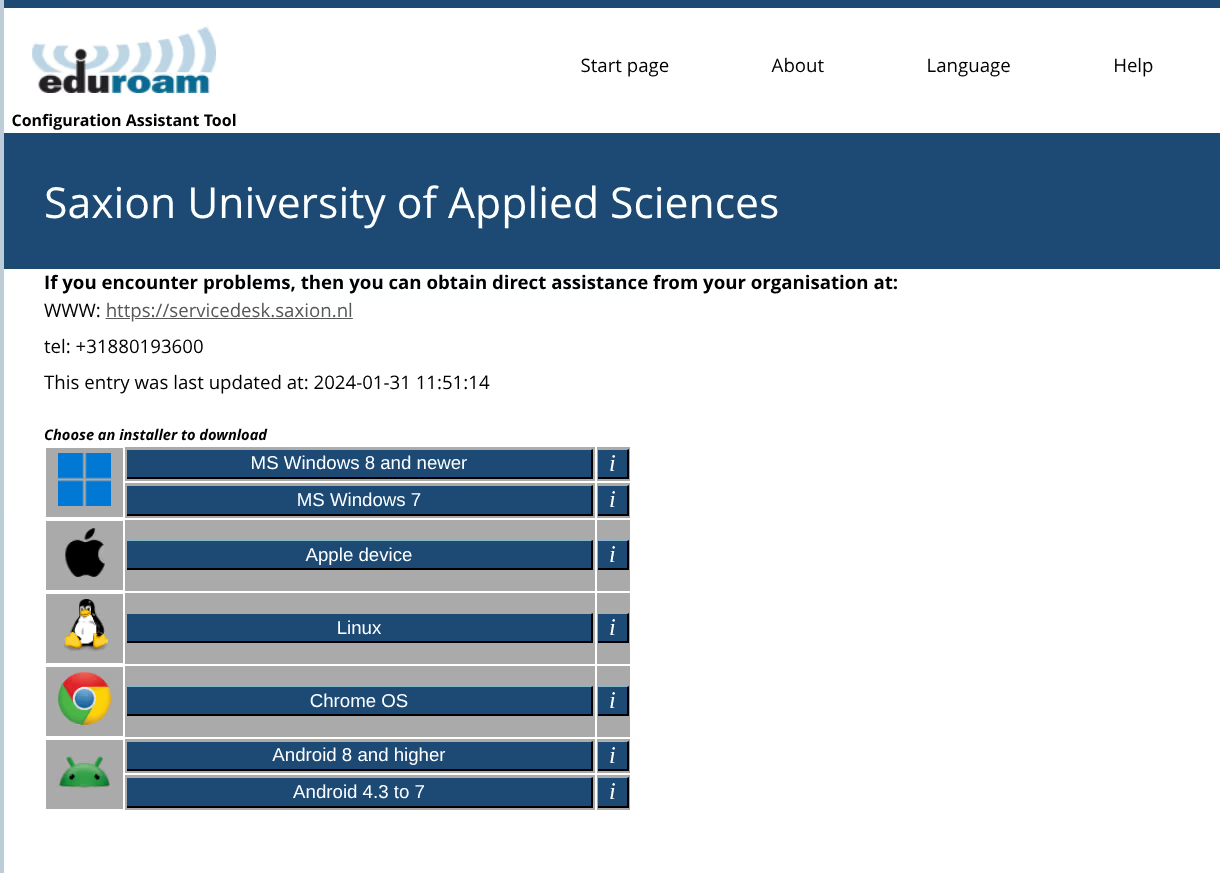
cat.eduroam.org installer (official)
The Python installer from cat.eduroam.org provides a graphical interface and creates a connection profile. On some recent Linux distributions, the connection may hang during the TLS handshake due to changes in NetworkManager.
geteduroam Linux app (official)
easyroam-linux (community)
UvA/HvA Linux eduroam guide
What does work
PEAP/MSCHAPv2 with CA validation via the system trust store and domain-suffix-match (the modern replacement for the deprecated altsubject-matches).
Requirements:
- Python 3.10+
- NetworkManager 1.8+ (
nmcli)
Connection settings
| Setting | Value |
|---|---|
| Security | WPA & WPA2 Enterprise |
| Authentication | Protected EAP (PEAP) |
| PEAP version | Automatic |
| Inner authentication | MSCHAPv2 |
| CA certificate | System CA bundle (/etc/pki/tls/certs/ca-bundle.crt) |
| Domain validation | domain-suffix-match: ise.infra.saxion.net |
| Phase2 domain validation | phase2-domain-suffix-match: ise.infra.saxion.net |
| Anonymous identity | [email protected] |
| Identity | [email protected] |
Automated setup (recommended)
A Python script automates the full nmcli connection setup for Saxion:
# 1. Download
curl -LO https://zephyrus-linux.stensel.nl/scripts/saxion-eduroam.py

# 2. Verify checksum
echo "8dd2f2120ddebdfd9d764e04954322307dccb8c855c691de7600f2a8a71db42b  saxion-eduroam.py" | sha256sum -c

# 3. Run
python3 saxion-eduroam.py
SHA256: 8dd2f2120ddebdfd9d764e04954322307dccb8c855c691de7600f2a8a71db42b
The script removes any existing eduroam profile, prompts for your username via a GUI dialog (zenity, kdialog, or yad) or terminal fallback, and activates the connection. Your password is never asked by the script; it is requested by your GNOME Keyring at connection time and stored securely, never in plaintext.
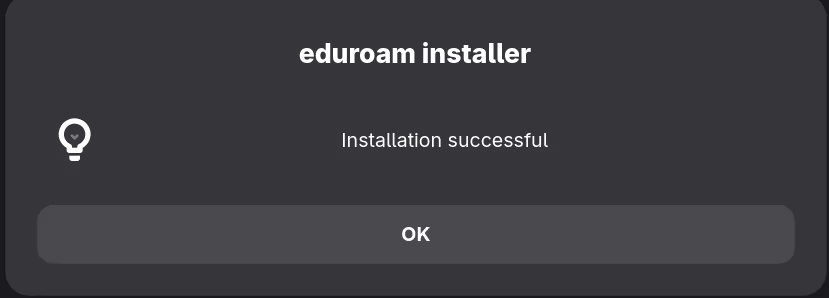
ise.infra.saxion.net). For other institutions, use the official CAT script from cat.eduroam.org as a starting point.If everything goes well, you should see something like this:
Source: saxion-eduroam.py
Manual setup via nmcli
password-flags 1 instead, which stores the password securely in GNOME Keyring. Both approaches work; the script’s method is more secure.nmcli connection add \
type wifi \
con-name "eduroam" \
ssid "eduroam" \
wifi-sec.key-mgmt wpa-eap \
802-1x.eap peap \
802-1x.phase2-auth mschapv2 \
802-1x.identity "[email protected]" \
802-1x.password "your-password" \
802-1x.anonymous-identity "[email protected]" \
802-1x.ca-cert file:///etc/pki/tls/certs/ca-bundle.crt \
802-1x.domain-suffix-match "ise.infra.saxion.net" \
802-1x.phase2-domain-suffix-match "ise.infra.saxion.net"Then connect:
nmcli connection up eduroamManual setup via GNOME Settings
- Open Settings → Wi-Fi
- Select eduroam
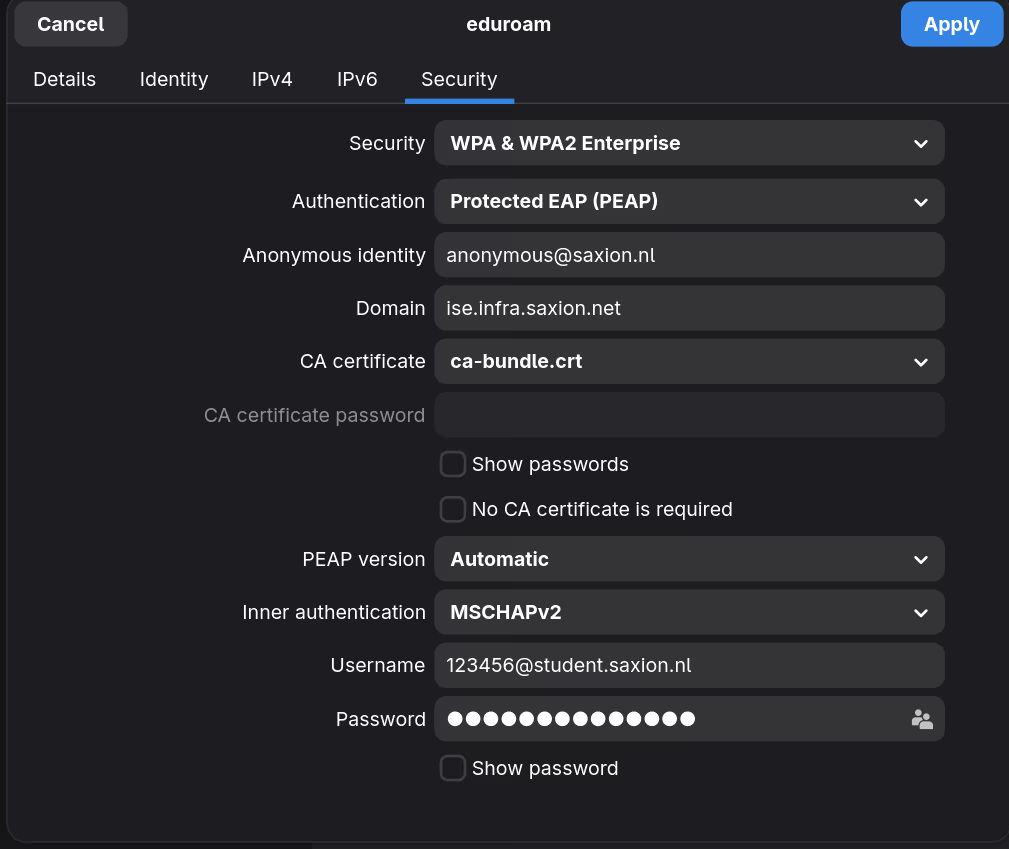
- Go to the Security tab and fill in the settings from the table above
- Enter your institutional credentials
- Click Apply
Here’s what the Security tab should look like:
Removal
nmcli connection delete eduroam