Podman & Podman Desktop
I used Docker before, but wanted to try something different. Podman’s philosophy around rootless containers appealed to me enough to switch completely.
Podman runs containers rootless by default, meaning containers run as your regular user without elevated privileges. It is also daemonless: Docker relies on a background daemon (dockerd) running as root; Podman has nothing in between, so less overhead.
Podman also integrates well with systemd, which makes sense since it is made by Red Hat and ships as the default container runtime on Fedora and RHEL. You notice this most on those systems, but it works fine on CachyOS too.
For me it covers everything I need. Compose, Kubernetes and rootless networking are already built in. Docker compatibility means I can keep using the docker CLI and existing docker-compose files without any changes.
See the Development section in Applications for the short installation summary.
Installation
Three packages make up the full setup:
| Package | Purpose |
|---|---|
podman | The container runtime |
podman-docker | Drop-in docker CLI replacement; removes Docker if installed |
podman-desktop | GUI for managing containers, images, volumes, and registries |
sudo pacman -S podman podman-docker podman-desktoppodman-docker conflicts with docker. Pacman will ask you to remove Docker before installing. This is by design: podman-docker provides the docker command as a shim that calls Podman underneath, so all your existing docker commands keep working.Any docker command now runs through Podman and prints a one-time notice:
Emulate Docker CLI using podman. Create /etc/containers/nodocker to quiet msg.To suppress that message permanently:
sudo touch /etc/containers/nodockerPodman Desktop onboarding
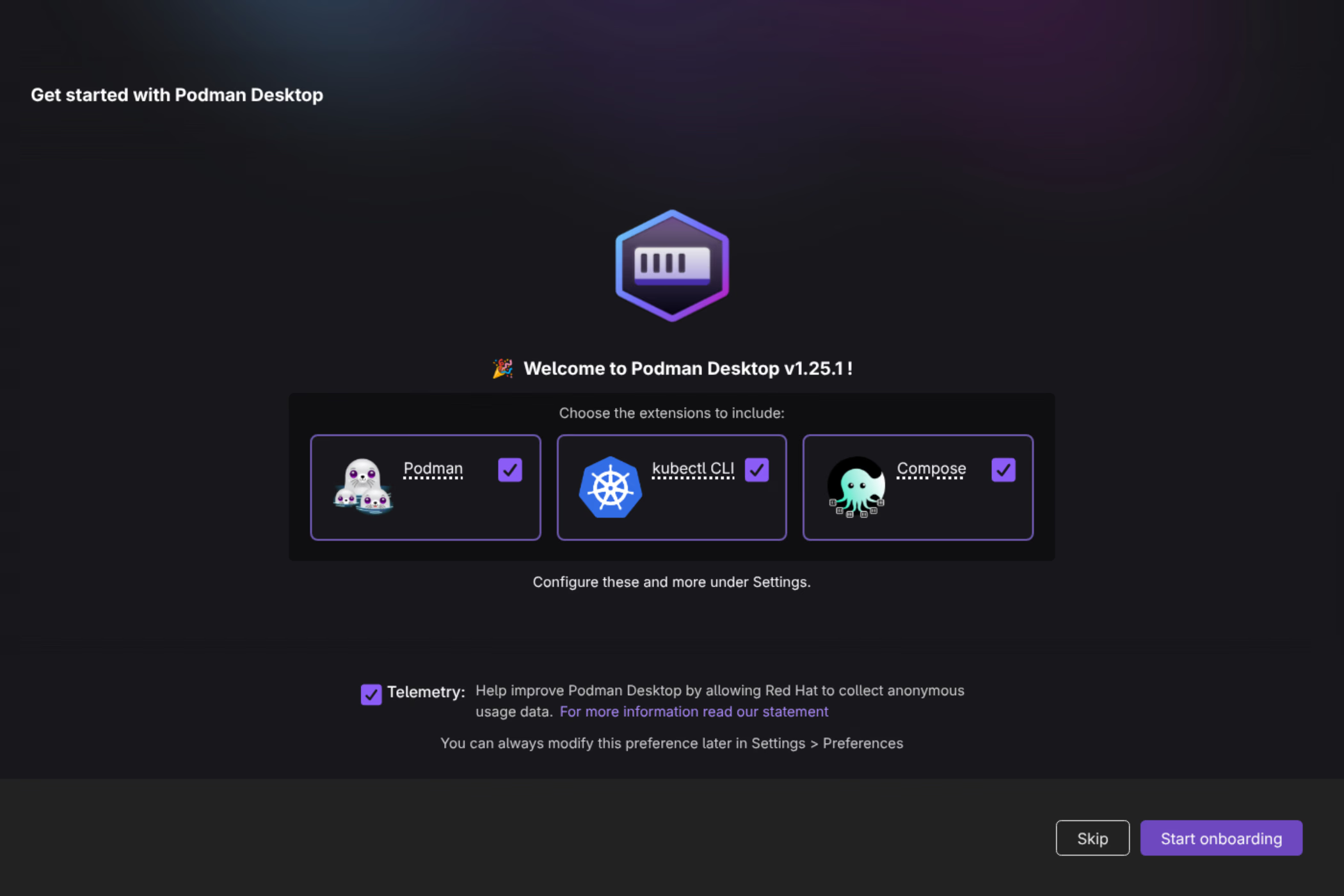
When you first launch Podman Desktop it walks you through setting up Podman, kubectl (for Kubernetes), and Compose.
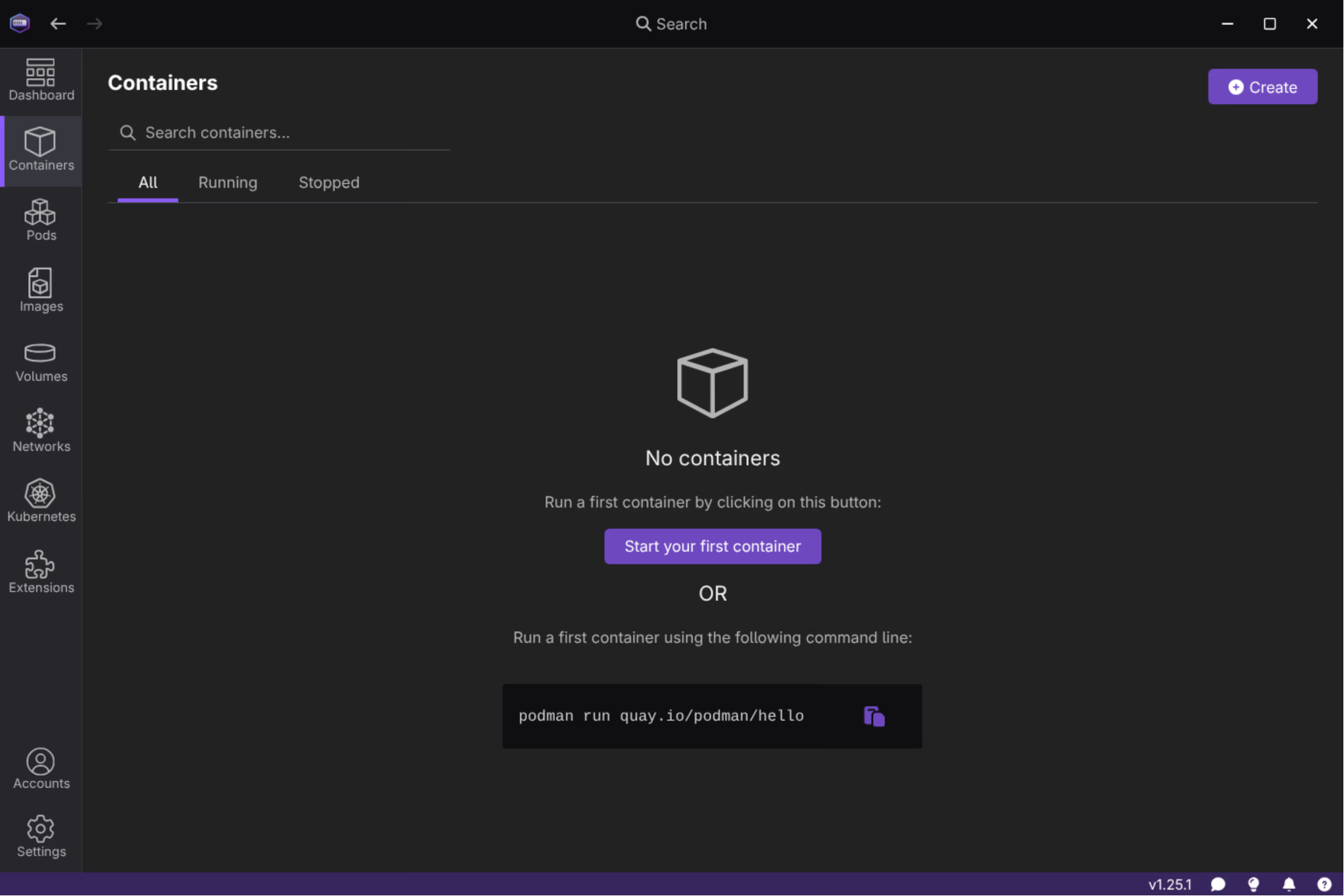
Podman itself is detected immediately since it was already installed via pacman. The setup wizard confirms this and lets you configure autostart:
Registry configuration
This is the part that requires some extra setup beyond just installing the packages.
The problem: unqualified image names
By default, Podman does not know which registry to search when you use a short image name like stensel8/my-image:latest. Docker defaulted to Docker Hub for this; Podman does not assume any registry unless you tell it to.
Pulling a short name without configuration fails:
$ podman pull stensel8/public-cloud-concepts:latest
Error: short-name "stensel8/public-cloud-concepts:latest" did not resolve to an alias
and no unqualified-search registries are defined in "/etc/containers/registries.conf"
The same error occurs when using the docker shim:
$ docker pull stensel8/public-cloud-concepts:latest
Emulate Docker CLI using podman. Create /etc/containers/nodocker to quiet msg.
Error: short-name "stensel8/public-cloud-concepts:latest" did not resolve to an alias
and no unqualified-search registries are defined in "/etc/containers/registries.conf"
Fix: add unqualified-search-registries
Edit /etc/containers/registries.conf and uncomment (or add) the unqualified-search-registries line:
sudo nano /etc/containers/registries.confFind and update this line:
unqualified-search-registries = ["docker.io", "ghcr.io"]After saving, short names resolve correctly:
$ docker pull stensel8/public-cloud-concepts:latest
Emulate Docker CLI using podman. Create /etc/containers/nodocker to quiet msg.
✔ docker.io/stensel8/public-cloud-concepts:latest
Trying to pull docker.io/stensel8/public-cloud-concepts:latest...
Connecting Docker Hub and GitHub Container Registry
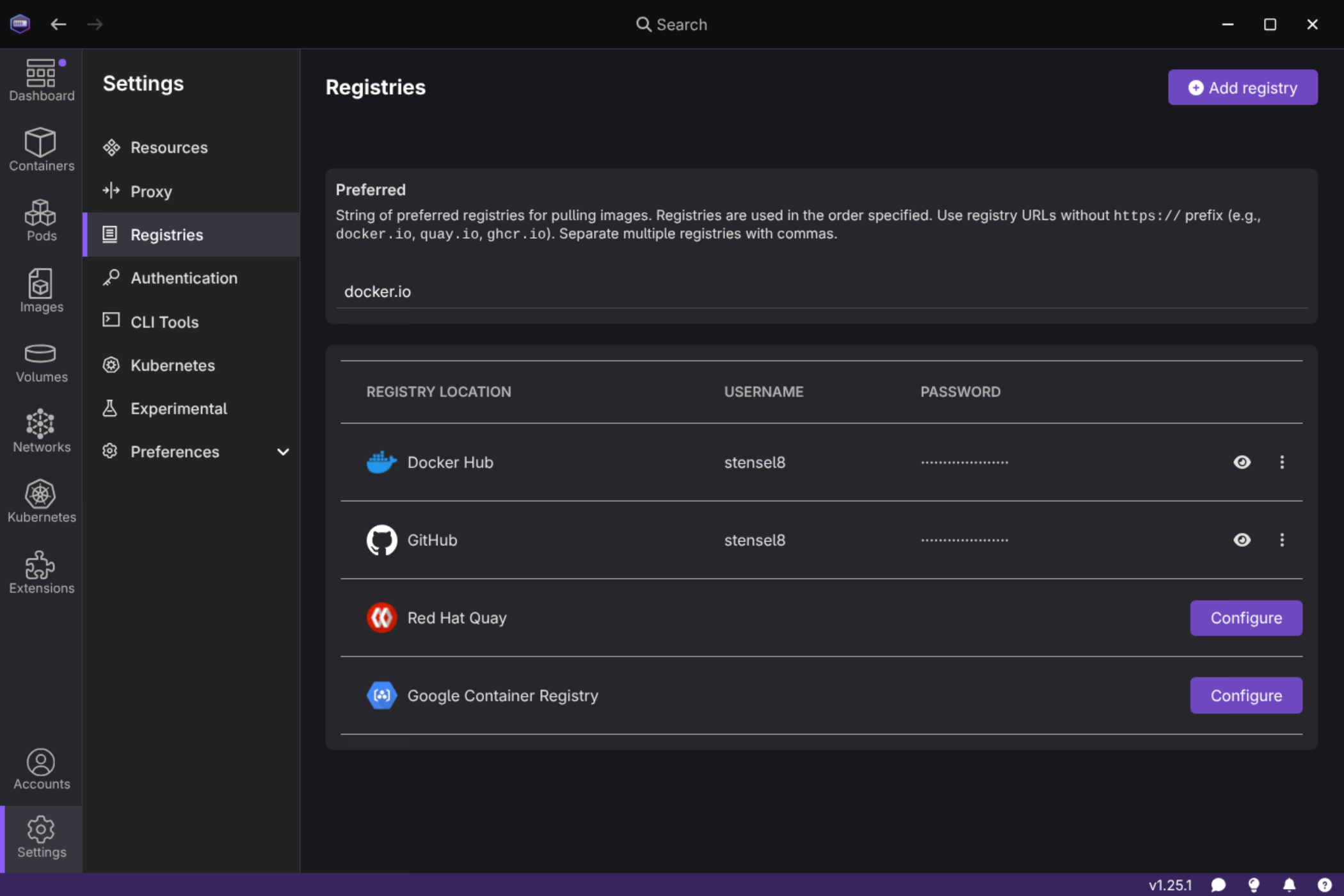
Even with search registries configured, pulling from private repositories requires authentication. Podman Desktop handles this through Settings → Registries.
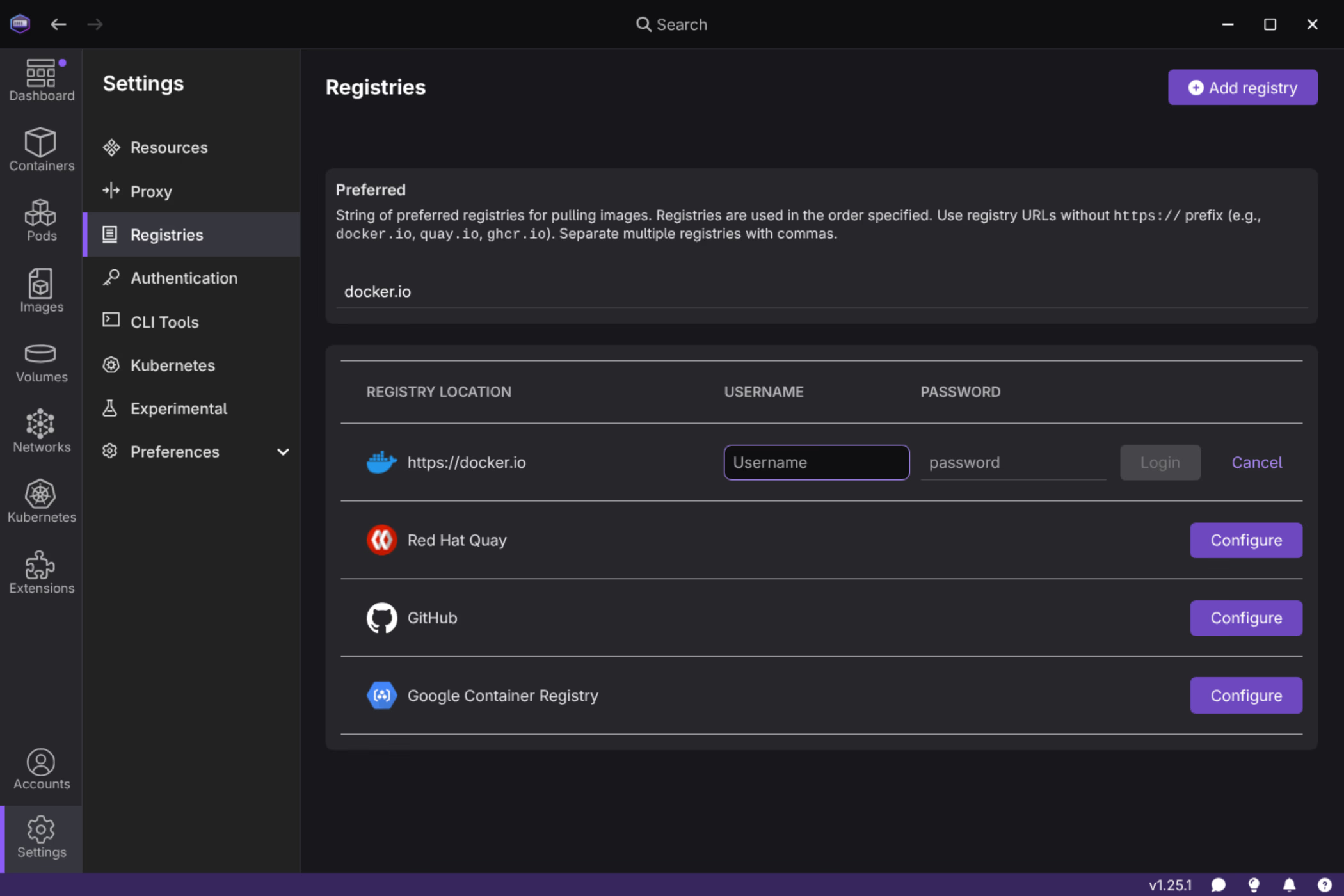
The UI lets you log in to Docker Hub, GitHub Container Registry, Red Hat Quay, and Google Container Registry. Entering your password directly is not recommended, use Personal Access Tokens (PATs) instead.
Create a Docker Hub PAT
Go to hub.docker.com → Account Settings → Personal access tokens → New access token.
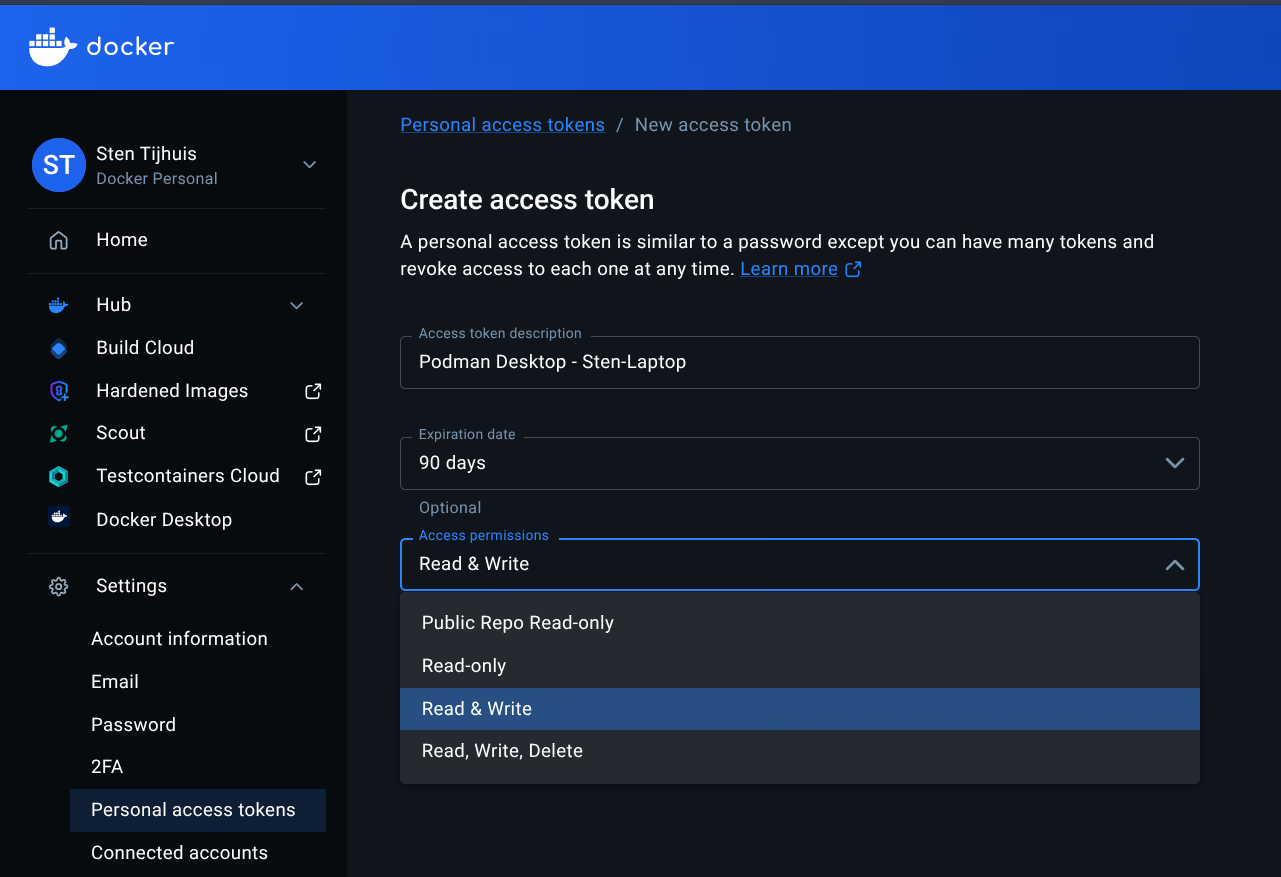
Give the token a descriptive name (e.g. Podman Desktop - Sten-Laptop) and set the permissions you need. Use this token as the password in Podman Desktop.
Create a GitHub PAT
Go to GitHub → Settings → Developer settings → Personal access tokens → Tokens (classic) → Generate new token.
Select the read:packages scope (and write:packages if you push images). Copy the token immediately, GitHub only shows it once.
Enter tokens in Podman Desktop
In Settings → Registries, use your username and the PAT as the password for both Docker Hub and GitHub. Once saved, both registries show as authenticated:
After that, images from private repositories on both registries pull without issues.
Managing images and containers
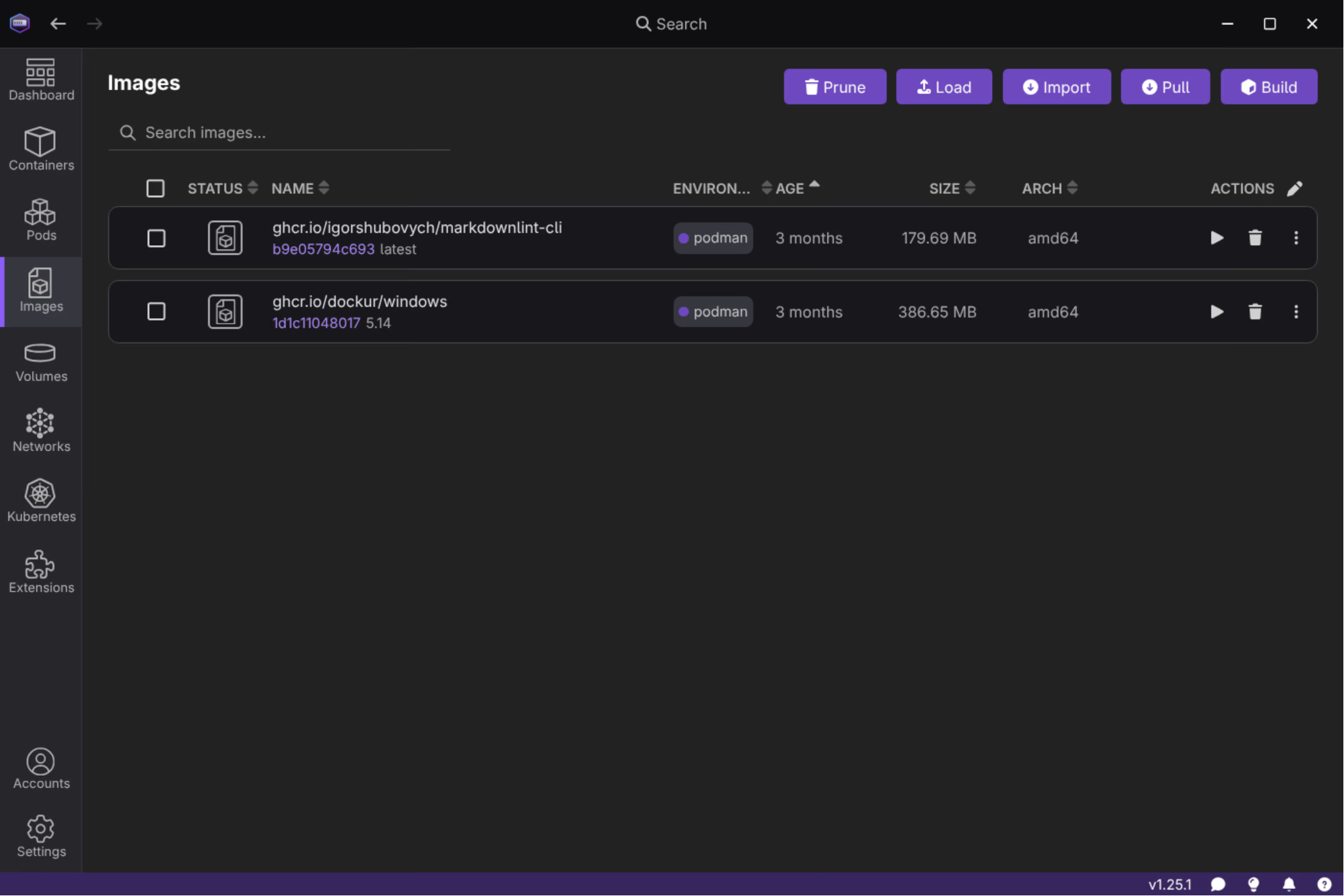
The Images view shows all locally pulled images with their registry source, size, and architecture:
Podman Desktop also includes Kubernetes support out of the box via the kubectl extension, and supports Docker Compose files natively through podman compose.