VMware Workstation
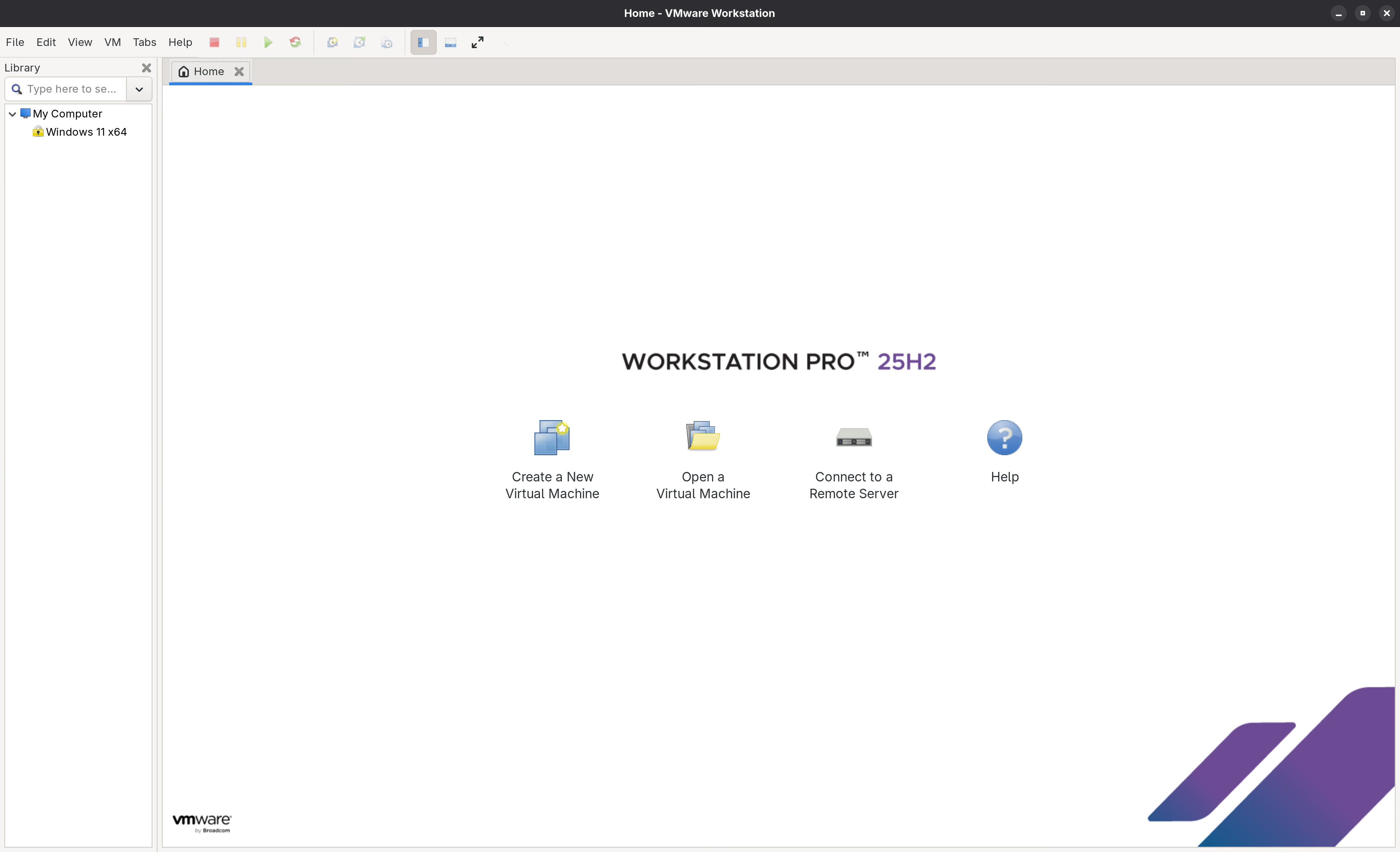
VMware Workstation runs well on CachyOS with some initial setup. The main steps are installing the package from AUR, fixing the DKMS kernel modules, and configuring networking. On GNOME 49 Wayland there is also a keyboard grab fix required.
Package: vmware-workstation 25H2u1-1 from AUR
Installation
Install VMware Workstation
paru -S vmware-workstation
sudo pacman -S linux-cachyos-headers dkms linux-headers
sudo systemctl enable --now vmware-networks.service
Fix DKMS modules (vmmon/vmnet)
After installation, the vmmon and vmnet kernel modules may fail to build. Check the build log first:
sudo cat /var/lib/dkms/vmmon/1/build/make.logRebuild the modules:
sudo dkms autoinstall
sudo vmware-modconfig --console --install-all
Verify the modules loaded correctly:
lsmod | grep vm
sudo dmesg | grep -e vmmon -e vmnet
Then reboot:
rebootVM Configuration
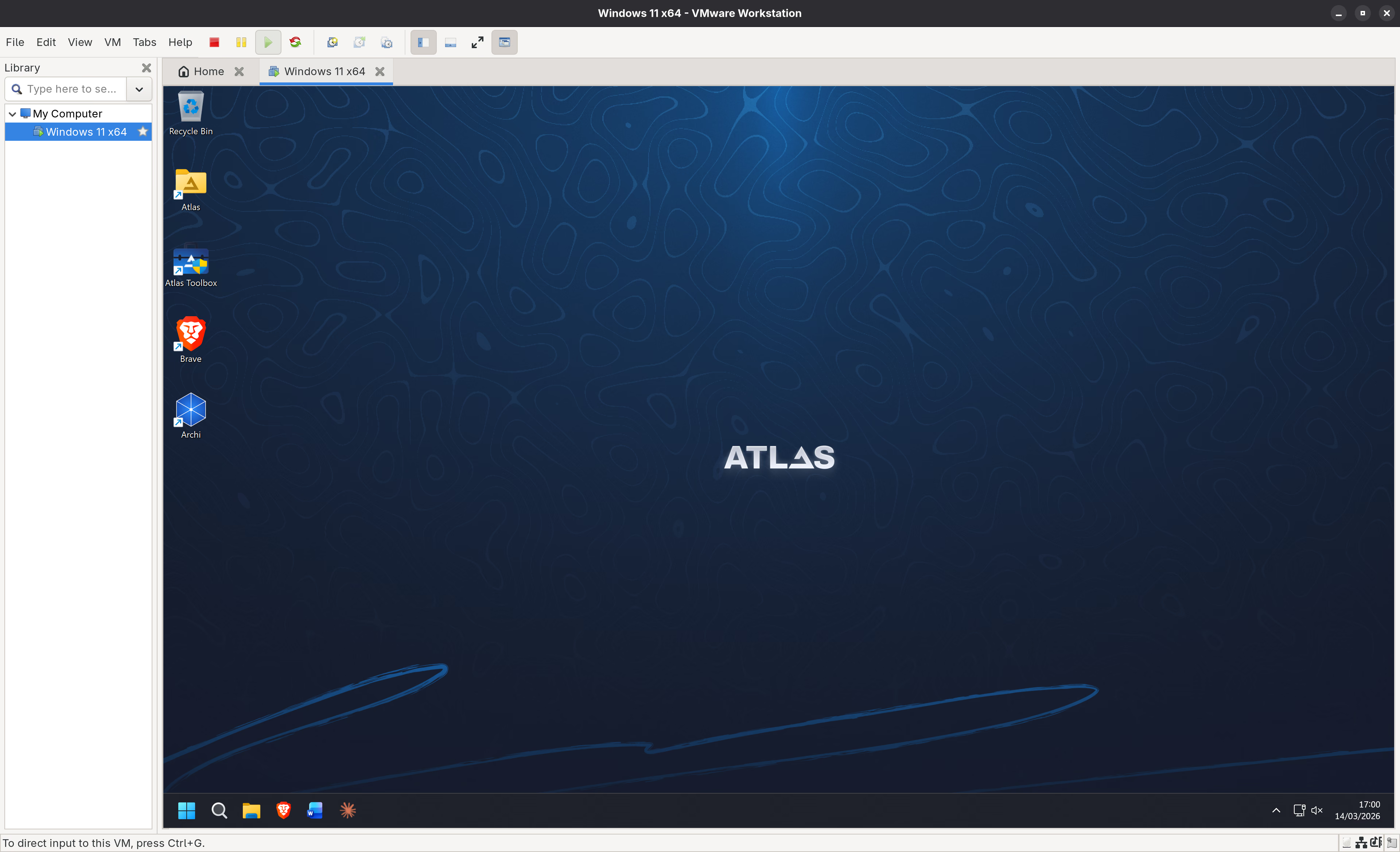
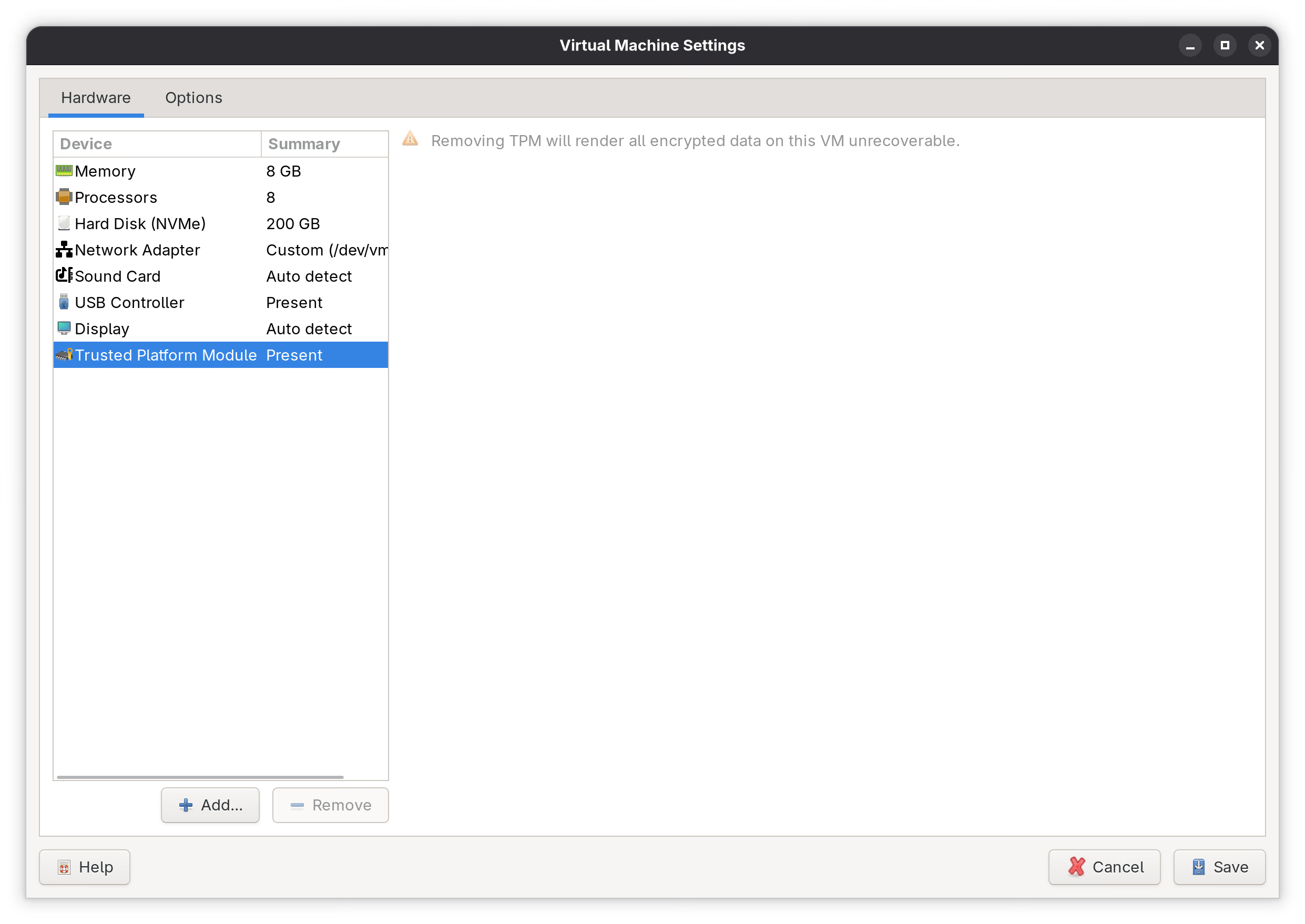
The VM settings dialog lets you adjust hardware resources assigned to a virtual machine.
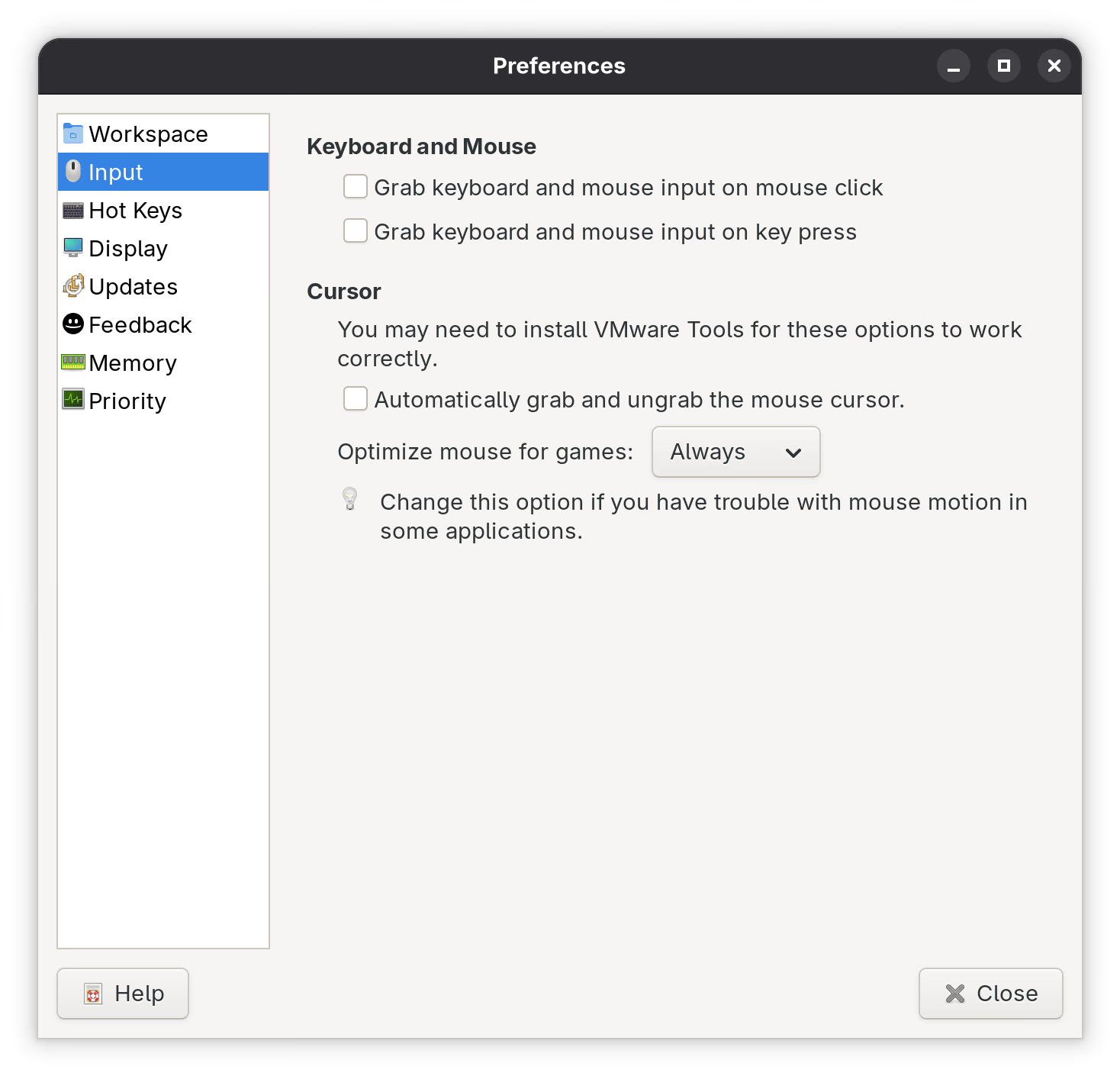
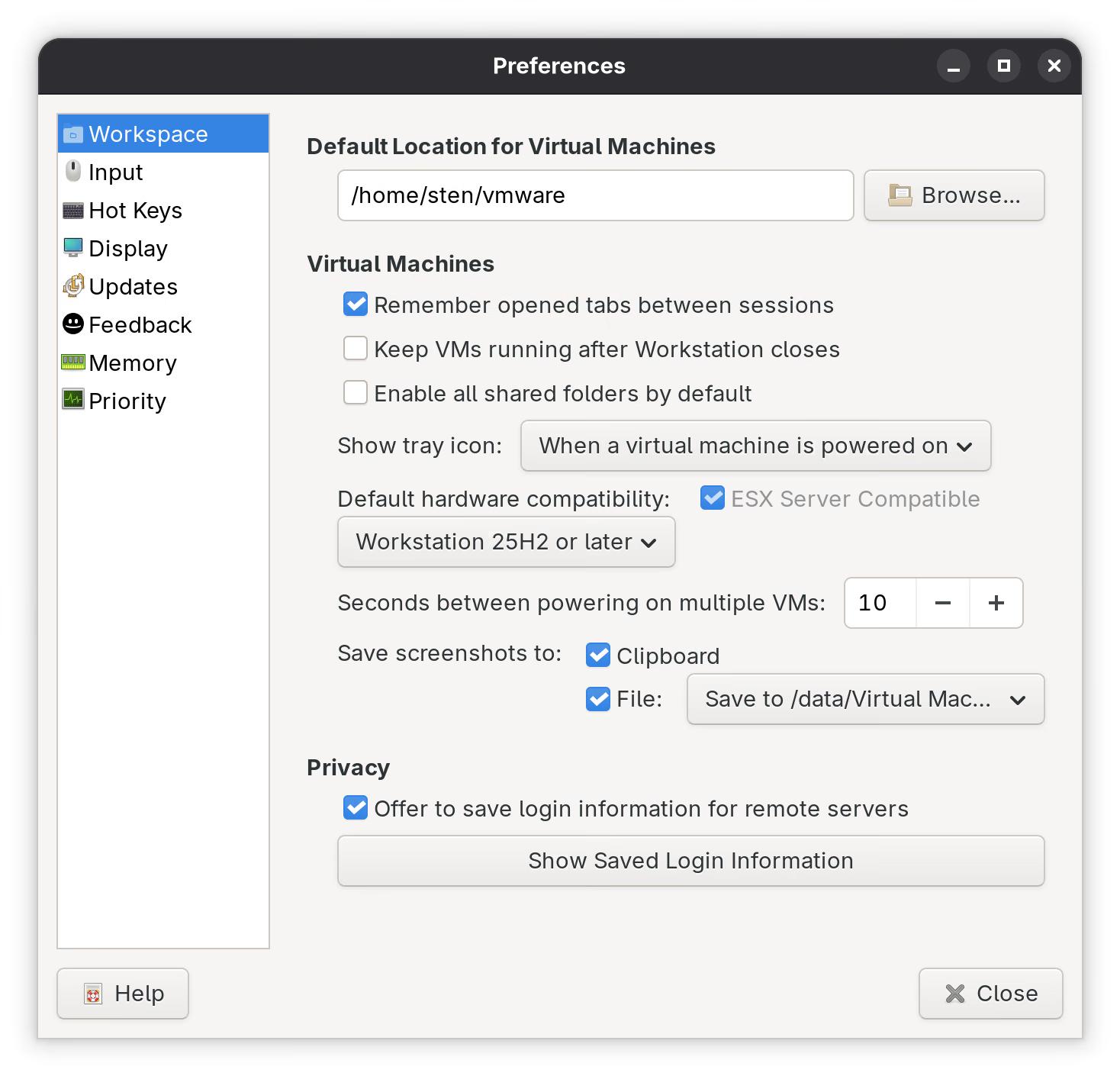
Recommended VMware preferences
Open Edit → Preferences to configure global VMware settings. The Workspace tab shows the default VM storage location and hardware compatibility level.
Networking
Fix vmnet1/vmnet8 networking
If the virtual network interfaces are not working, check the kernel log first:
sudo dmesg | grep vmnetReset the VMware networking configuration:
sudo rm -rf /etc/vmware/networking /etc/vmware/vmnet* /var/lib/vmware/Network*
sudo vmware-networks --stop
sudo vmware-networks --start
sudo systemctl restart vmware vmware-networks
Manual /etc/vmware/networking (if a directory error occurs):
sudo rm -rf /etc/vmware/networking
sudo mkdir -p /etc/vmware
echo '[devices]' | sudo tee /etc/vmware/networking
echo 'vmnet1 = "yes"' | sudo tee -a /etc/vmware/networking
echo 'vmnet8 = "yes"' | sudo tee -a /etc/vmware/networking
In Virtual Network Editor (GUI):
- VMnet1 → Host-only
- VMnet8 → NAT
- Apply/Save
GNOME 49 Wayland Keyboard Grab
Fix keyboard input inside VMs on GNOME 49 Wayland
On GNOME 49 with Wayland, keyboard input may not work correctly inside VMware VMs. XWayland keyboard grab needs to be explicitly permitted for VMware processes.
gsettings set org.gnome.mutter.wayland xwayland-allow-grabs true
gsettings set org.gnome.mutter.wayland xwayland-grab-access-rules "['vmware', 'vmware-vmx']"
gsettings reset org.gnome.desktop.wm.keybindings switch-applications
gsettings reset org.gnome.desktop.wm.keybindings switch-windows
Apply the changes by restarting your GNOME session:
- Log out of GNOME and log back in, or reboot your system.
After restarting the session, the new XWayland keyboard grab settings will be active.
In VMware:
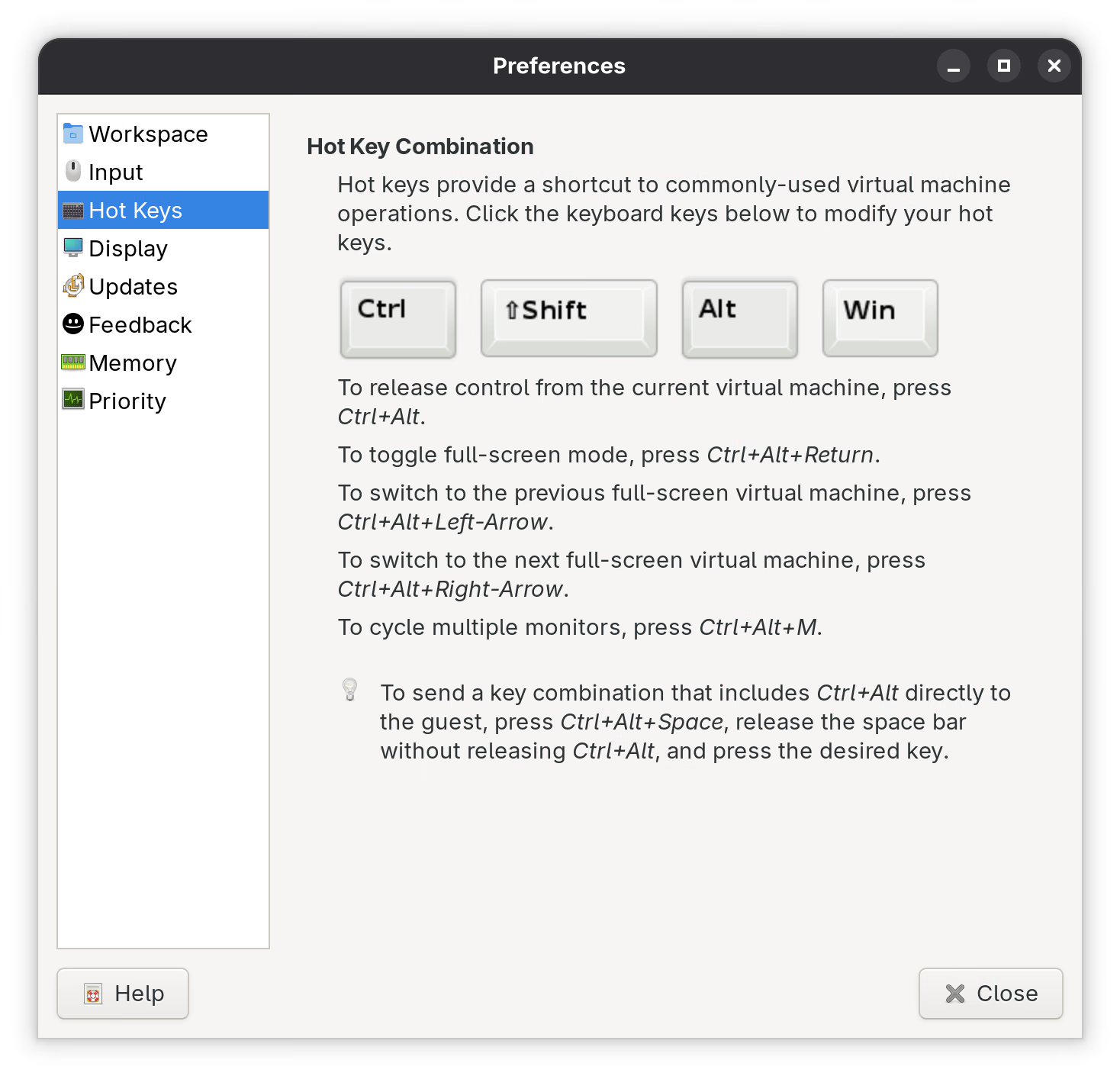
- Use Ctrl+Alt to toggle input grab
- Enable fullscreen to improve keyboard handling
- Windows shortcuts now work inside the guest